# Remote access
Source: https://frameleaf.app/docs/cloud/remote-access/
Remote access lets you and your family reach your Frameleaf server and library away from home, from anywhere, just like a hosted photo service. Your phone keeps backing up while you're away, shared links work for everyone, and the [Apple TV](https://frameleaf.app/docs/apps/apple-tv/) and [Android TV](https://frameleaf.app/docs/apps/android-tv/) apps connect through it. There's nothing to set up on your router. If you'd rather run it yourself, you can also use a [VPN or your own reverse proxy](https://frameleaf.app/docs/admin/remote-access/).
You'll find it in **Settings**, then **Frameleaf Cloud**, then **Remote access**. Only administrators can change it.
## What you need
| | Server licence | Server licence and Frameleaf Cloud plan |
| --- | --- | --- |
| Frameleaf direct address and certificate | Yes, set up automatically | Yes |
| A browser or your Buddy partner reaches the server straight at your home | Yes, when your router lets them in | Yes |
| Connections through Frameleaf, when a direct one can't be made | No | Yes |
| A name of your own on frameleaf.net | No | Yes |
| Your own domain | No | Yes |
| Frameleaf apps away from home | No, home network only | Yes |
[](https://frameleaf.app/shots/docs/remote-access-2026-11.jpg)
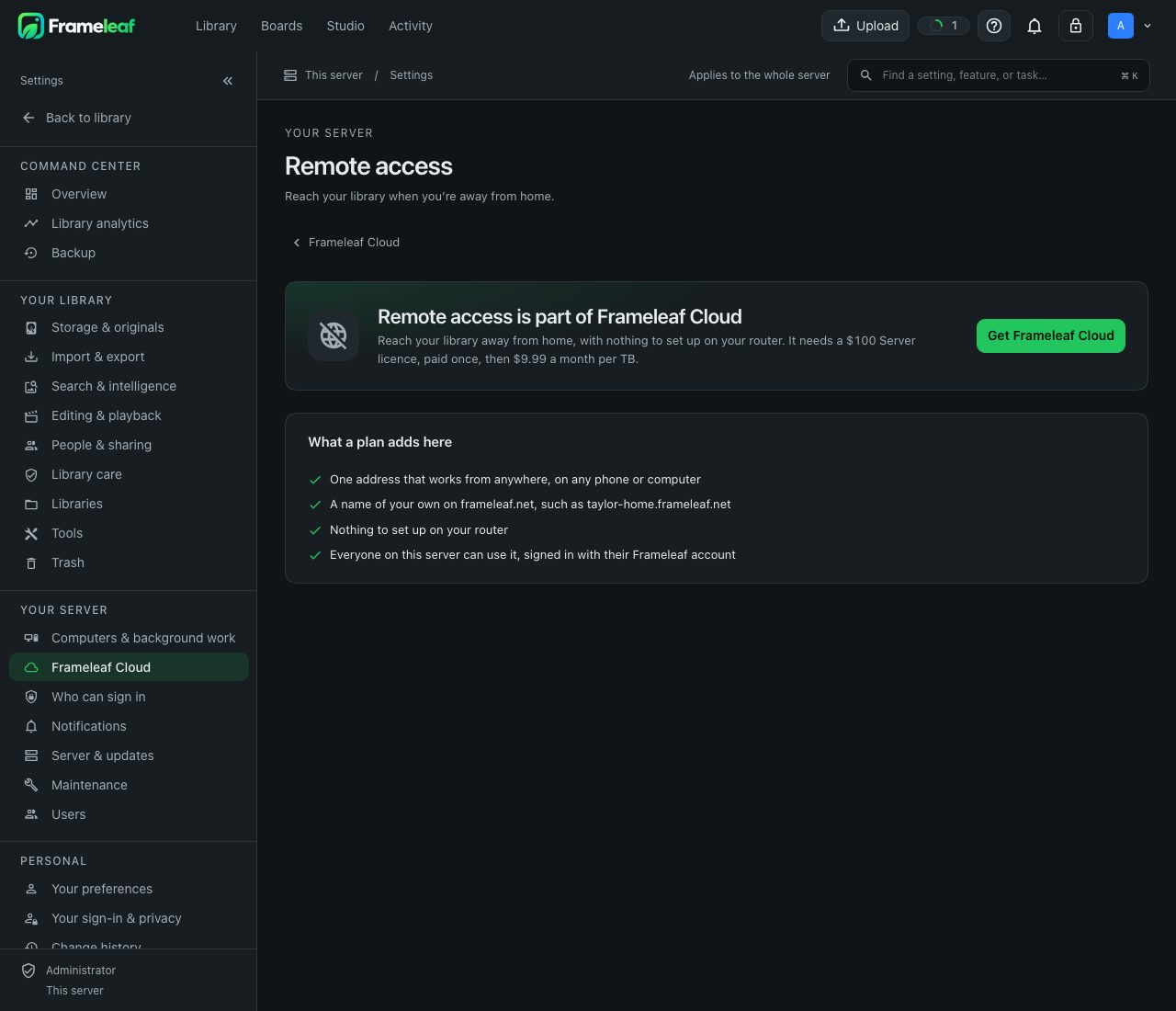
With a linked server and a Server licence, your server gets its Frameleaf direct address and certificate on its own, with no plan. Everything else needs a [Frameleaf Cloud plan](https://frameleaf.app/docs/cloud/overview/#what-a-cloud-plan-includes). Without one, the page says **Remote access is part of Frameleaf Cloud**, with **Get Frameleaf Cloud**, and **How devices connect** shows **Needs a plan**.
If your plan ends but the licence stays active, connections through Frameleaf stop and the direct address keeps working. At home, everything works as before.
## Turn it on
1. [Link the server](https://frameleaf.app/docs/cloud/account/#link-a-server) from **Settings**, then **Frameleaf Cloud**, then **Account & link**.
2. Open **Remote access**. While it's off, the page says **Remote access is off**.
3. Choose **Turn on**. **Remote access is starting** shows while your server gets its address and certificate, which takes a minute or two.
4. When the page says **Remote access is on and working**, copy the address under **Your public address**, or choose **Show QR code**.
5. Try it from another network, such as your phone's mobile connection.
Once it's on, **Let people reach this server away from home** switches it off again. Turning it off disconnects anyone away from home straight away.
The status at the top always says how things stand:
| The page says | What it means |
| --- | --- |
| **Remote access is on and working** | Frameleaf reached your server from outside your home. **Check again** runs the check now. |
| **Remote access is starting** | The server is getting its address and certificate. |
| **This server can’t be reached from outside your home** | Usually your home internet is down, or the server has just restarted. Frameleaf keeps trying and carries on by itself. |
| **Remote access is working, but slower until …** | This month's allowance through Frameleaf is used up. See [Limits](#limits). |
| **Remote access is off** | Your library can only be reached at home. |
**Run a connection test** checks each part in turn: **Security certificate**, **This server is listening**, **A test request got through**, **Through Frameleaf** and **Straight to your home**. **Details of the check** shows which passed.
## How devices connect
Under **How devices connect**, choose one:
- **Straight to your home when possible.** Faster, and it doesn't use your monthly allowance. Frameleaf sets up your router for you. When that isn't possible, the connection goes through Frameleaf instead.
- **Always through Frameleaf.** Works everywhere, at up to 8 Mbit/s, which is enough to browse and watch. It counts toward your monthly allowance.
Either way, nobody but you and the people you invited can see inside the connection. In the Frameleaf apps, these routes are called **Home** (your own network), **Direct** (straight to your home) and **Relay** (through Frameleaf).
A connection straight to your home depends on your router and your internet provider. **Connection details** shows the **Door on your router**: the port devices come in through, `2443` unless you change it. If your router can't be set up automatically, turn on **I set up my router myself**, forward the port by hand and enter it under **Port you forwarded**. If your internet provider shares one public address between customers, direct connections aren't possible, and everything goes through Frameleaf with nothing for you to do.
Your database and Manager administration stay private; your photo library doesn't need them to be public.
## Your server's addresses
**Your public address** is where people reach your server from anywhere. Copy it, or use **Show QR code** and **Download QR code**.
### Your name on frameleaf.net
A plan comes with a name of your own on frameleaf.net, such as `taylor-home.frameleaf.net`. Shared links, emails and the Frameleaf apps use it.
1. Under **Your name on frameleaf.net**, type a name: letters, numbers and hyphens, 3 to 40 characters.
2. When the page says the name is free, choose **Use this name**.
If you change the name later, links with the old one keep working for 30 days, then stop. Your server's technical address reaches it too, and never changes whatever name you choose.
### Use your own domain
Put your library on a domain you own, such as `photos.example.com`. Frameleaf still carries the traffic, and your server still holds the certificate.
1. Open **Use your own domain** and enter a subdomain you control under **Custom hostname**.
2. Add the two DNS records shown, with their **Type**, **Name** and **Points to**, at your domain provider.
3. Choose **Check my domain**. Nothing changes until both records are found. DNS changes can take up to an hour.
4. Test the hostname from another network, then share it.
If the check keeps failing, compare your DNS records with the values shown, and check whether the domain restricts which certificate authorities may issue for it. **Remove domain** takes it away again.
### The address in links you share
**The address in links you share** decides what shared links, emails and sign-in use: **Your Frameleaf address**, **Your own domain** once it's set up, or **Another address**, which is only for people who run their own gateway in front of the server. Test it from the networks people will use.
## Limits
**This month through Frameleaf** shows how much has been sent through Frameleaf this month, out of the monthly allowance your plan includes. Connections straight to your home aren't counted. If the allowance runs out, connections through Frameleaf slow down until the 1st of the next month. Remote access never stops, and Frameleaf emails you before you get there.
### Originals through Frameleaf
**Let people download full-size originals through Frameleaf** decides whether full-size originals can be downloaded over a connection through Frameleaf. Originals are large and use the allowance quickly. Photos and videos always open and play either way. If a download isn't offered, use a home or direct connection, or ask your administrator.
## Who can sign in
**Signing in away from home** applies to every connection from outside your home, whichever way it arrives:
- **Frameleaf account only (recommended).** Everyone away from home signs in with their Frameleaf account.
- **Frameleaf account or password.** Also lets people type the server's password away from home. Passwords are easier to guess, or to be tricked out of, so keep this only for someone who can't use a Frameleaf account.
Links you shared publicly still open without signing in, and at home people keep signing in however they do now. API keys keep their owner's access.
Each person links their own Frameleaf account. See [Your Frameleaf account](https://frameleaf.app/docs/cloud/account/#sign-in-with-frameleaf-on-your-server) and [Sharing](https://frameleaf.app/docs/using/sharing/).
## Privacy
Connections through Frameleaf are encrypted, and your server keeps its certificate's private key: it never leaves the server, and the certificate renews automatically. To route connections, the service sees information such as addresses and the number of bytes transferred. **What this server sends**, on **Account & link**, shows the full details for your installation.
## If something stops
Check local access first, then the Cloud link, licence, plan and the status at the top of **Remote access**. **Run a connection test** shows which part fails. Local browsing keeps working even while remote access is down. After changing DNS, router settings or your internet connection, test again from outside your network.
If the page says **Frameleaf Cloud stopped connections through Frameleaf for this server**, the plan has ended or the server was unlinked. It resumes by itself once that's put right.
Before you unlink or cancel, make sure you have a local administrator sign-in and another way to reach the server.