
Frameleaf for iPhone Duo.
Two displays and a fold. Frameleaf reads the fold and lays your library out around it: open it like a book to compare two photos, prop it up to edit, or open two windows side by side.
The fold-aware update is described in the iPhone Duo guide. Closed, the outer display uses the familiar iPhone layout.
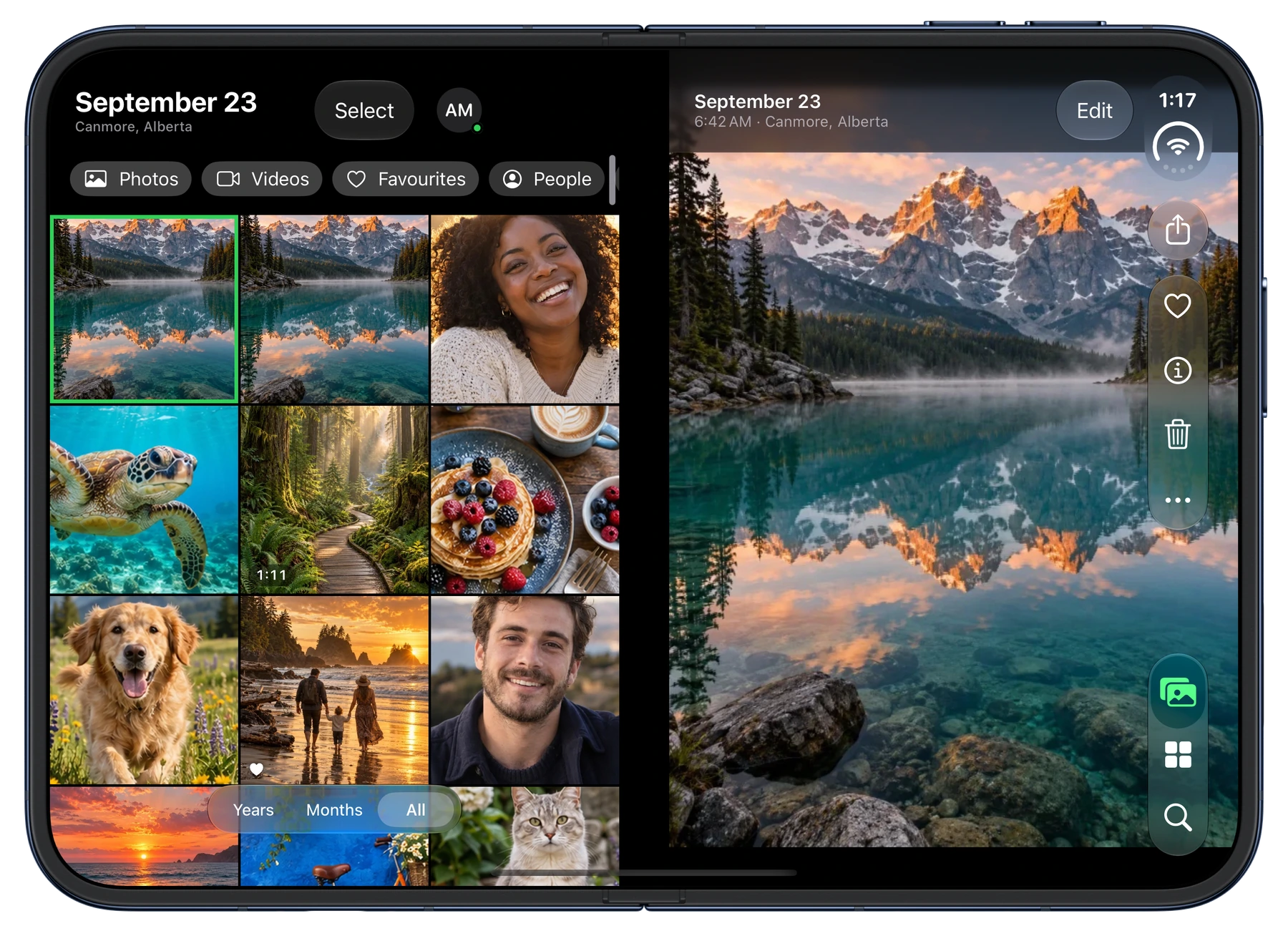
Open it like a book.
Held open, the Duo's inner display has the room of a small tablet. Frameleaf treats it that way: a bigger grid, a sidebar one tap away, and a photo that opens beside the grid instead of over it.
- No photo on the fold. The grid leaves a gap over the hinge, so no tile is ever split in two.
- More at a glance. The inner display shows more columns of your library at once.
- Keep your place. The photo at the top stays at the top when you open, fold or turn the phone.
One photo on each page.
Compare puts one photo either side of the fold, so the hinge becomes the divider. Pick the better shot of two with each one whole on its own page.
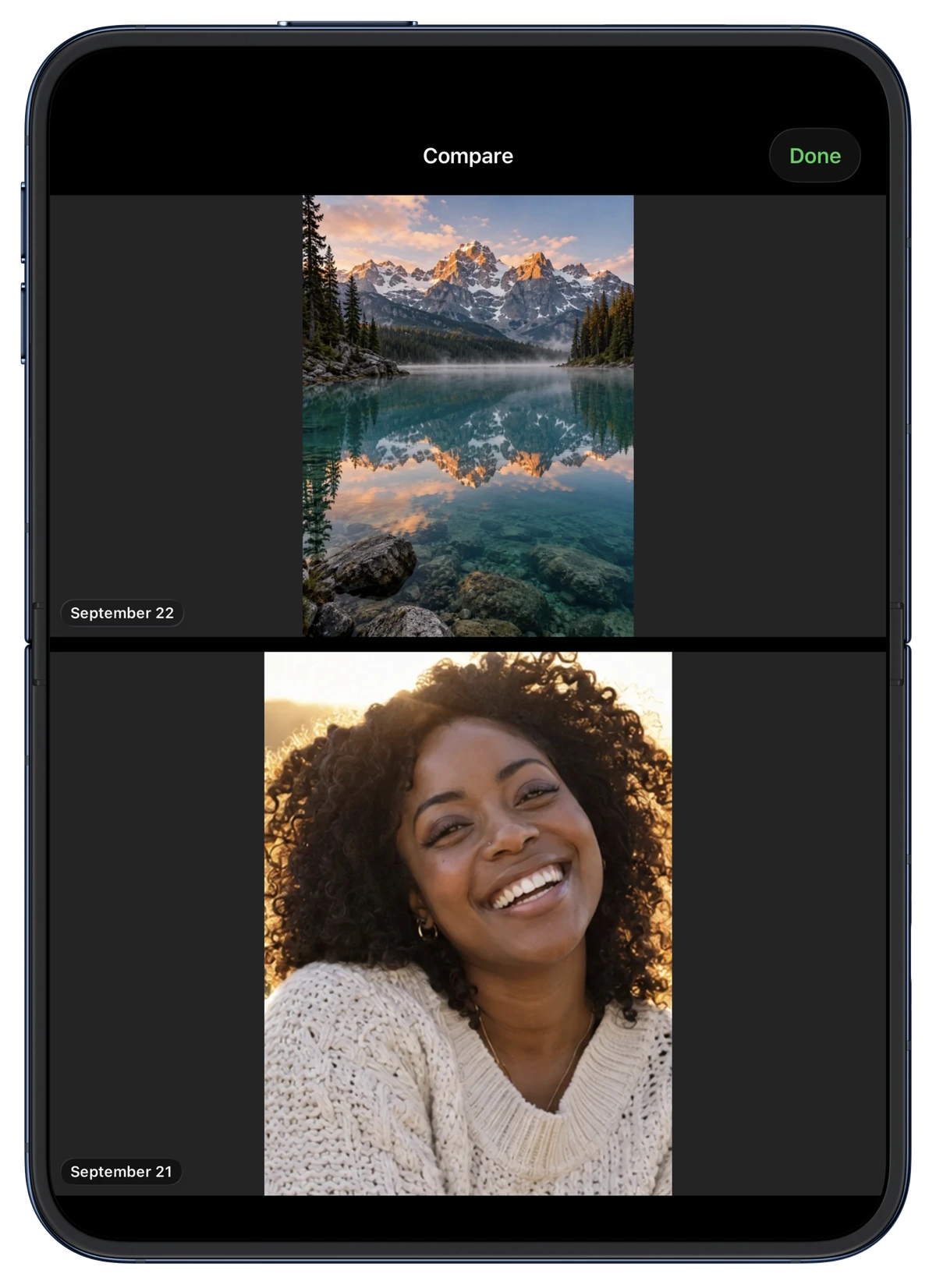
Room to view, edit and compare.
Use the full inner display for viewing, editing and comparing. Half-fold it like a tiny laptop and Frameleaf keeps photos and controls on separate halves.
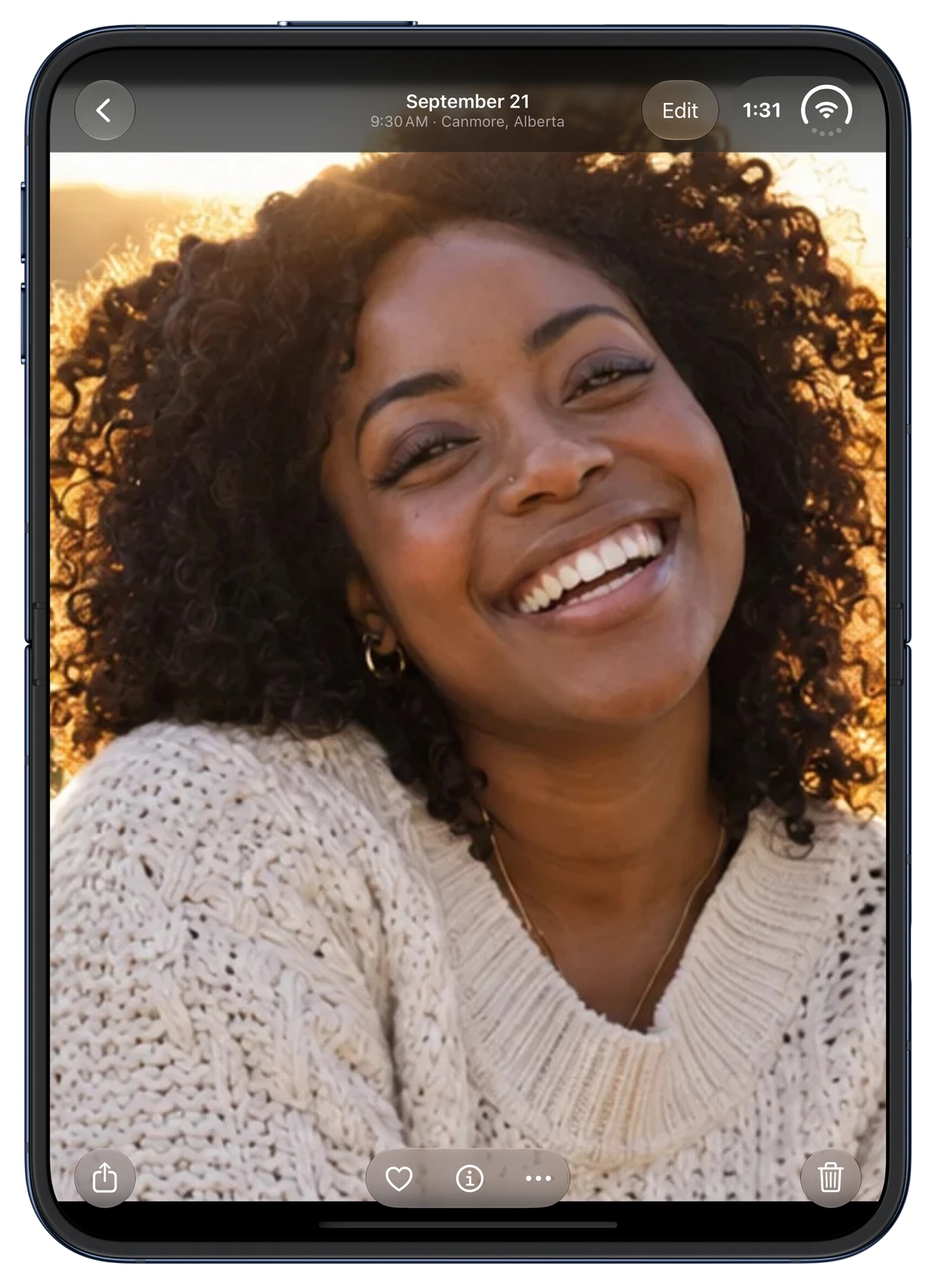
Viewer
Give a favourite photo the full display.
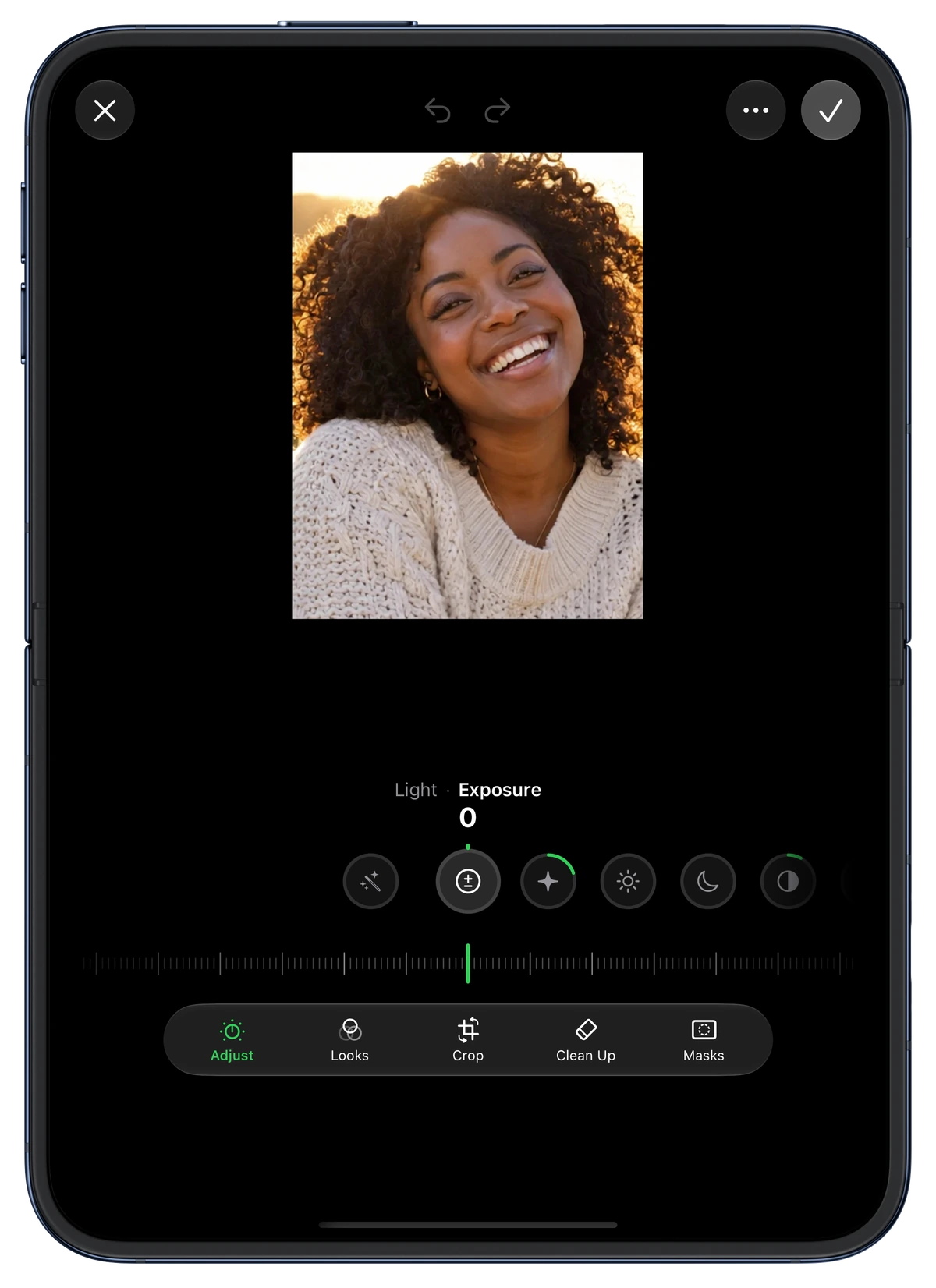
Editor
Light, colour and detail, with dials and tools below the photo.
Compare
One photo above the fold and one below.
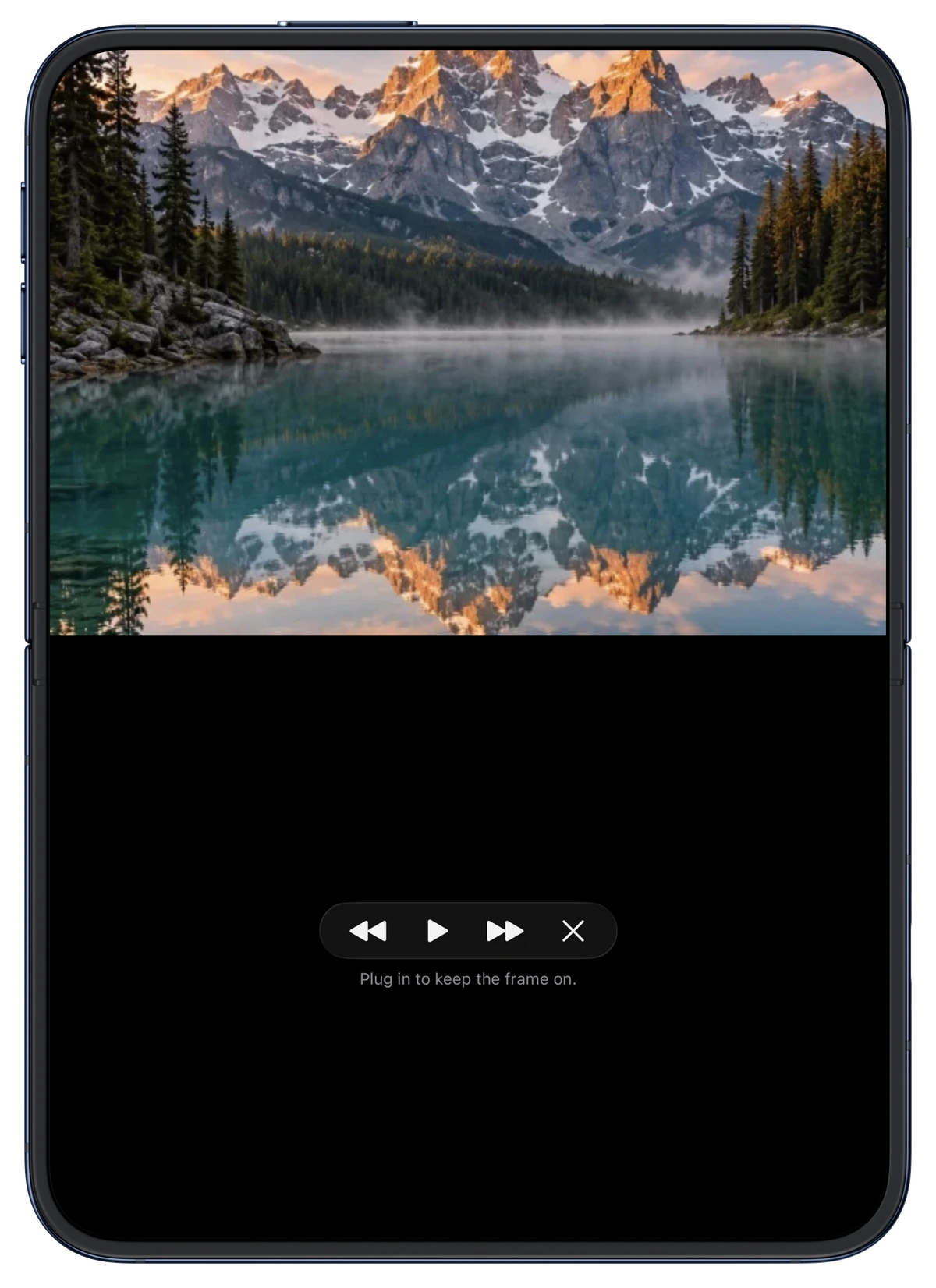
Frame: a photo frame on your desk.
Prop the Duo up and turn it into a small photo frame for a trip, a person or a year. On iPhone and iPad, Frame plays full screen from the same menu.
- Play anything as a frame. Start Frame from an album, person or memory menu.
- Made for the half-fold. The photo fills the top half, and small controls wait below.
- Plug in to keep it on. On power, the frame keeps going on your desk or bedside table.
Two windows. One library.
On the inner display, open more than one Frameleaf window, or use Frameleaf in Split View beside another app.
Open in a new window
Open an album, person or memory in its own window from its menu.
Drag between windows
Drag photos onto an album in the other window, and it updates in both.
Drop in from other apps
Photos and videos dropped from another app upload to your server, into the album you chose.
Drag out originals
Drag a photo into Mail, Notes or Files and it brings the original with it.
App Lock in every window
Each window is covered when the app locks, and unlocking asks once.
Each window remembers
Every window keeps its own tab, place and open photo.
What you need.
The iPhone Duo layouts depend on your installed app build. See the Duo guide for compatibility. Studio, the video editor, stays on iPad and the web.
iPhone Duo
The fold-aware layouts need iOS 27.1. On iPad, two windows and drag and drop work with iPadOS multitasking.
Your server
Connect at home, through your own HTTPS or VPN connection, or with Frameleaf Cloud remote access.