


Does Frameleaf Desktop replace my server?
Only if you choose Run Frameleaf here. Connected to a server, the app opens your library and helps with AI work while your photos stay on the server.
Frameleaf Desktop guide →Frameleaf Desktop opens your library in its own window and lends your computer to the faces, smart search and text recognition your server has waiting. It brings photo folders home, keeps your server close at hand, and can even host the whole library itself.
Free for Macs with Apple silicon, 64-bit Windows 11 and Linux.
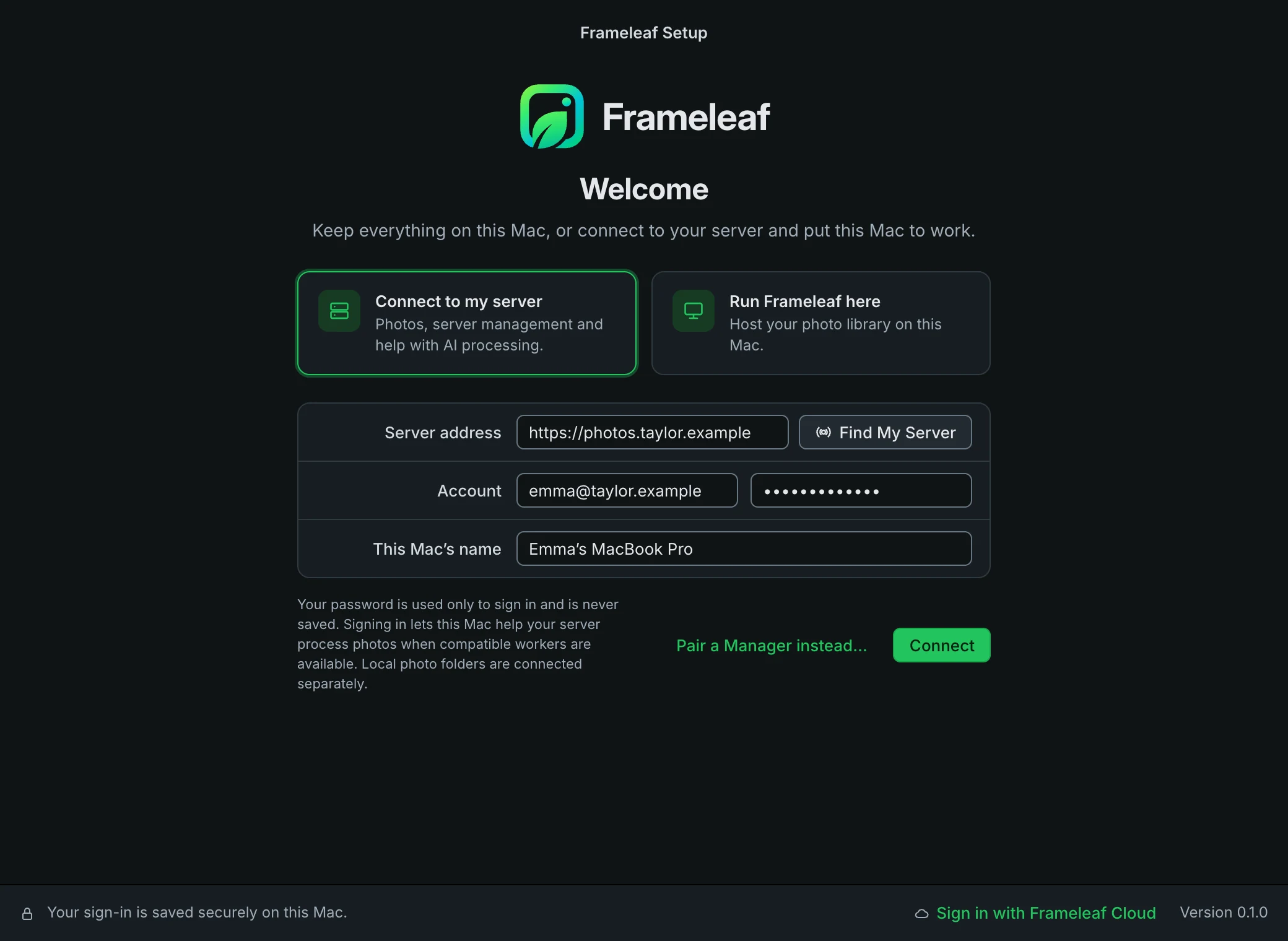
The first thing Frameleaf Desktop asks is how you’d like to use it. You can switch later.
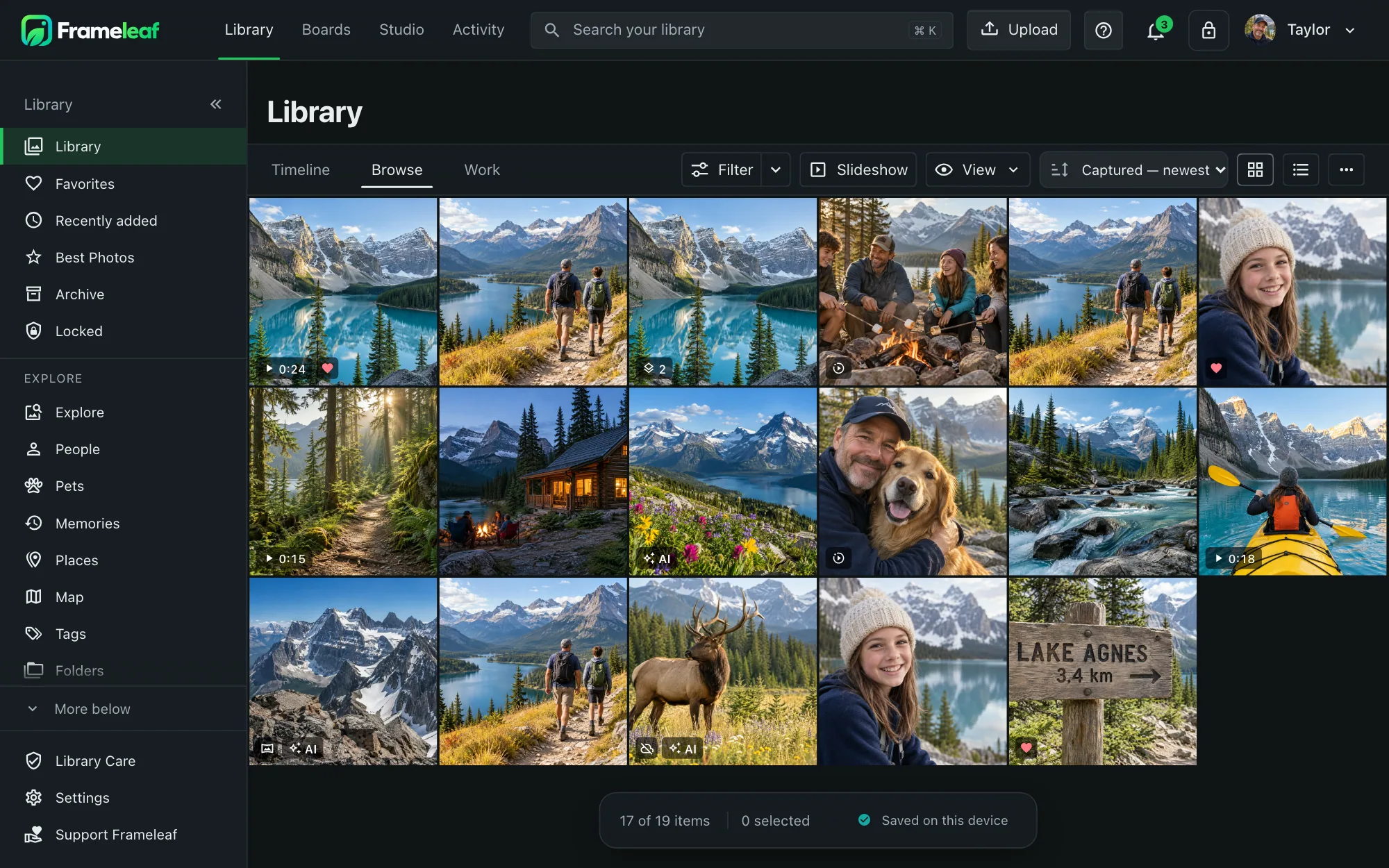
Your photos open in their own Photos window. Everything around them lives here, from AI work and photo folders to your server and your Frameleaf Cloud account.
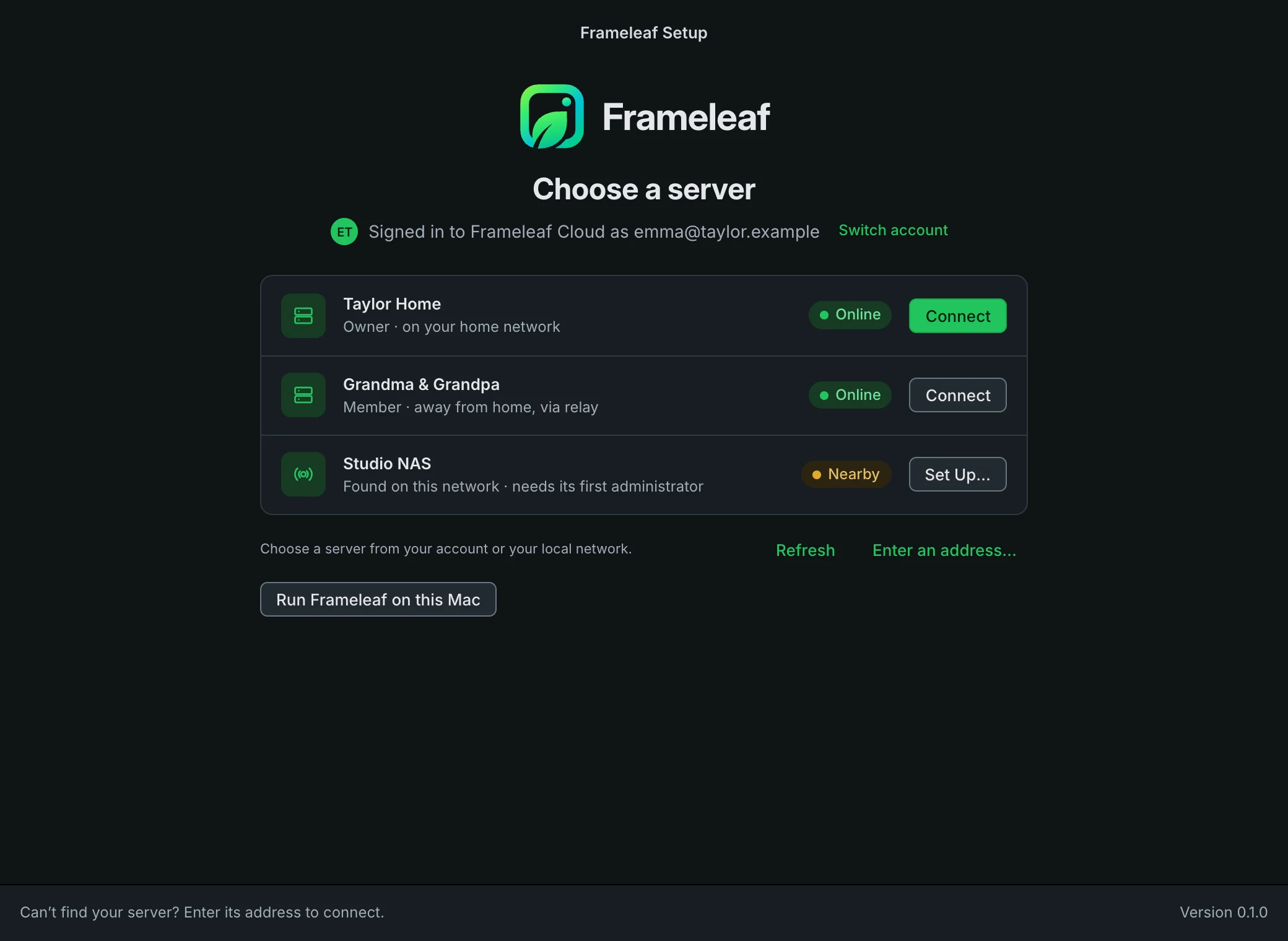
Sign in with Frameleaf Cloud in your browser and every server you belong to appears, with the one on this network marked. Or find a server nearby, or type its address.
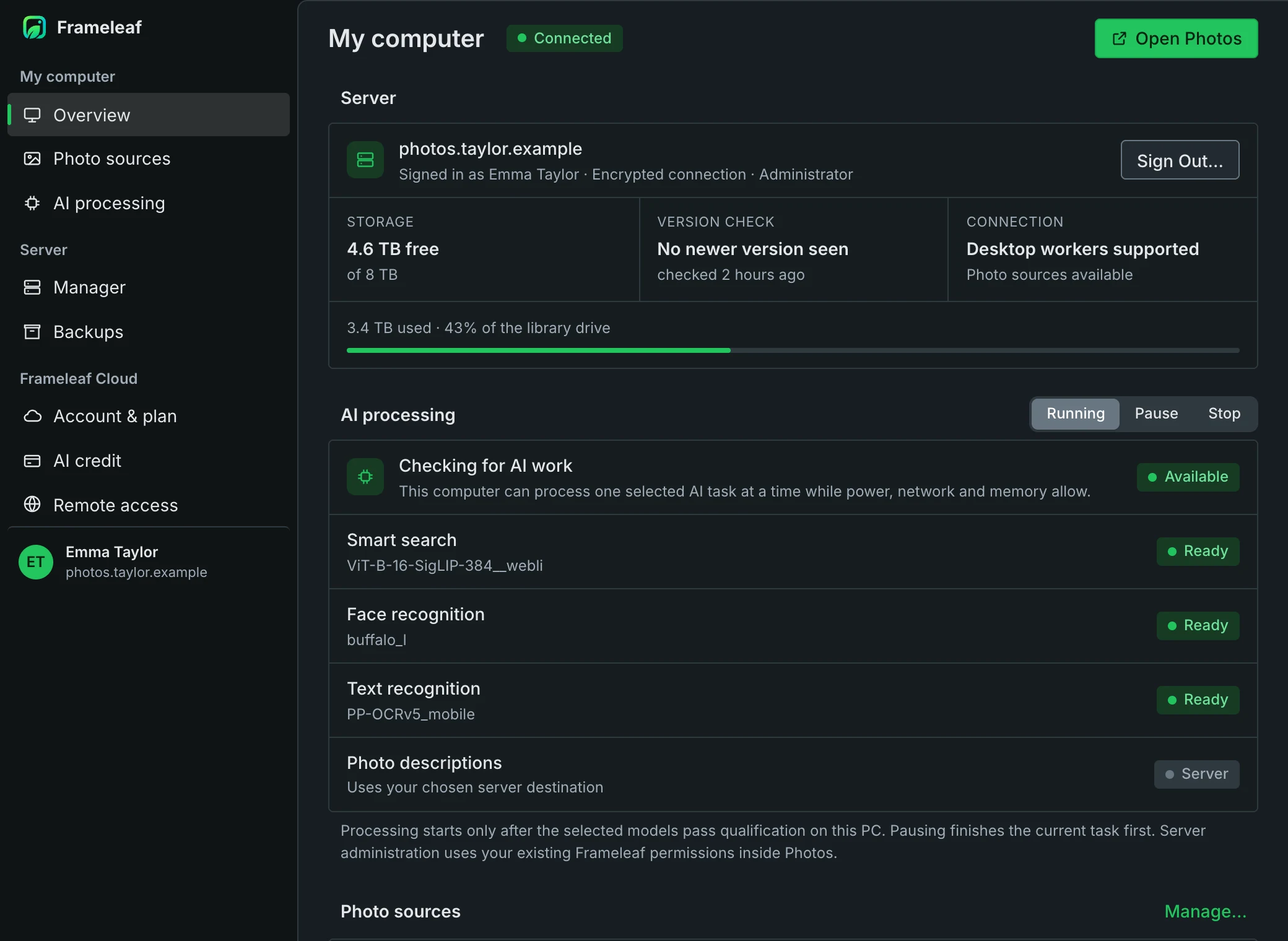
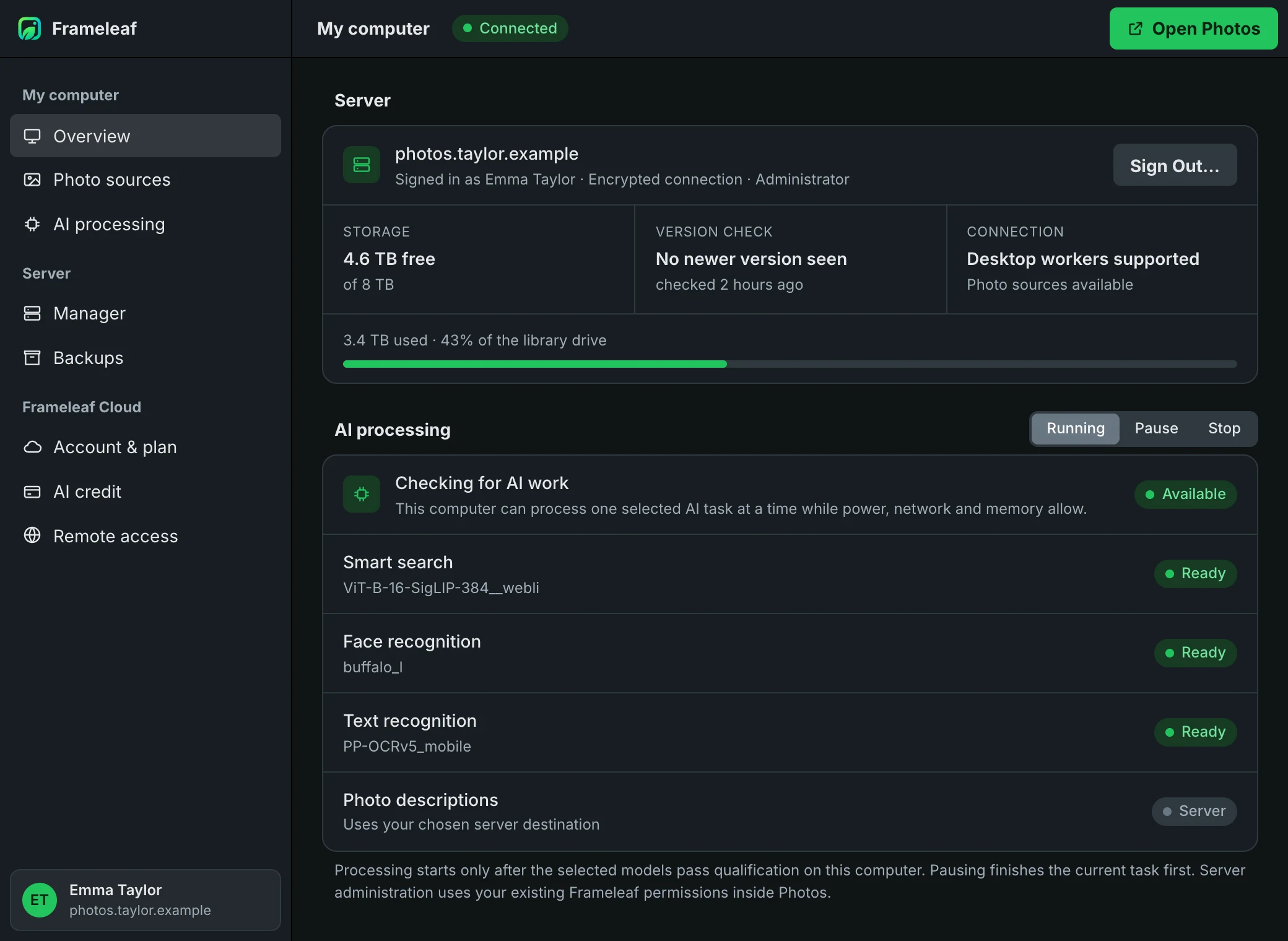
Free space, the latest version check, anything that needs attention and what this computer is doing for your library, on one page.
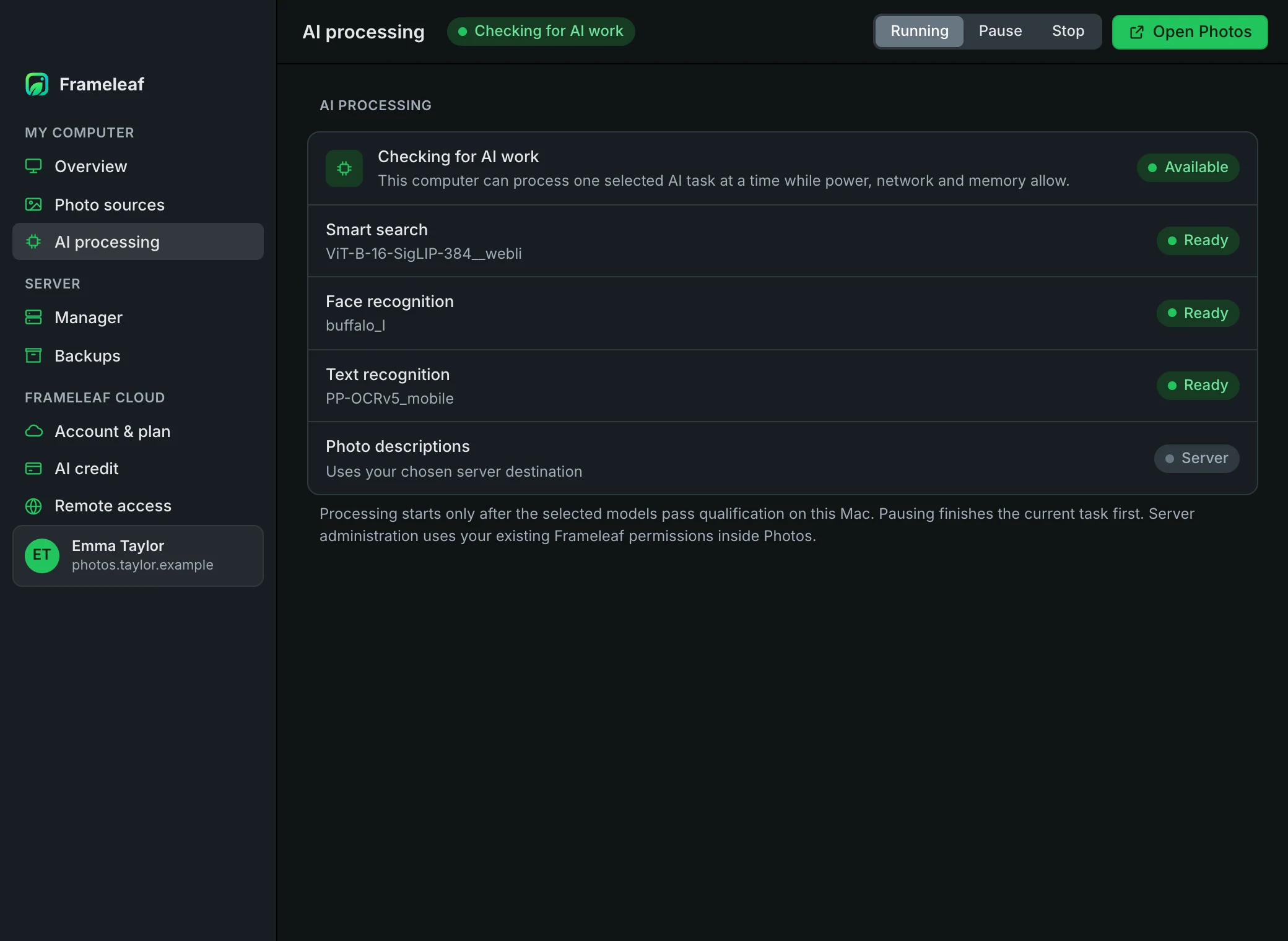
Smart search, faces and text recognition run here while you’re plugged in. Pause or stop whenever you like.
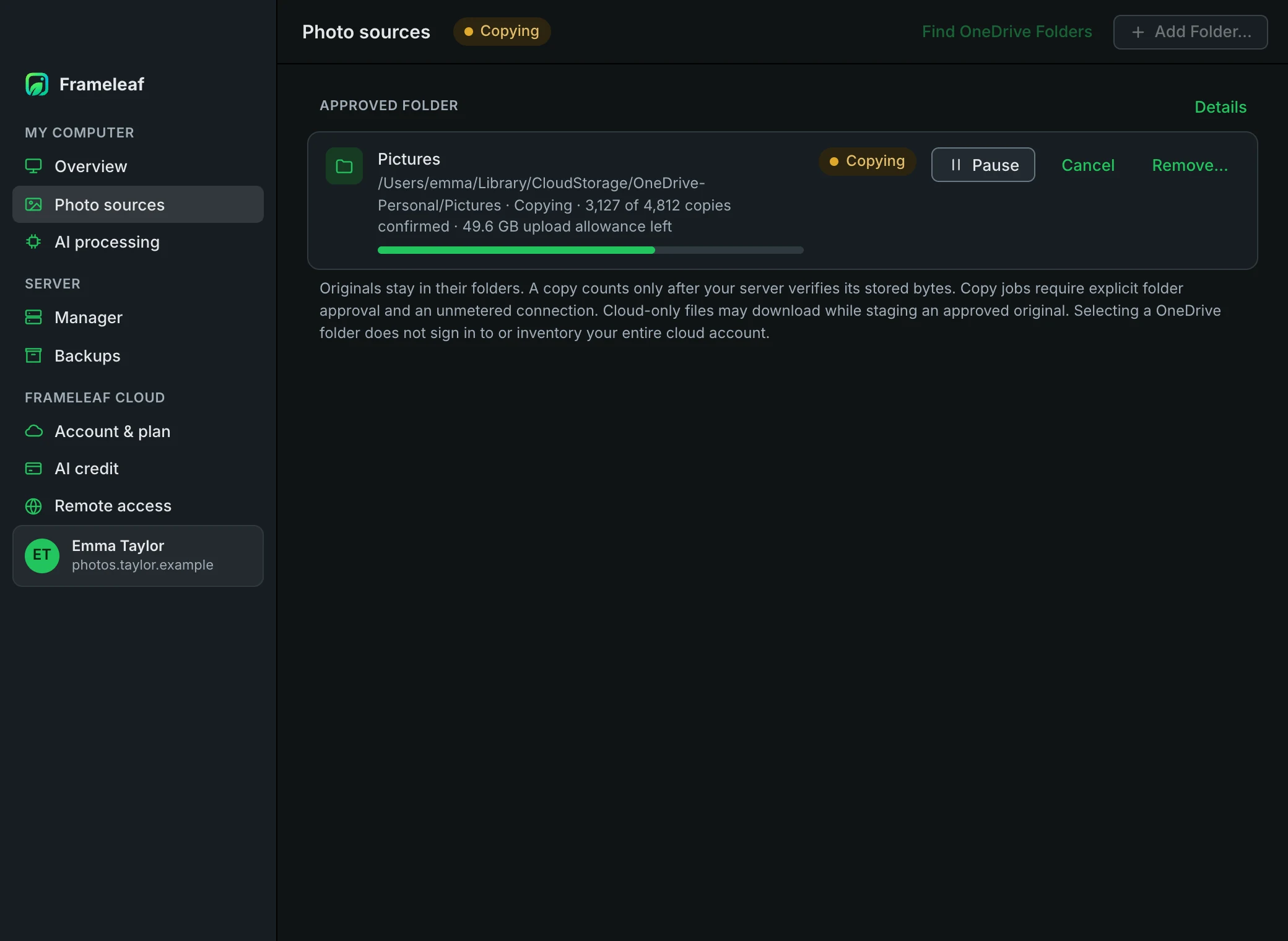
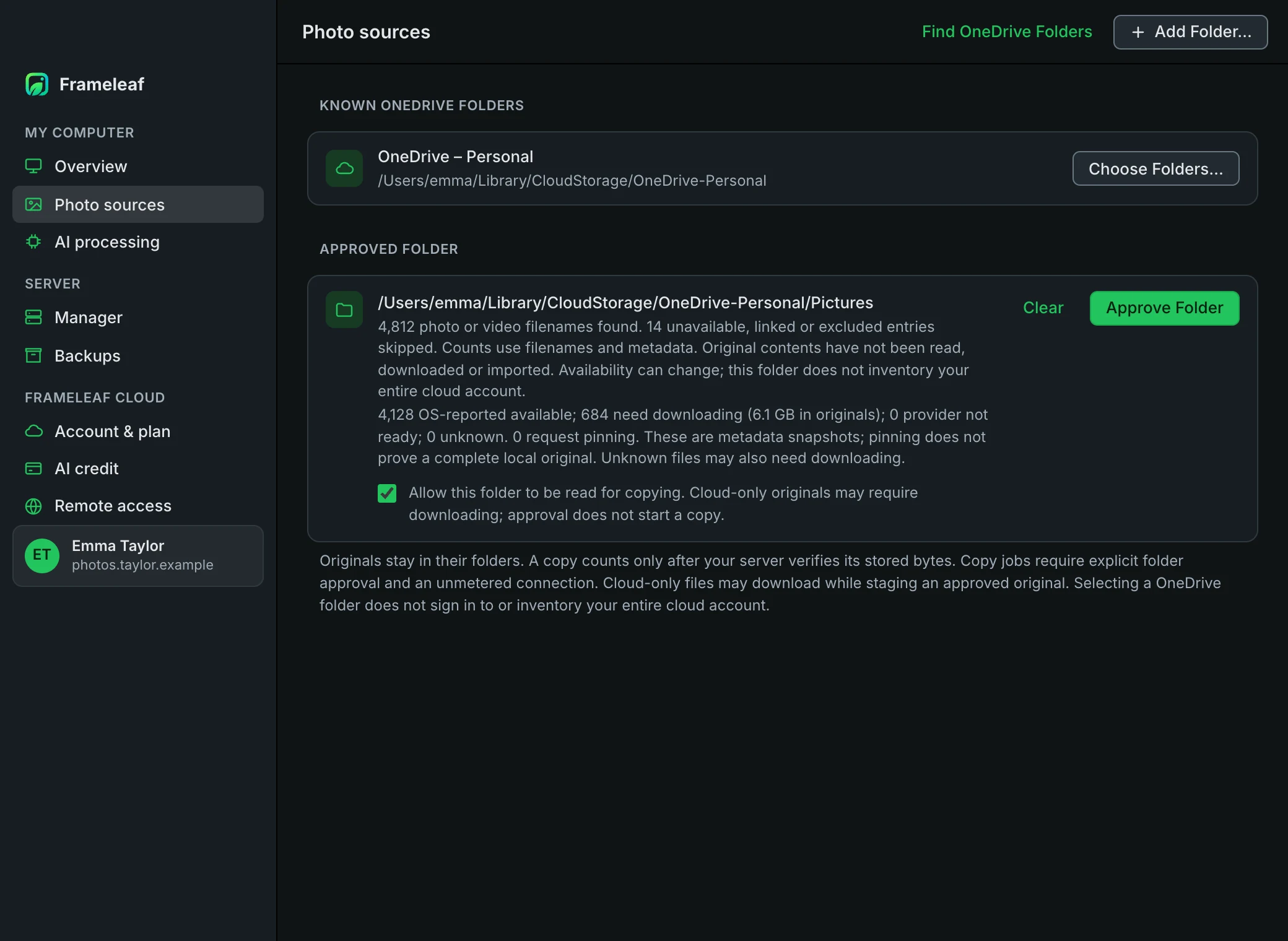
Choose a OneDrive or local folder and Frameleaf copies it to your server, checking every copy against what your server stored.
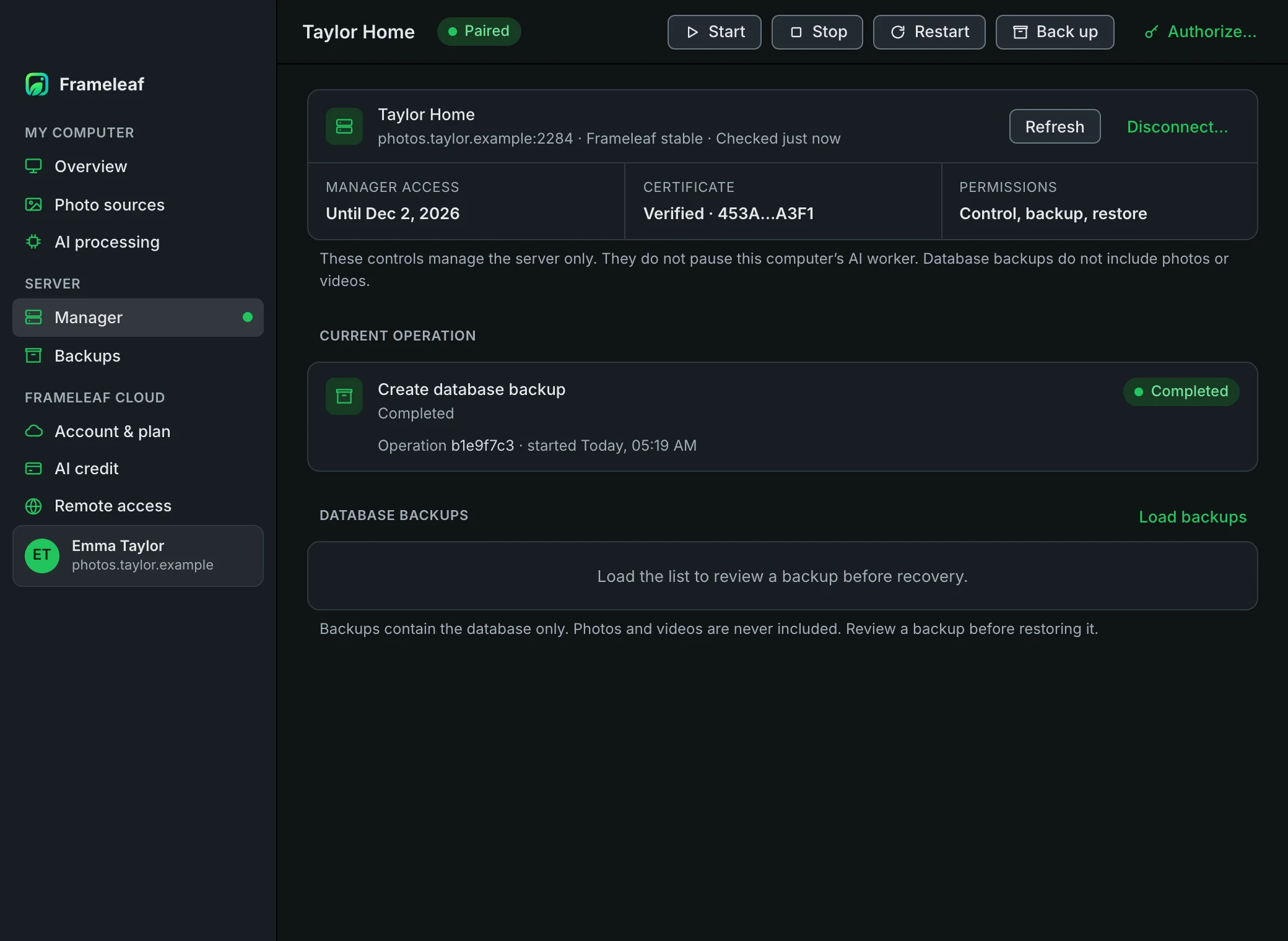
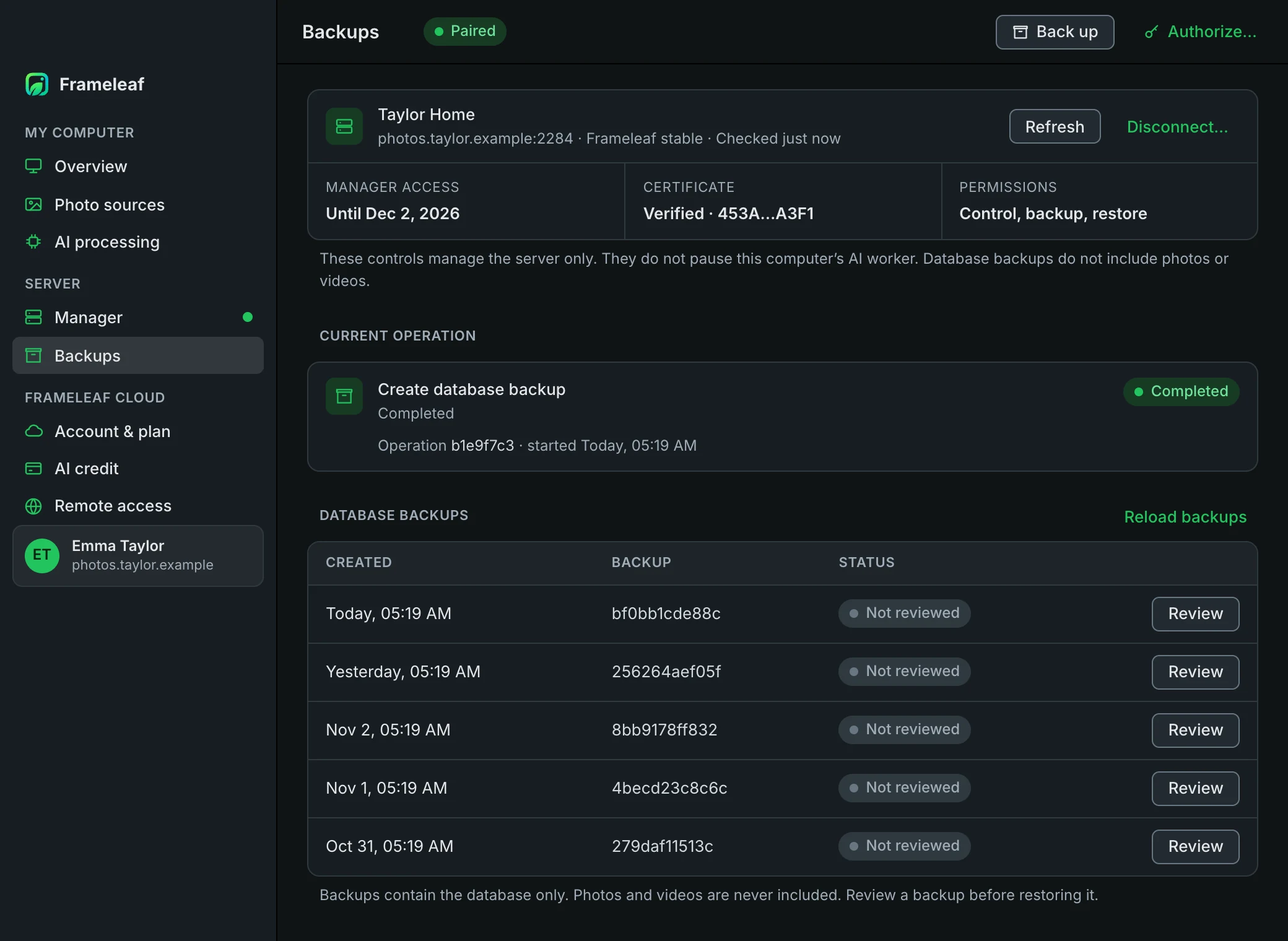
Pair with Frameleaf Manager to start, stop or restart your server and make a database backup, even while Photos is off.
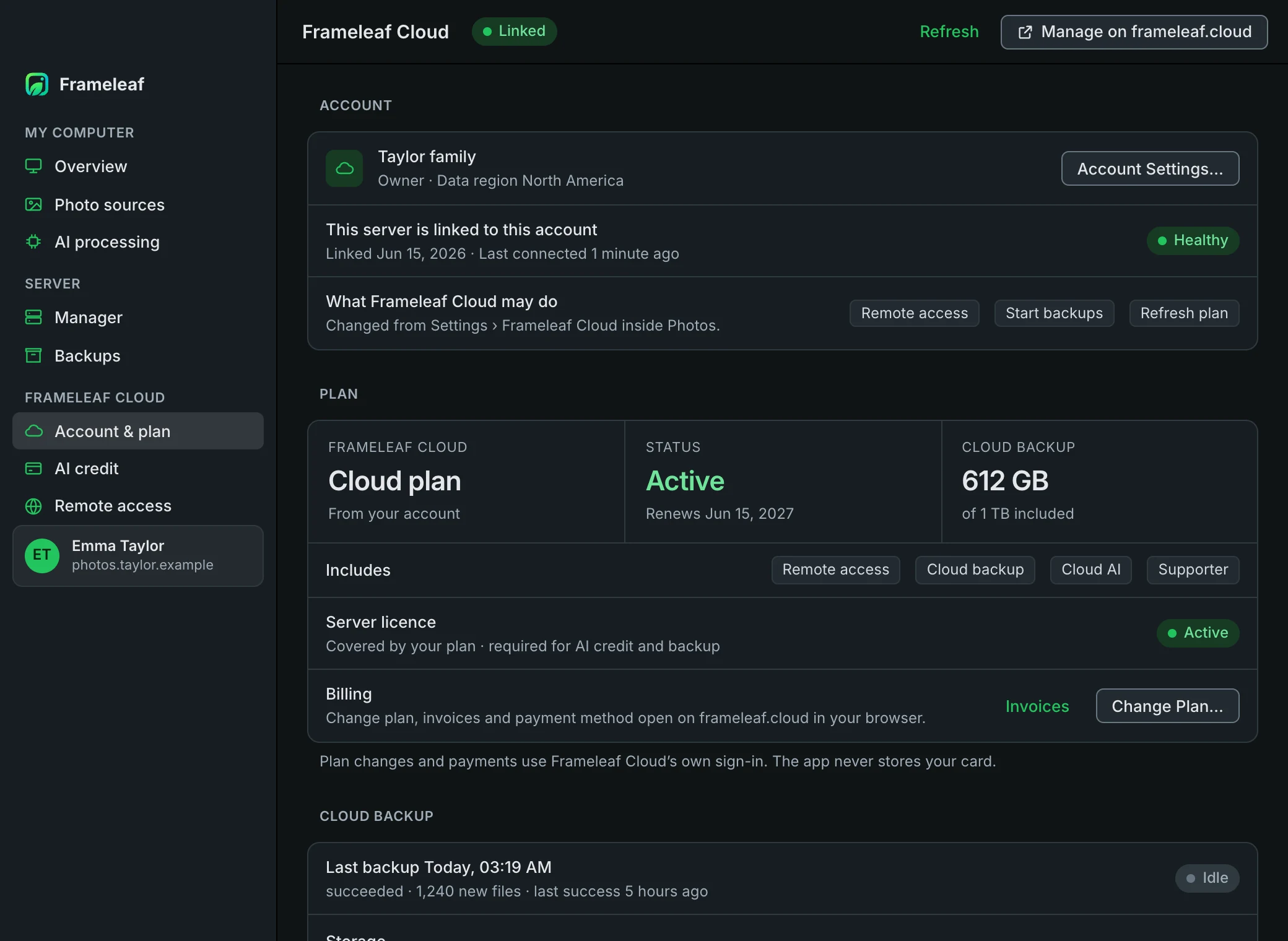
See your Frameleaf Cloud plan, what it includes and how much Cloud backup you’ve used.
Check your credit, set a daily cap and see what each Cloud AI job cost when it finished.
See every address your apps try, test the connection and decide whether full-size originals may travel over the relay.
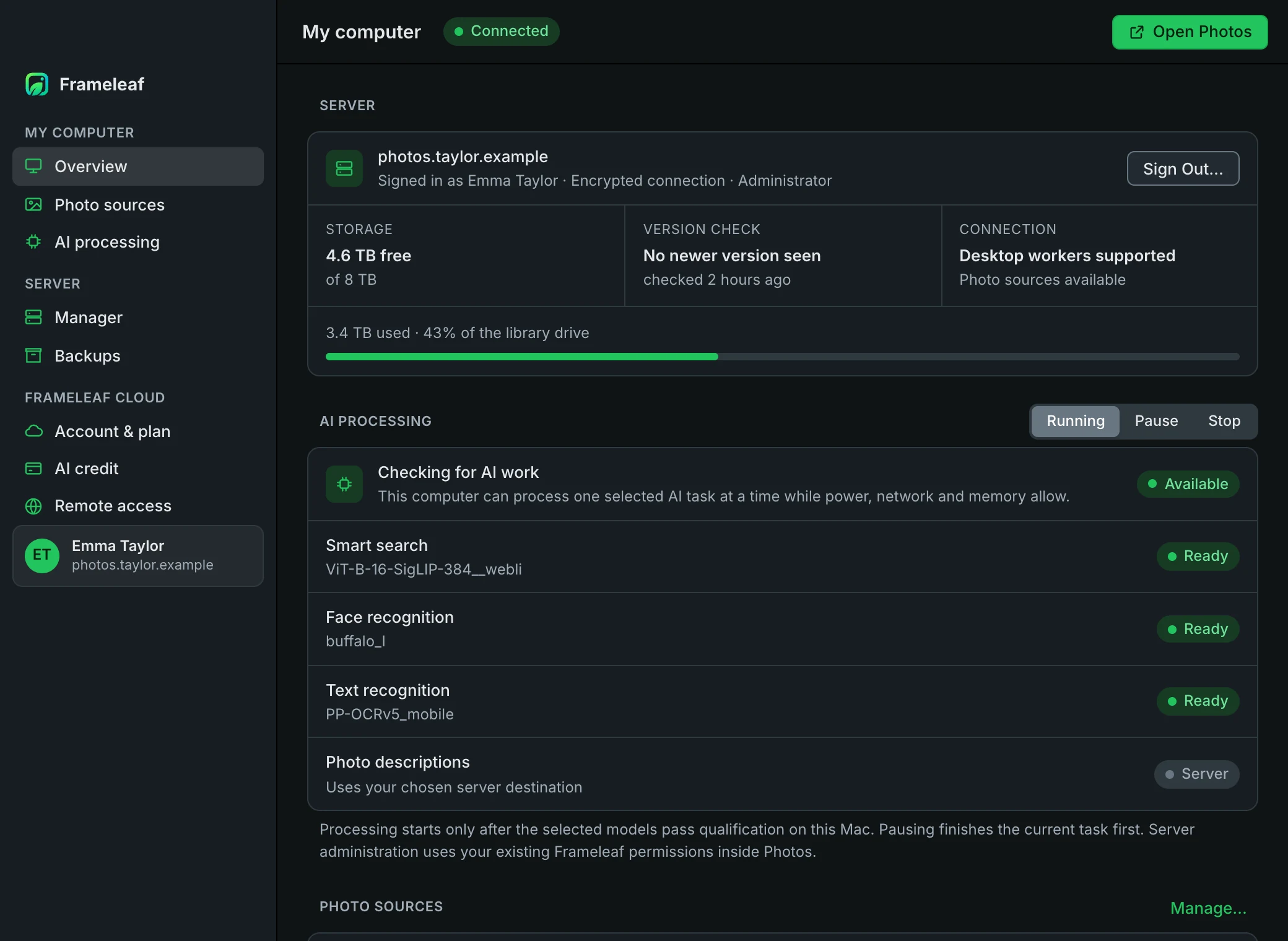
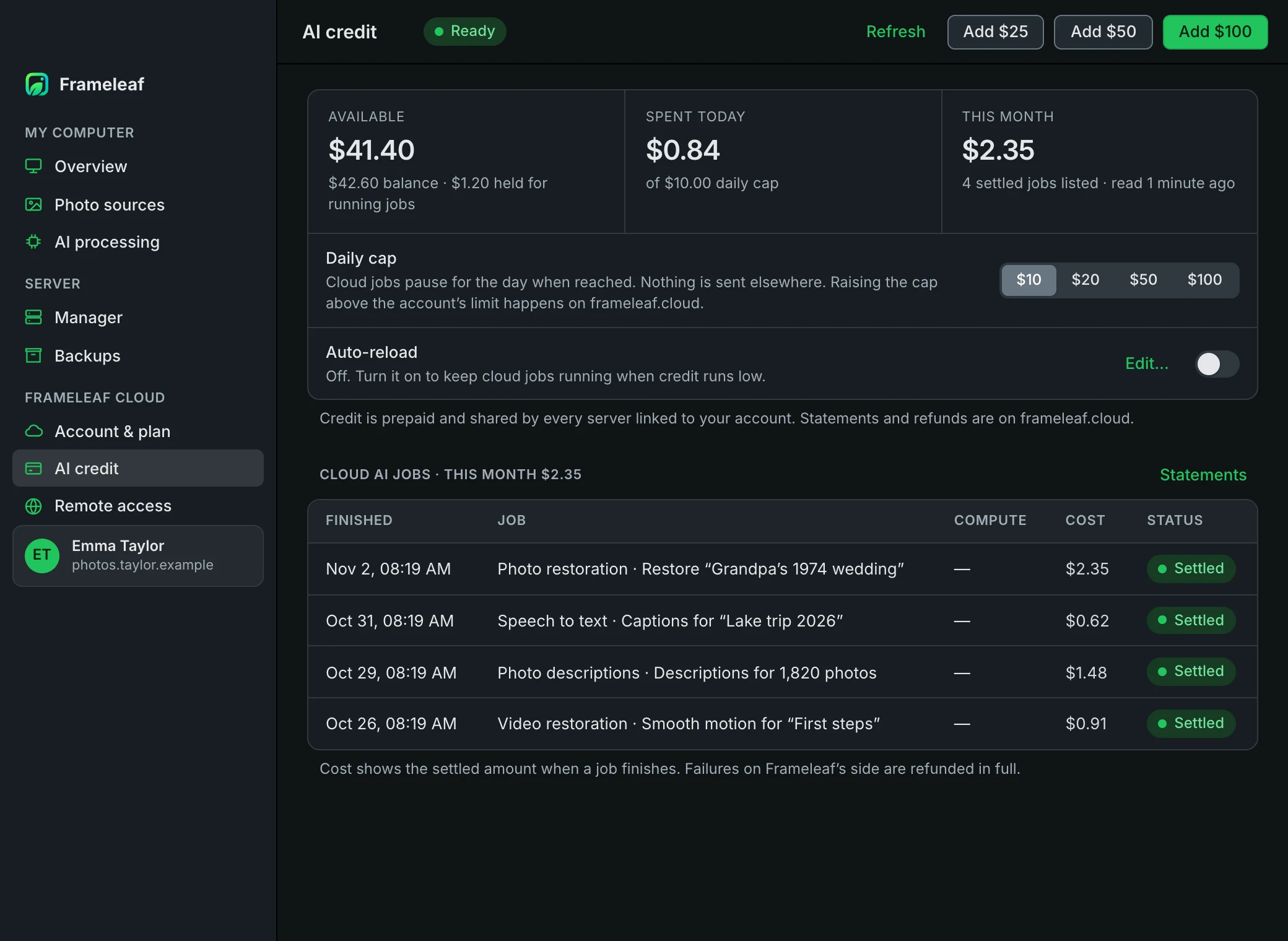
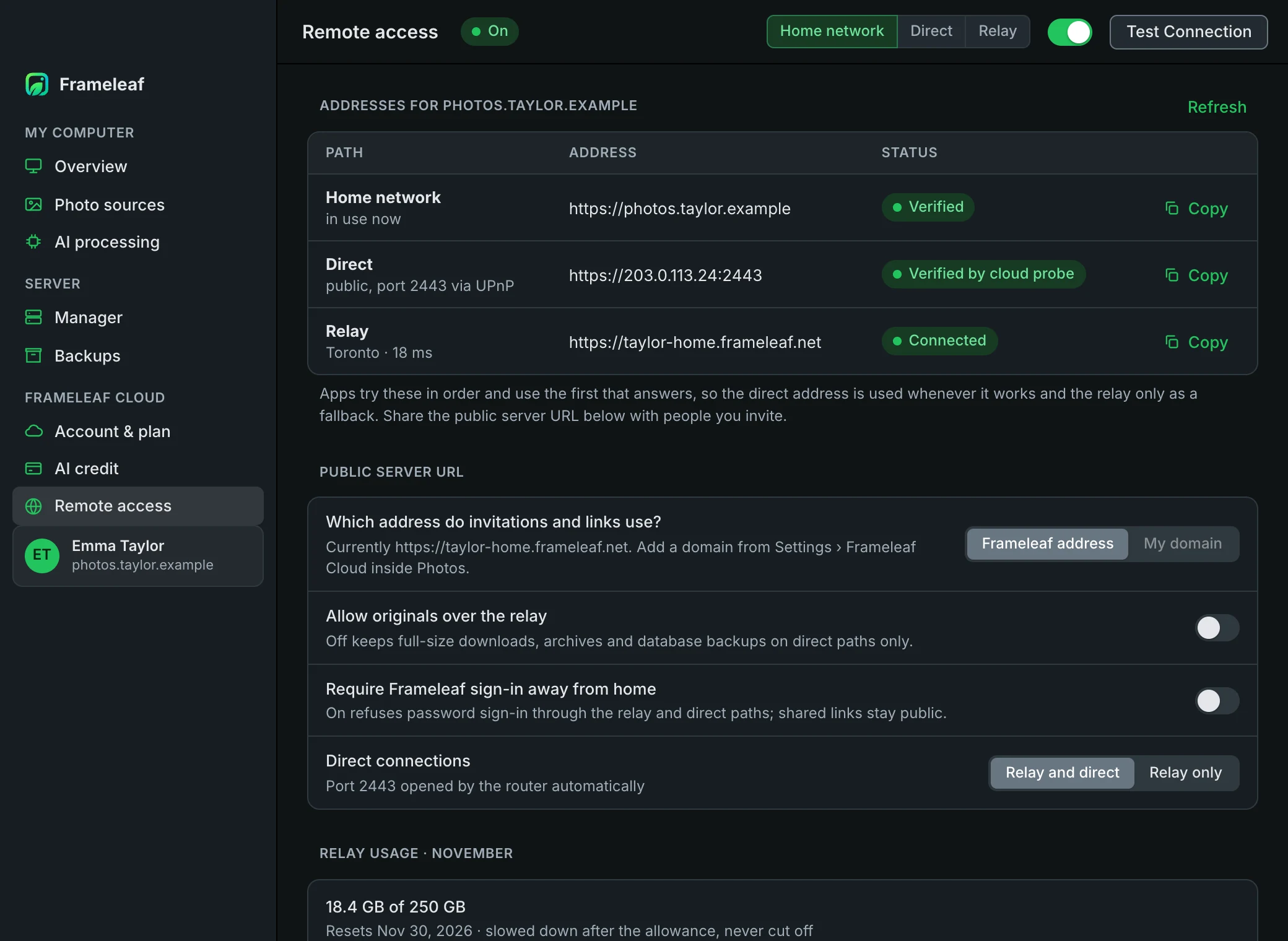
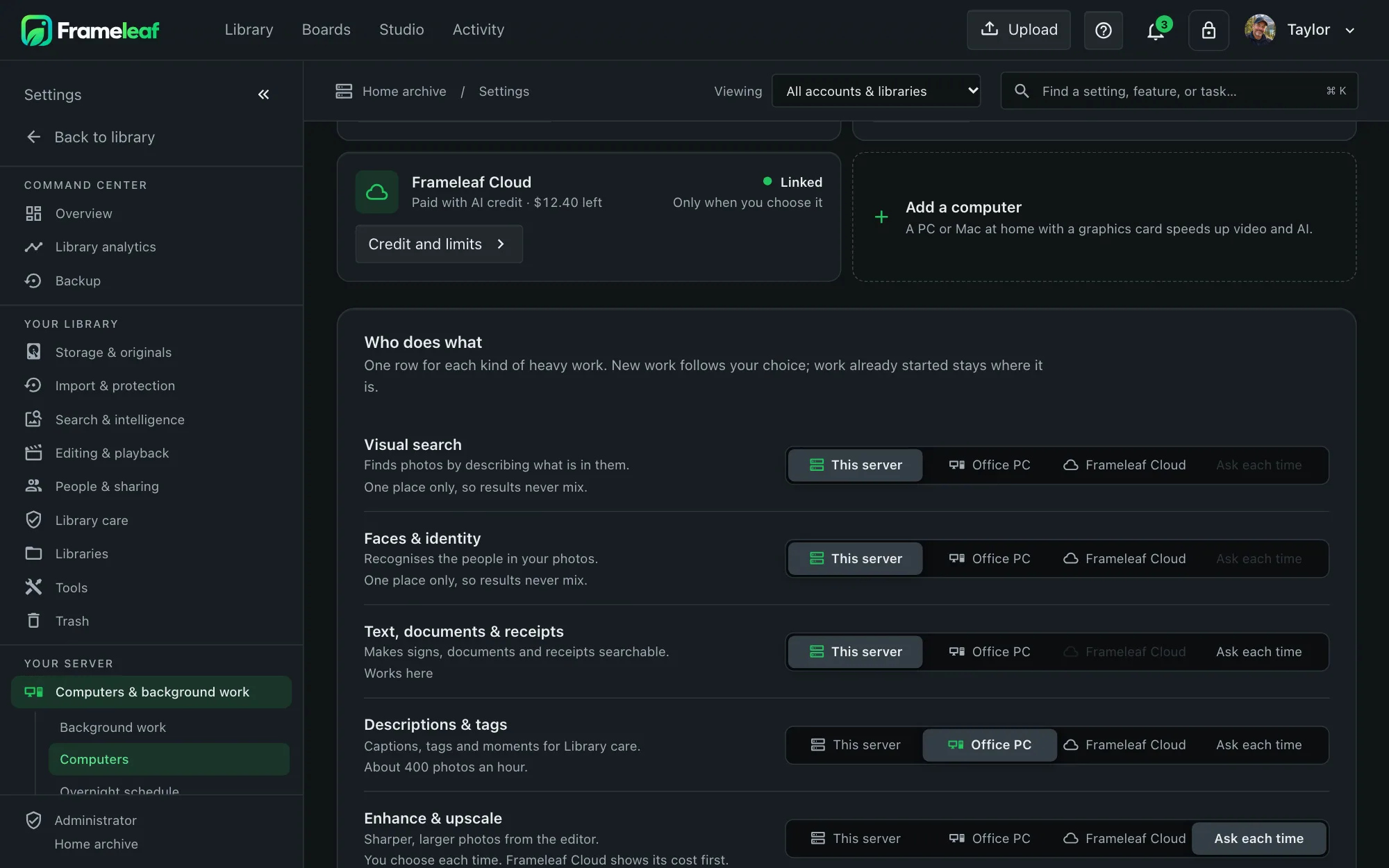
A server that recognises faces, reads text and builds smart search across a lifetime of photos has a lot to do. Sign in on the computer at your desk and it joins in, taking one task at a time. Your server’s Where work runs page shows it alongside everything else that helps.
On a Mac or Windows PC, Find OneDrive Folders lists the OneDrive folders on this computer. Or choose any folder of photos and videos. Frameleaf copies them to your server over an unmetered connection.
Choose Run Frameleaf here and this computer becomes your Frameleaf server. Frameleaf prepares a local Manager, you choose its password and start the photo server, then Open local Photos walks you through creating your first account.
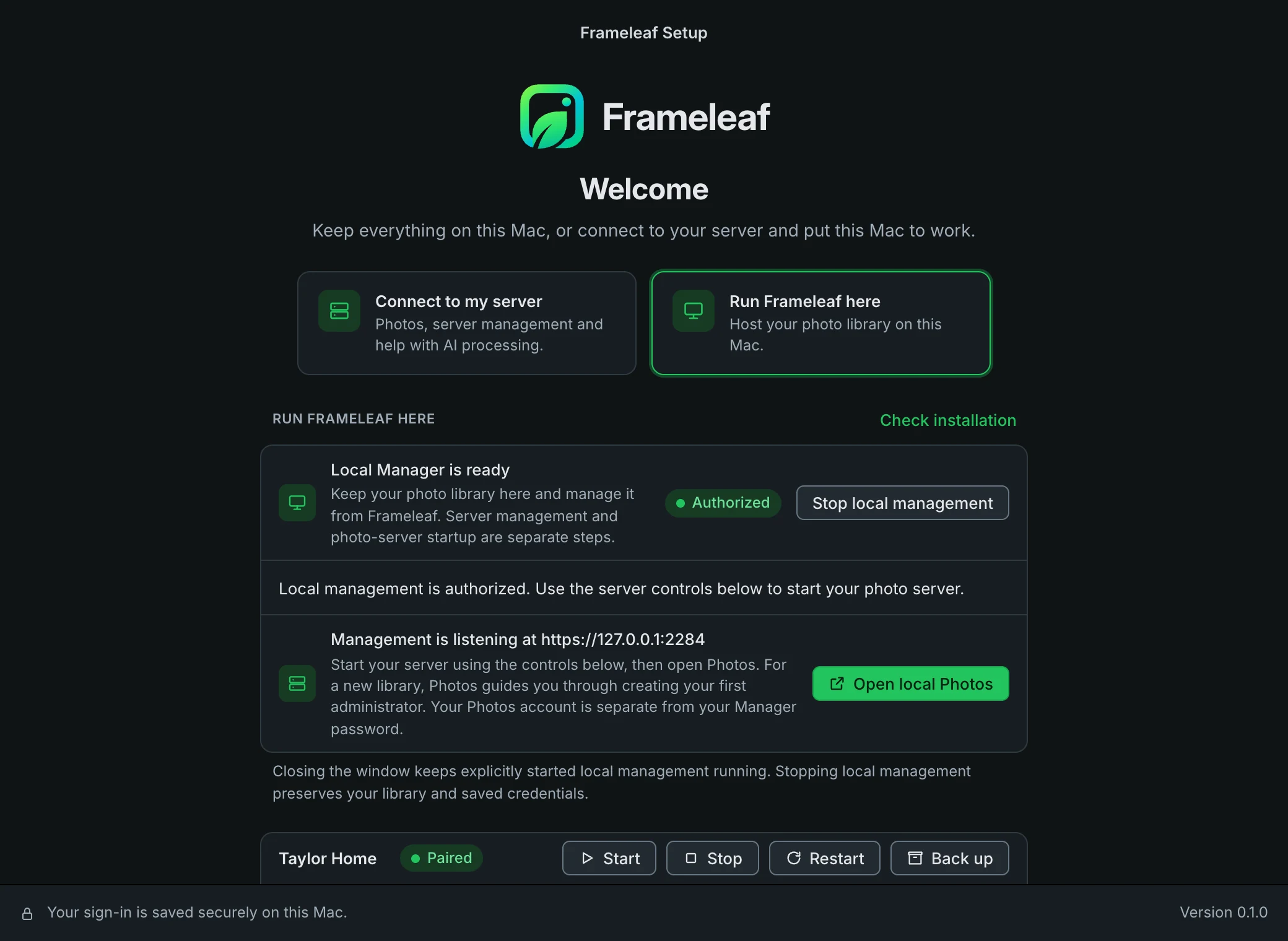
Pair Frameleaf Desktop with your server’s Frameleaf Manager once, using your Manager password. Your password isn’t saved: the computer keeps a separate, limited permission in its secure credential store.
The parts of your computer you already rely on, put to work for your library.
Open Photos, open Frameleaf, or pause and stop AI processing from the menu bar on a Mac and the system tray on Windows and Linux.
On a Mac, Touch ID or your Mac password unlocks your saved sign-in.
Your server password signs you in and is never saved. The session lives in Keychain, Windows Credential Manager or your Linux keyring.
Looks for Frameleaf servers on your network, including one that still needs its first administrator.
Your library opens in a separate Photos window that can’t reach your files or this app’s controls.
The Mac app is notarized by Apple, every download has a published checksum, and the built-in AI runtime is verified before it runs.
See whether you’re on your home network, a direct connection or the relay, and whether the connection is encrypted.
Signing out removes this computer’s session and device key, and asks your server to revoke them.
The same app on all three, styled to fit in. Every download includes the signed AI runtime, and the release lists a checksum for each file.
A Mac with Apple silicon. Open the .dmg and drag Frameleaf to Applications.
64-bit Windows 11. Run the .exe installer, or use the .msi for managed installs.
The .deb for Ubuntu 24.04, or the AppImage. Both come for Intel/AMD and ARM64.
Frameleaf Desktop is free. It connects to the server you already have, or turns this computer into one.
One you can sign in to, at home or through remote access. Or this computer, with Run Frameleaf here.
A server recent enough for desktop workers. Frameleaf Desktop tells you if yours needs an update.
Account & plan, AI credit and Remote access are for server administrators, and fill in once your server is linked to Frameleaf Cloud.
Only if you choose Run Frameleaf here. Connected to a server, the app opens your library and helps with AI work while your photos stay on the server.
Frameleaf Desktop guide →It takes one task at a time below your own apps, only while the computer is plugged in, on an unmetered network and has memory to spare. Pause or stop it from the menu bar whenever you like.
Help with AI processing →No. Your server password is used once to sign in. The session and this computer’s device key are kept in Keychain, Windows Credential Manager or your Linux keyring, and removed when you sign out.
Sign-in and security →