
Frameleaf Desktop

Frameleaf Desktop for Mac, Windows and Linux: put your computer to work for your photos Watch on YouTube
Frameleaf Desktop is the Frameleaf app for Mac, Windows and Linux. Connect it to your server and it opens your library in its own window, lends your computer to the AI work your server has waiting, copies photo folders, memory cards and dropped files to your server, keeps chosen albums with you offline and lets you manage the server without opening a browser. Or choose Run Frameleaf here and keep your whole library on the computer itself.
Download it free from the latest Frameleaf Desktop release.
What you need
Section titled “What you need”| Mac | Windows | Linux | |
|---|---|---|---|
| Computer | A Mac with Apple silicon | A 64-bit (x64) PC with Windows 11 | A 64-bit Intel/AMD or ARM64 computer |
| Download | .dmg |
.exe installer, or .msi |
.deb for Ubuntu 22.04 and 24.04 and Debian 12, or .AppImage |
| Saved sign-in | Keychain, unlocked with Touch ID or your Mac password | Windows Credential Manager | Your keyring (GNOME Keyring, KWallet or another Secret Service keyring) |
You also need one of these:
- A Frameleaf server you can sign in to, at home or through remote access. Sign in with your Frameleaf account, with the server’s own email and password, or with the server’s sign-in provider.
- This computer as your server. See Run Frameleaf on this computer.
Intel Macs aren’t supported. On a Mac, AI processing needs macOS 15 or later; the rest of the app works on older versions.
Install
Section titled “Install”Open the latest release and download the file for your computer. Every download includes the signed AI runtime the app uses for AI processing.
- Download the
.dmgfile whose name ends inaarch64.dmg. - Open it and drag Frameleaf into Applications.
- Open Frameleaf from Applications or Launchpad.
The Mac app is signed and notarized by Apple, so it opens like any other app.
Windows
Section titled “Windows”- Download the Windows installer, the
.exefile withx64-setupin its name. IT administrators deploying to many PCs can use the.msiinstead. - Check your download, then open it and follow the steps.
- Open Frameleaf from the Start menu.
The Windows installers aren’t code-signed yet, so Windows may show Windows protected your PC when you open one. After checking your download, choose More info, then Run anyway.
On Ubuntu 22.04 or 24.04, or Debian 12, download the .deb for your processor (amd64 for Intel or AMD, arm64 for ARM) and install it:
sudo apt install ./Frameleaf_*_amd64.debOn other distributions, download the AppImage (amd64 for Intel or AMD, aarch64 for ARM), make it executable and open it:
chmod +x Frameleaf_*_amd64.AppImage./Frameleaf_*_amd64.AppImageFrameleaf saves your sign-in in your keyring through the Secret Service, so a keyring such as GNOME Keyring or KWallet must be installed and unlocked. On GNOME, the menu bar icon needs the AppIndicator extension, which Ubuntu includes.
Check your download
Section titled “Check your download”Each release has a SHA256SUMS file covering every installer. Download it into the same folder as your installer, then run this in that folder:
shasum -a 256 -c SHA256SUMS --ignore-missingOn Linux, use sha256sum instead of shasum -a 256. On Windows, run Get-FileHash on the installer in PowerShell and compare the result with its line in SHA256SUMS. Your file should show OK, or a matching hash.
Updates
Section titled “Updates”When a new version is out, Frameleaf shows Frameleaf … is available with Install and restart. Updates come only from Frameleaf’s own releases, and each one is checked against Frameleaf’s signature before it installs. An update waits while a preservation copy is being saved. On Windows, if this computer runs your library, the update first stops the photo server and its database in order; if that can’t be done safely, nothing is installed, the library keeps running and Frameleaf tells you why.
Choose how to use it
Section titled “Choose how to use it”The first time you open Frameleaf, Frameleaf Setup asks how you’d like to use it:
- Connect to my server. Open your photos, manage your server and let this computer help with AI processing.
- Run Frameleaf here. Host your photo library on this computer. See Run Frameleaf on this computer.
You can come back to this choice whenever you sign out.
Connect to your server
Section titled “Connect to your server”Choose Connect to my server. Sign in to your server offers:
- Sign In with Frameleaf, the usual way. See below.
- Create a Frameleaf Account, if you don’t have one. It’s free, and it’s made at Frameleaf in your browser, never on someone’s server.
- Sign In with a Server Password Instead, for a server’s own email and password.
- Servers on this network: every Frameleaf server answering on your network, and Enter Address… for one that isn’t listed.
- Pair a Manager instead…, to manage your server without signing in to Photos.
Sign in with Frameleaf
Section titled “Sign in with Frameleaf”- Choose Sign In with Frameleaf.
- Finish signing in to your Frameleaf account in your browser, with the same sign-in you use on the web, then return to Frameleaf.
- Choose a server lists the servers on your account and any Frameleaf server answering on this network. Each shows your role, whether it’s online and how it’s reached, such as on your home network or away from home, via relay.
- Choose Connect next to the server you want.
A server found on your network that isn’t on your account shows Sign In…, which opens that server’s sign-in. A brand-new server shows Set Up…: open it in a browser to create its first administrator, then sign in here.
Switch account signs in with a different Frameleaf account. Enter an address… connects to a server that isn’t listed, and Refresh looks again.
Sign in to one server
Section titled “Sign in to one server”Choosing a server on your network, or entering its address, opens that server’s sign-in. To enter an address, type your Server address, such as https://photos.example.com, or choose Find My Server to look for Frameleaf servers on this network. It’s the address you open your server at in a browser. The screen then shows the ways that server lets you in:
- Sign In with Frameleaf, when the server is linked to Frameleaf. Your Frameleaf account works there.
- The server’s own sign-in provider (OAuth), under the name your administrator gave it. A sign-in window opens for it. A server that only offers its provider works too.
- Sign In with a Server Password Instead: enter your email and Password for that server, then choose Sign In.
If your account on the server uses two-step sign-in, Two-Step Verification then asks for the Verification Code from your authenticator app, or choose Use a Recovery Code. Each Recovery Code works once.
Before you sign in, give this computer a name under This computer’s name. It’s how your server lists this computer, for example on its Computers page.
Use an https:// address unless the server is on your home network. Your Password and Verification Code are used once to sign in and are never saved. No account on the server? The person who runs it adds you on the server’s web page; you can’t make one in the app.
If macOS asks whether Frameleaf may find devices on your local network, allow it so Find My Server can look for your server.
Frameleaf Desktop connects to one server at a time. To switch servers, sign out first.
Unlock your saved sign-in
Section titled “Unlock your saved sign-in”Frameleaf remembers your sign-in so you don’t have to sign in each time you open it. On a Mac, macOS asks for Touch ID or your Mac password when Frameleaf needs the saved sign-in. On Windows and Linux, the saved sign-in unlocks with your computer account or keyring.
Find your way around
Section titled “Find your way around”Once you’re connected, the sidebar has:
- My computer: Overview, Photo sources and AI processing.
- Server: Manager and Backups.
- Frameleaf Cloud: Account & plan, AI credit and Remote access. Only server administrators see these.
Your name at the bottom of the sidebar opens a menu with Open Photos, Offline Albums and Sign out….
Frameleaf reopens the way you left it: the same window size and position, and the page you last used with the same server and account. To jump to a sidebar page, press Command-1 to Command-8 on a Mac, or Ctrl+1 to Ctrl+8 on Windows and Linux, counting down the sidebar from Overview.
Overview
Section titled “Overview”Overview shows your server at a glance:
- Needs attention lists anything to deal with now or soon, such as a backup that’s behind or failed, a drive that’s nearly full or out of space, failed server work or a new Frameleaf version. Open takes you to the right page. Only server administrators see this list.
- Server shows the server you’re signed in to, whether the connection is encrypted, the latest version check, and whether it supports desktop AI processing and photo sources.
- Server health shows the free space on the Library drive and how much of it is used. Administrators also see Backup check: No warnings reported, Needs attention, Off or Unknown, with when it was last checked. Dismissing a backup warning hides it but doesn’t fix it, so Backup check shows Needs attention until the backup is working again.
- AI processing and Photo sources summarise what this computer is doing for your library.
Open your photos
Section titled “Open your photos”Choose Open Photos to open your library in a separate Frameleaf Photos window, already signed in. It’s the same library as the web app, with Studio, Boards, search and settings. The Photos window can’t reach your files or the desktop app’s controls.
Help with AI processing
Section titled “Help with AI processing”When you connect, your server can send this computer some of its heavy AI work, so faces, smart search and text in your photos are ready sooner. Your server stays in charge: an administrator chooses which work goes to Your computers in Where work runs, on the server’s Computers page. See Where work runs.
How it starts
Section titled “How it starts”Open AI processing. After you sign in, Frameleaf gets this computer ready on its own:
- Preparing the AI runtime checks the signed runtime included with the app.
- Preparing selected models downloads and verifies the models your server uses.
- Checking this computer’s models runs each model here and confirms the results with your server.
- Checking for AI work or Waiting for AI work means this computer is ready and asking your server for work.
Photos stays available the whole time.
Frameleaf uses your computer’s graphics hardware for this work when it can, and each kind of work shows what it runs on. If GPU acceleration can’t be used on this computer, AI processing runs on the processor instead, more slowly, and says so.
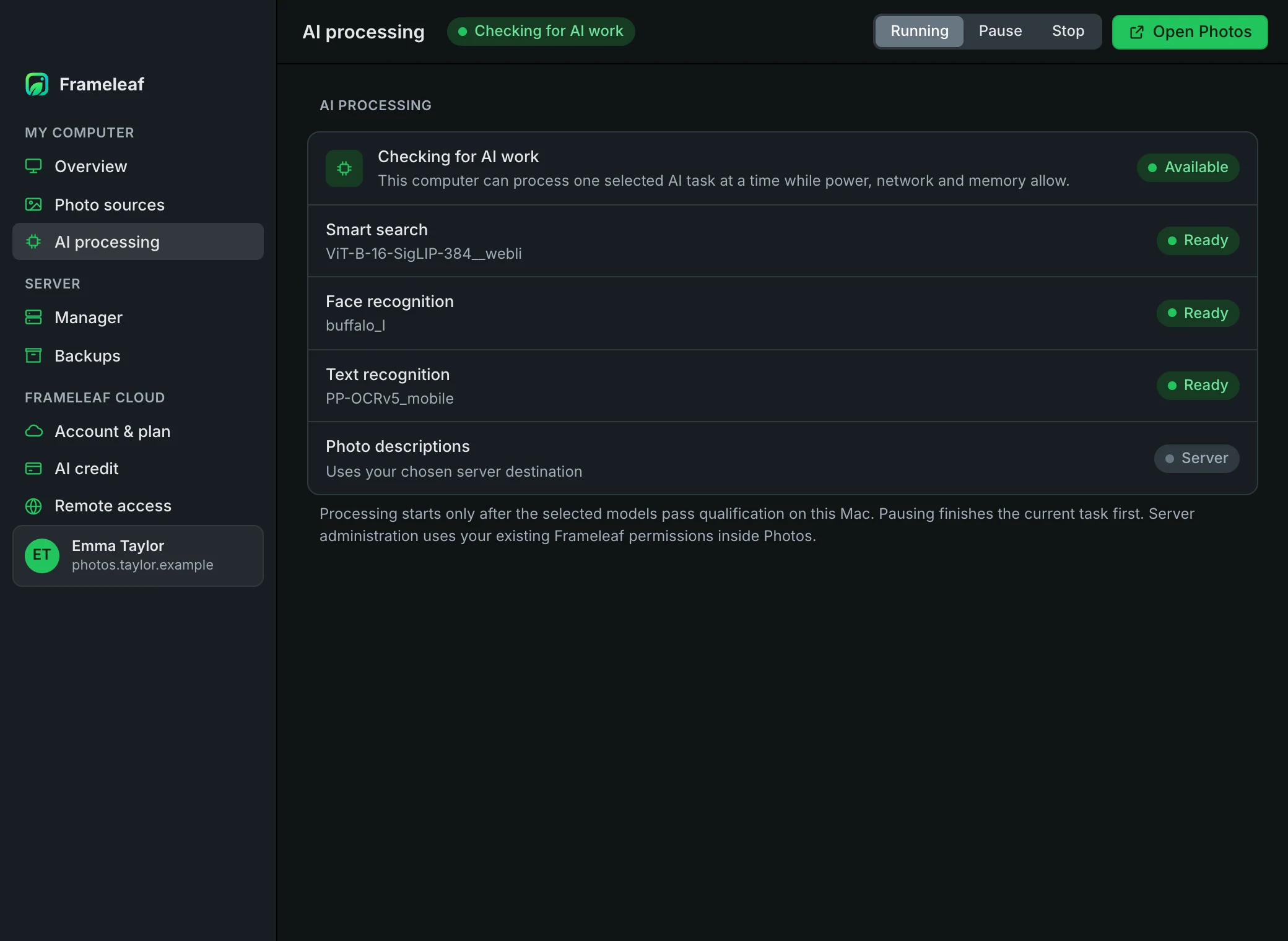
Each kind of work has its own row:
| Row | Shows |
|---|---|
| Smart search | Visual search, finding photos by describing them |
| Face recognition | Finding and grouping faces |
| Text recognition | Reading text in photos, documents and receipts |
| Photo descriptions | AI descriptions and tags |
| Label | Meaning |
|---|---|
| Ready | This computer can take this work |
| Checking or Waiting | The model is being checked on this computer |
| Server | This work runs where your server sends it, not on this computer |
| Off | This work is turned off on your server |
| Unavailable or Unsupported | This computer can’t run the model your server has chosen. Other work carries on |
See progress
Section titled “See progress”AI processing also shows the kind of work this computer is doing right now, and Selected model files: how much model data is verified on this computer out of what’s needed, with a progress bar while a model downloads.
Server administrators also see the whole server’s AI work:
- Library AI queues lists each kind of work, such as Smart search or Group faces, with its progress and what it’s doing or waiting for, for example Processing, Waiting for quiet hours or Paused on the Library.
- Library processing order shows where each kind of work is sent, in order, such as Library server → Your computers → Frameleaf Cloud.
When it runs
Section titled “When it runs”AI processing takes one task at a time and runs below your own apps. It only runs while:
- the computer is plugged in. On battery, it pauses with Plug in this computer to continue AI processing.
- the network isn’t metered, such as a phone hotspot.
- there’s enough free memory for the selected models.
Models download by themselves on an unmetered network. Otherwise, Selected models need downloading appears with a Download Models button, so you decide when to use the data.
Pause or stop
Section titled “Pause or stop”Use Running, Pause and Stop at the top of AI processing, or the menu bar icon:
- Pause lets the current task finish, then stops asking for work. It stays paused after you reopen the app.
- Stop ends AI processing on this computer straight away.
- Running starts it again.
These controls only affect this computer. Your server’s own work carries on.
Members need approval
Section titled “Members need approval”If you aren’t an administrator on the server, AI processing waits with Waiting for administrator approval. Ask an administrator to allow desktop processing for your account in Settings, Users, in your account’s security settings. Then choose Check Approval. An administrator who later becomes a member needs approval too.
Bring in a photo folder
Section titled “Bring in a photo folder”Photo sources copies a folder of photos and videos on this computer to your server. Originals stay where they are; Frameleaf never moves or deletes them.
- Open Photo sources.
- On a Mac or Windows PC, choose Find OneDrive Folders to list the OneDrive folders on this computer, then Choose Folders…. Or choose Add Folder… for any folder.
- Check the preview. It counts photo and video files from their names and sizes without opening, downloading or importing them, and shows how many are on this computer and how many are still in the cloud.
- Under Destination, keep Library, or choose Album, find the album with Search Albums and pick it. You can choose any album you can add to. For a shared album, everyone who can see it sees what you add.
- Tick Allow this folder to be read for copying, then choose Approve Folder. Approving doesn’t start a copy. To keep copying new photos as they arrive instead, see Watch a folder.
- Choose Prepare Copy. Frameleaf lists what it will copy, with the number of files and their size.
- Choose Copy … files to start.
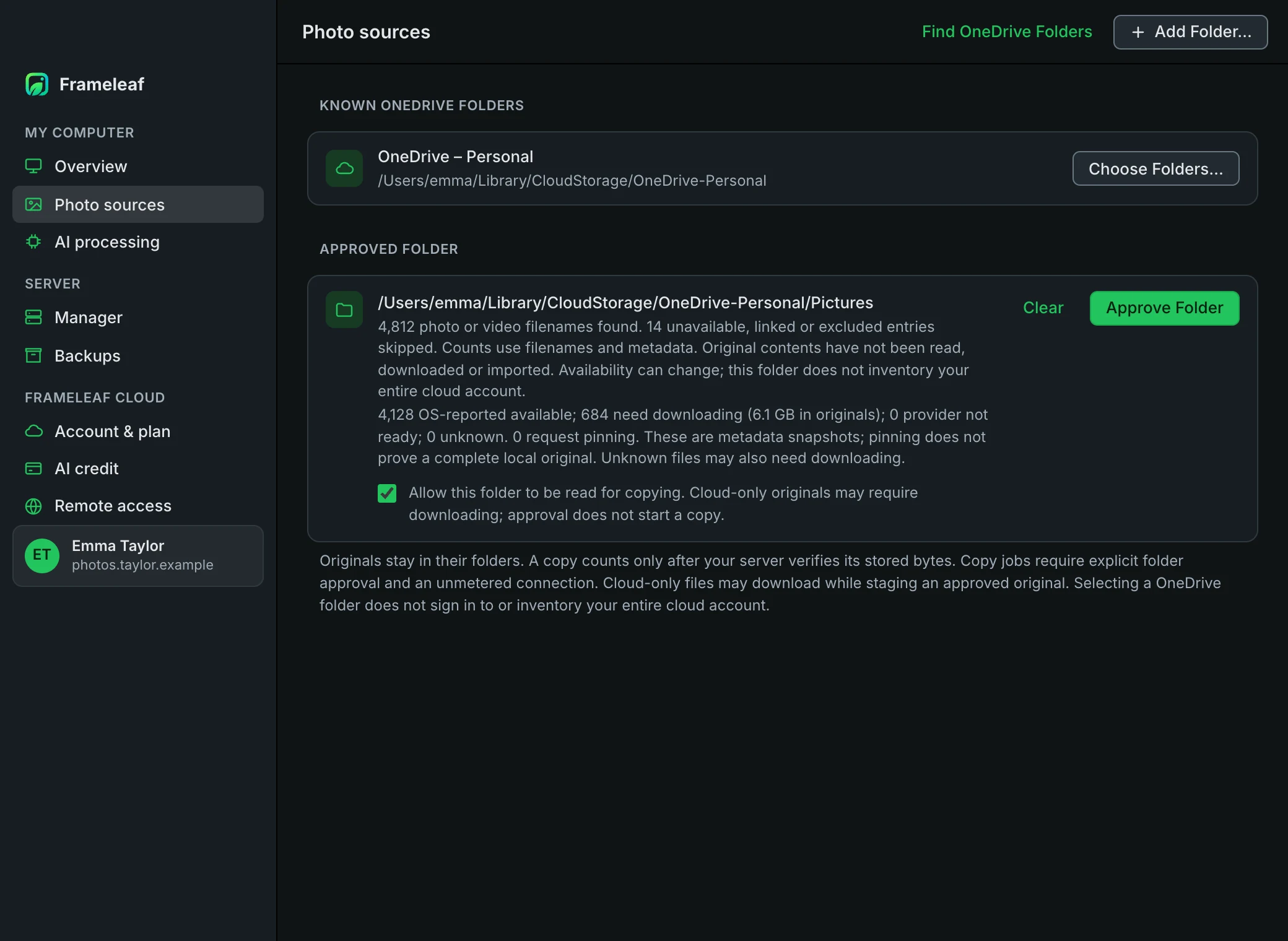
A copy only counts once your server has checked the bytes it stored. The progress bar shows how many copies are confirmed. Pause, Resume and Cancel control the copy, and it picks up where it left off after a restart.
When you chose an album, each file is added to it once it’s verified. If that step is held up, the folder shows Copy verified. Waiting to add it to the album. Choose Retry Adding to Album; nothing is uploaded again.
What gets copied
Section titled “What gets copied”- Copies need an unmetered network connection.
- Files that are only in the cloud, such as OneDrive files that aren’t on this computer yet, download as they’re copied.
- Hidden files, shortcuts and links, and app or photo library packages are skipped.
- You can’t choose your whole home folder or a whole disk. Choose the folder that holds your photos.
- A very large folder shows a partial preview. Choose a smaller folder inside it for a full count.
- On Linux, choose folders with Add Folder…. OneDrive folders aren’t detected there.
To bring in an Apple Photos or iCloud library, see iCloud Photos.
Upload allowance
Section titled “Upload allowance”Each copy starts with an allowance of twice its planned size, shown before you start, so retries can’t use unlimited data. If a copy uses it up, it pauses and offers Approve … more. Details shows how much is left.
Remove a folder
Section titled “Remove a folder”Choose Remove… next to the folder. Any copy in progress stops, and copies already on your server stay there. You approve one folder, card or camera at a time; remove it before choosing another. Dropped files have a permission of their own.
Watch a folder
Section titled “Watch a folder”Frameleaf can keep a folder on this computer and your library in step, copying new photos and videos as they appear.
- Choose Add Folder… and pick the folder.
- Choose a Destination.
- Tick Watch this folder and automatically copy photos and videos to the selected destination.
- Tick Allow Frameleaf to read this folder in the background, including after I close the window. and choose Approve and Watch.
Frameleaf copies the photos and videos already in the folder, then each new one, verified by your server like any other copy. It keeps watching while the window is closed, as long as Frameleaf is running. Pause Watching and Resume Watching control it. Watching is only offered for an ordinary folder on this computer, not for OneDrive folders, cameras or memory cards, or a folder too large for a full preview.
Import from a camera or memory card
Section titled “Import from a camera or memory card”Connect a memory card, or a camera that appears as a drive, and Photo sources lists it under Cameras and memory cards.
- Choose Preview… next to it and check the count.
- Choose a Destination, tick Allow this folder to be read for copying and choose Approve Folder.
- Choose Prepare Copy, then Copy … files.
When every file is verified on your server, Frameleaf says so. Eject the card or camera in Finder, File Explorer or your file manager before you unplug it.
If you unplug it before the copy finishes, plug the same card back in and choose Reconnect Camera…, then choose its folder. Frameleaf checks that it’s the same card with the same files and carries on with the same album, keeping everything already copied. A different card, or one that can’t be identified safely, needs a fresh preview: remove the permission and start again.
Drop or send photos to Frameleaf
Section titled “Drop or send photos to Frameleaf”Drag one folder, or up to 100 photos and videos from the same folder, onto the Frameleaf Desktop window.
- Review selected folder or Review selected files shows how many photos and videos there are, their size and their names.
- Choose a Destination, tick Allow these items to be copied to the selected destination. and choose Approve Copy.
- Choose Start Copy.
Pause Copy, Resume Copy and Cancel Copy control it, and File import on Photo sources opens it again. When it’s finished, Remove Import clears it. A drop has its own permission, separate from your approved folder, but only one copy sends at a time; the other waits with Waiting for another import. The upload allowance works the same way.
You can also send a selection from your file manager. Frameleaf opens the same review, and you approve each new selection:
- Mac: select photos, videos or a folder in Finder and choose Services, then Import to Frameleaf. Turn the action on or off in System Settings, under Keyboard, Keyboard Shortcuts, Services.
- Windows: choose Add Explorer Shortcut on Photo sources. Then select items in File Explorer and choose Send to, then Import to Frameleaf. Remove Explorer Shortcut takes it away again.
If Frameleaf isn’t signed in, sign in to your server and send the selection again.
Import history
Section titled “Import history”Import history, at the bottom of Photo sources, lists the imports made with this sign-in: Folder import, Camera import, Watched folder or One-time drop, with when it ran, its album or Library, and how many files were verified or skipped. Each shows Ready, In progress, Interrupted, Completed or Cancelled.
Retry import restarts the current interrupted import where it stopped, into the same album, without sending verified files again. Album attachment pending means the files are on your server but not yet in the album. Show earlier imports goes further back.
Manage your server
Section titled “Manage your server”The Manager and Backups pages control your server through Frameleaf Manager, even while the photo server is stopped.
Pair with Manager
Section titled “Pair with Manager”- Open Manager, or choose Pair a Manager instead… on the sign-in screen.
- Enter your Manager address and Manager password.
- If your Manager uses a private certificate your computer doesn’t trust, tick Use a certificate for a private Manager, paste Manager’s public certificate, and check its fingerprint against Manager before approving it.
- Choose what this computer may do: start, stop and restart the server and make database backups, and separately, review and restore backups.
- Choose Pair with Manager.
Your Manager password isn’t saved. This computer keeps a separate, limited permission in its secure credential store, and Manager access shows how long it lasts. Authorize… confirms your Manager password once, so you can start, stop or restore for the next few minutes without being asked again. A Manager address starting with http:// sends your password unencrypted, so only use one on a network you trust.
Start, stop and back up
Section titled “Start, stop and back up”The Manager page shows your server, its connection and its permissions, with Start, Stop, Restart and Back up. Stopping or restarting asks for your Manager password, because Photos is unavailable until the server is back. Current operation follows the latest action. Disconnect… removes this computer’s Manager access.
These controls only affect the server. They don’t pause this computer’s AI processing.
Review and restore a backup
Section titled “Review and restore a backup”- Open Backups and choose Load backups.
- Choose Review next to a database backup, then Check review until it’s ready.
- Choose Restore database…, read what will change, tick the confirmation and choose Restore Database.
- When Manager has verified the restored database and started the server, the backup shows Database restored. Choose Done with database restore.
The server stops while the backup is restored. Manager keeps the previous database and a verified safety backup. Database backups don’t include photos or videos, and changes made after the backup won’t appear afterwards. See Back up and restore.
Recover photos and videos
Section titled “Recover photos and videos”Library recovery, on Backups, sets out the two halves of a recovery:
- Recover the database with Manager, as above, when your original files are intact and you need an earlier database.
- Recover missing photos and videos from a separate media backup made at the same time. With your backup tool, restore them to an empty folder or drive outside the live library, compare them with the backup’s list of files and checksums where it has one, and open full-size originals and play videos from there before you move anything back.
Save a preservation copy to a drive
Section titled “Save a preservation copy to a drive”External media copy, on Backups, saves a verified preservation package from your server to a drive connected to this computer, such as an external disk. It holds your originals with their metadata, and you don’t need Manager for it.
- In Photos, make a package, or export an album, and check it with Check again until it shows Verified. Open Photos takes you there.
- Back in Frameleaf Desktop, choose Load verified packages.
- Choose Save verified copy… next to the package, then choose a folder on the drive.
Frameleaf downloads the package and checks every original and metadata file against the package’s manifest before the copy appears in the folder, as one ZIP file named like Frameleaf-….frameleaf-preservation.zip. When it’s done, Verified copy saved shows how many originals it holds, its size and where it is. Cancel copy stops it and removes the unfinished file.
- Only complete, verified packages without Locked items are listed. Use Photos for packages that hold Locked items.
- Choose a folder on a local drive with room for the whole package. Network drives and cloud-synced folders can’t be used, and on a Mac the drive must be APFS. Files already in the folder are never replaced.
- Keep the drive connected until the copy is saved. If you quit Frameleaf or install an update during a copy, Frameleaf asks you to let it finish or cancel it first.
- Before you rely on the copy, open some originals and play some videos from the drive. Keep a database backup as well: a package isn’t a server backup.
Keep albums offline
Section titled “Keep albums offline”Keep an album on this computer so you can look at its originals even when your server can’t be reached.
- Choose Open Photos and open an album you own.
- Choose More actions (…), then Keep Offline.
- Frameleaf tells you how many photos and videos it will keep. Choose Keep Offline.
The Offline albums window opens and shows Keeping album offline with how many originals are saved so far. Cancel Download stops it.
To open your offline albums later, choose Offline Albums in the menu under your name, or on the sign-in screen when Frameleaf can’t use your saved sign-in. Choose an album, then a photo or video to view or play it. Save Original saves a copy of the file to a folder you choose, and Back to Photos returns to your library.
- Keep Offline is offered on albums you own that aren’t Locked and have photos or videos in them. Locked items are never kept offline.
- Offline albums are encrypted on this computer. Together they can use up to 2 GB, for up to 16 albums.
- Offline access lasts up to 24 hours after Frameleaf last confirmed it with your server. Each album shows Offline access expires with the time.
- Remove from This Computer deletes an album’s offline copy. Signing out, or losing access to the album, removes it too. If the offline storage belongs to another account, return to that account to open its albums, or choose Clear Offline Storage to start again.
Frameleaf Cloud pages
Section titled “Frameleaf Cloud pages”Server administrators see three Frameleaf Cloud pages. They fill in once the server is linked to Frameleaf Cloud.
- Account & plan shows the linked account, its data region, your plan and its renewal date, what it includes, your Server licence and Cloud backup. Change Plan… and Invoices open your account in your browser; the app never stores your card.
- AI credit shows your available credit, today’s spending against the Daily cap, and each Cloud GPU job this month with its cost. Add $25, Add $50 and Add $100 open your account in your browser. Choose a daily cap, or turn on Auto-reload. Credit is shared by every server on your account.
- Remote access turns remote access on or off, tests it with Test Connection, and lists every address your apps try, with Copy. Choose the Public server URL for invitations and links, whether to Allow originals over the relay, whether to Require Frameleaf sign-in away from home, and Relay and direct or Relay only. It also shows this month’s relay usage, your certificate, and the DNS records for your own domain.
Run Frameleaf on this computer
Section titled “Run Frameleaf on this computer”Run Frameleaf here turns this computer into your Frameleaf server, managed from the app.
What it needs
Section titled “What it needs”- The Frameleaf server component installed on this computer. If it’s missing, the app shows Server component not installed with the installer to use. Choose Open companion downloads, install it, then choose Check installation.
- A local drive for the library: APFS or Mac OS Extended on a Mac, a fixed NTFS drive on Windows, or ext4, XFS, Btrfs or ZFS on Linux, with at least 2 GB free to start. Network drives and cloud-synced folders can’t hold the database.
- Room for your photos and videos. See Requirements.
Set it up
Section titled “Set it up”- On the welcome screen, choose Run Frameleaf here.
- If several server packages are installed, choose one. Frameleaf checks the package before anything else and shows Companion package verified. If Prepare my server profile appears, choose Prepare Profile first; your computer may ask for administrator permission to create private server folders for your account, and Frameleaf never sees that password. Then choose Prepare local Manager.
- When Local Manager is ready appears, choose a Local Manager password of at least 14 characters. Keep it safe: you need it for recovery.
- Tick Allow this computer to manage this local server, and if you like, Also allow backup recovery reviews and restore operations.
- Choose Authorize local management.
- Choose Start in the server controls below.
- Choose Open local Photos. For a new library, Photos walks you through creating your first administrator. That account is separate from your Manager password.
If the check shows Compatibility unknown, choose Check installation to try again. Companion package refused means the package didn’t pass: choose another installed package, or install a compatible one from Open companion downloads. Setup stays unavailable until a package is verified.
Move to a newer server package
Section titled “Move to a newer server package”On a Mac or Linux, Find companion updates opens the downloads for your computer. Stop local management, install the newer package, choose it under Installed server package, then choose Review package change and Continue with this package. Your photos and saved sign-in stay as they are, but once the library has started with the newer package it can’t go back to an older one. Keep the old package installed until the server has started with the new one.
Day to day
Section titled “Day to day”- Closing the window keeps your local server running. Open Frameleaf again from the menu bar icon.
- Start, Stop, Restart and Back up work as in Manage your server.
- Stop local management stops it and keeps your library and saved sign-in.
- While local management is running, Connect to my server is unavailable. Stop local management to connect to another server.
The menu bar icon
Section titled “The menu bar icon”Frameleaf adds an icon to the menu bar on a Mac, the notification area on Windows and the system tray on Linux. Its menu shows the server you’re connected to, what AI processing is doing or waiting for, such as AI processing: waiting for power, and how a photo import is going, such as Photo imports: copying · 8 of 12 verified. Then come:
- Open Photos
- Open Frameleaf Desktop
- Pause AI processing or Resume AI processing
- Pause AI processing for one hour, which resumes by itself after the hour
- Stop AI processing now
- Quit Frameleaf
Frameleaf also sends a notification when a photo import finishes or needs attention.
Sign-in and security
Section titled “Sign-in and security”- Your server password is used once to sign in and is never saved.
- Your session and this computer’s device key are kept in Keychain, Windows Credential Manager or your Linux keyring, never in a file.
- The Photos window has no access to your files or to the app’s controls.
- The app checks the signature of its AI runtime before it runs. AI work never receives your photo, Cloud or server sign-ins.
- A photo folder can only be read after you approve it, and only for the server you approved it for.
Sign out
Section titled “Sign out”Choose your name at the bottom of the sidebar, then Sign out…. Frameleaf removes this computer’s session and device key and asks your server to revoke them. Photo folder permissions and AI processing on this computer stop, and offline albums are removed.
If the server can’t be reached, Frameleaf signs out on this computer and tells you. Remove the computer from your server when it’s back, on its Computers page.
Troubleshooting
Section titled “Troubleshooting”| You see | What to do |
|---|---|
| No Frameleaf server answered on this network | Enter the server’s address instead. Check that this computer is on the same network, and on a Mac, that Frameleaf may find devices on your local network. |
| Could not securely connect | Check the server address, your network and the server’s certificate. |
| This server isn’t linked to Frameleaf, so Sign in with Frameleaf doesn’t work here yet | Sign in with the server’s own email and password. If you run the server, you can link it after you sign in. |
| This server doesn’t offer a way to sign in from this app | Ask the person who runs it to turn on password sign-in or link it to Frameleaf. |
| Two-Step Verification needed | Your server wants your Verification Code before this computer can continue. Your sign-in and offline albums are kept. |
| AI processing needs macOS 15 or later. Photos remain available. | Update macOS to let this Mac help with AI work. The rest of the app keeps working. |
| Your server needs a desktop-worker update | Update your server. Photos keeps working meanwhile. |
| Photo sources need a server update | Update your server to bring in photo folders. |
| Plug in this computer to continue AI processing | AI processing resumes when the computer is on power. |
| Selected models need downloading | Choose Download Models, or connect to an unmetered network. |
| This computer is not compatible with the selected models, or Unsupported | Your server keeps doing that work itself or sends it elsewhere. |
| Waiting for administrator approval | Ask an administrator to approve this computer, then choose Check Approval. |
| This computer’s access was revoked | Sign out and sign in again if you still want it to help. |
| Server identity changed | AI processing stops. Make sure you’re connecting to your own server, then clear the saved sign-in and sign in again. |
| Unlock your saved sign-in with Touch ID or your Mac password | Approve the macOS prompt, or choose Restore saved server sign-in. |
| The secure credential store is unavailable | On Linux, install or unlock your keyring, then try again. |
| A saved sign-in is still on this computer | Choose Clear saved sign-in, then sign in again. |
| This page needs an administrator account on your server | The Frameleaf Cloud pages are for server administrators. |
| A copy pauses | Check that you’re on an unmetered network, or approve more upload allowance. |
| Reconnect the original camera or card, then choose its folder to resume. | Plug the same card or camera back in and choose Reconnect Camera…. |
| This folder or card does not match the approved import | Use the original card, or remove the permission and preview the new one. Files already verified stay in your library. |
| Select one folder or up to 100 photos and videos from the same folder. | Drop or send a smaller selection, or one folder. |
| The download exceeds the 2 GB offline cache. | Choose Remove from This Computer on another offline album, or keep a smaller album offline. |
| Choose a drive that can safely save a copy without replacing another file, such as an APFS drive. | On a Mac, save the preservation copy to an APFS drive. |
Still stuck? Ask Frameleaf or see Troubleshooting.
© 2026 Frameleaf Inc. All rights reserved.
Frameleaf and the Frameleaf logo are Trademarks of Frameleaf Inc.