
Frameleaf Manager
Frameleaf Manager installs your library, keeps it running and looks after it: backups, updates, drives and the settings of each container. It runs in its own container, so your photo library keeps running if Manager stops.
These are Manager’s pages on Unraid, TrueNAS, HexOS and Docker. The Synology app has its own pages; see Synology.
| Page | What it’s for |
|---|---|
| Overview | What needs you, your library at a glance, Frameleaf’s address and the services |
| Services | Start, stop and restart, logs, troubleshooting and external folders |
| Containers | Settings, folders and limits for each container, and everything Manager sets |
| Storage | Your drives, where each part of the library is, and moving it |
| Backups | Recovery points of the database, the recovery key and restoring |
| Updates | New versions of Frameleaf and automatic updates |
| Activity | Every setup, update, backup and move Manager has run |
| Manager settings | Manager’s own account, sign-in and configuration export |
Overview
Section titled “Overview”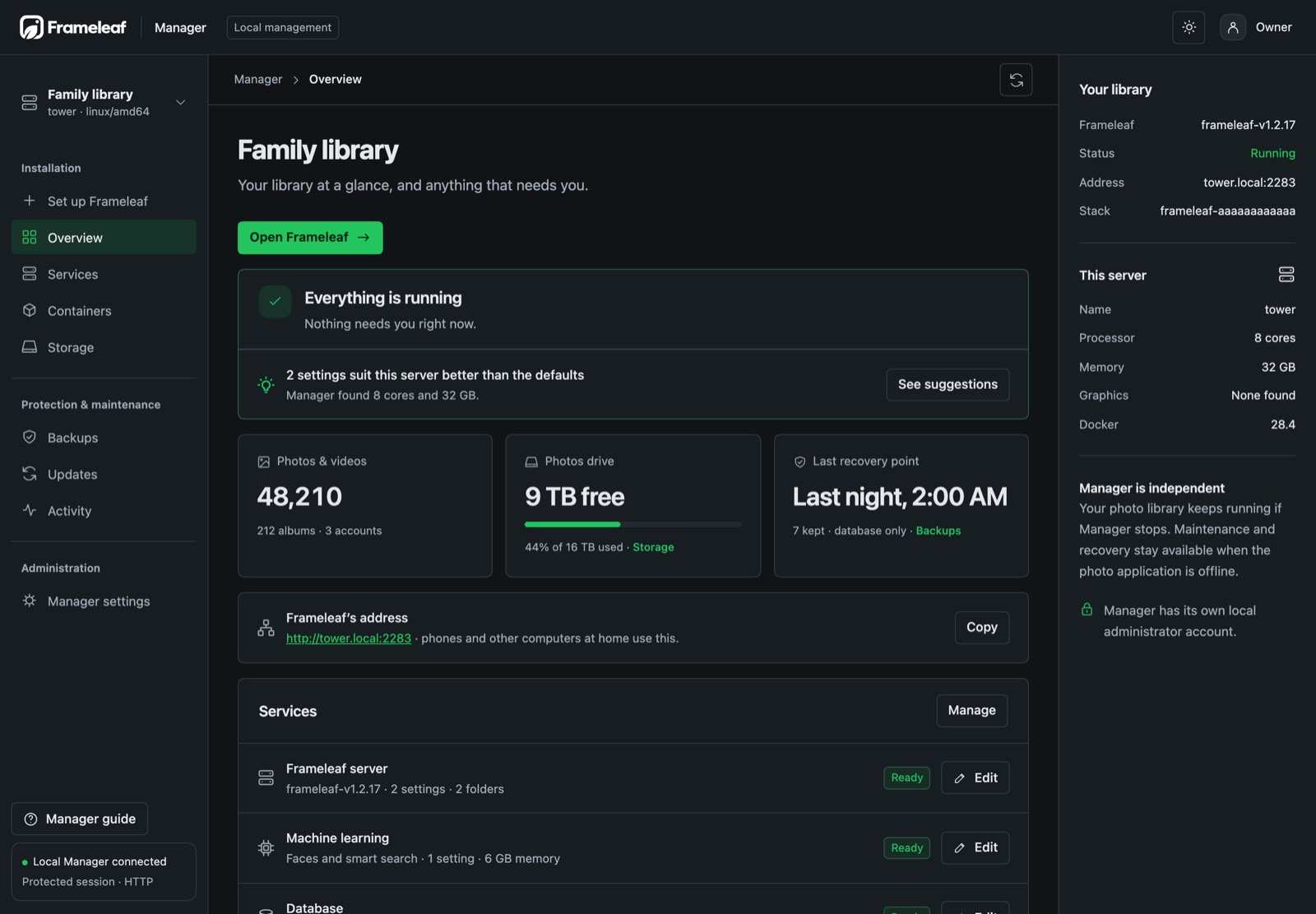
The Overview starts with anything that needs you. Select the image to enlarge it.
The first card says Everything is running or how many things need you, worst first. Each one has a button to the page that fixes it:
- a service that has stopped or isn’t answering;
- a drive that’s 90% full or nearly full;
- no recovery point for more than a week;
- settings someone changed in Docker or Unraid, which the next update would remove;
- a new version of Frameleaf;
- settings that would suit your server better than the defaults.
Below it are your photo and video count, the free space on the photos drive, the last recovery point (such as Last night, 2:00 AM), Frameleaf’s address with Copy for setting up phones, and each service with its settings and Edit. The panel on the right shows this server: processor cores, memory, graphics card and Docker version.
Services
Section titled “Services”Services starts, stops and restarts the whole stack, and shows each service and its state, such as Ready. Choose Logs beside a service to read its recent output, or Check connections under Troubleshooting to test Docker, the database, machine learning, network discovery, the internet and your drives. Download report saves a troubleshooting report with those checks and the last day of logs from every service, ready to attach when you ask for help. Manager removes passwords, folder paths, file names and email addresses from it, but read it before you post it. Edit beside a service opens its settings on Containers. Add folders Frameleaf can show without moving them under External folders; see Try Frameleaf without moving your photos.
Containers
Section titled “Containers”Your library runs as three containers: Frameleaf server, Machine learning and Database. Manager writes their settings itself and writes them again on every update, restore and library move. Anything you change on a container in Docker or the Unraid Docker tab is lost the next time. Change it on Containers instead, and it’s kept.
Open Containers, or choose Edit beside a service on Overview or Services. There’s a tab for each container.
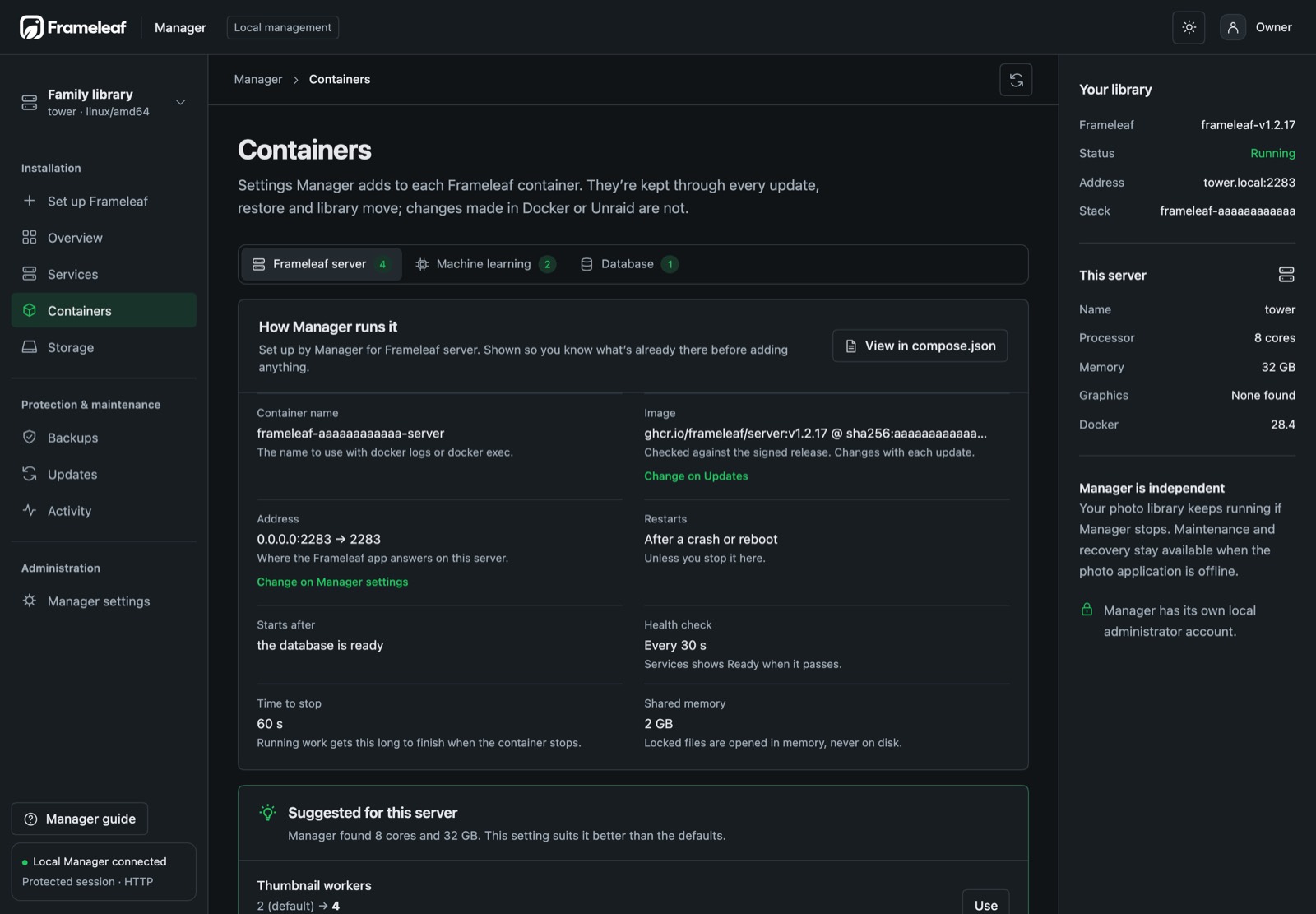
Each container’s tab shows how Manager runs it, then your settings. Select the image to enlarge it.
How Manager runs it
Section titled “How Manager runs it”The first card shows what Manager has set up for the container, so you know what’s already there before you add anything:
- Container name, the name to use with
docker logsordocker exec. - Image, the version it runs. It changes with each update.
- Address, where the Frameleaf app answers, such as
0.0.0.0:2283 → 2283. - Restarts, Starts after, Health check and Time to stop: how Docker keeps it running.
- Shared memory. The server gets 2 GB, because Locked files are opened in memory and never written to disk.
- Database tuning: the memory settings Manager gives PostgreSQL for this server, applied again on every start.
- Graphics card, when Manager found one for machine learning.
Choose View in compose.json to see the container exactly as Manager wrote it, your settings included, and Copy it. Passwords never appear there: the database password is kept in a file only the containers can read.
Settings
Section titled “Settings”Settings are the container’s environment variables. The ones Frameleaf reads are shown by what they do, such as Thumbnail workers for FRAMELEAF_SHARP_WORKERS, with their default and a control to match: a list, an on/off switch or a number in everyday units, like seconds or GB.
Choose Add a setting… to add one. Search by what you want, such as log, iCloud, proxy or memory, and choose it from the list. To add a variable that isn’t listed, type its name and value under A variable that isn’t listed. Manager checks the name as you type:
- An old
IMMICH_name gets Use FRAMELEAF_… to switch to the name Frameleaf reads now. - A name that’s nearly right, such as
FRAMELEAF_TRUSTED_PROXY, gets Did you mean FRAMELEAF_TRUSTED_PROXIES?. - A name Manager sets itself, such as
DB_HOSTNAME, is refused, so the stack keeps working after updates. - Any other name is passed to the container as it is.
Don’t put passwords or tokens here: anyone who can open Manager can read these settings.
If you’d rather type, choose Edit as text and write one NAME=value per line. Lines starting with # are ignored. Choose Done to go back; a line Manager can’t accept is named, and stays until you fix it.
For what each variable does, see Environment variables.
Suggested for this server
Section titled “Suggested for this server”Manager knows your server’s processor cores, memory and graphics card. When a default doesn’t suit them, Suggested for this server lists the setting, its current value, the suggested one and why. Choose Use, Use all or Not now. Each setting also shows its suggestion, or Suits this server when it already matches.
| Your server | Suggestion |
|---|---|
| Any | Thumbnail workers: about one for every 2 cores and 4 GB of memory, from 1 to 8. A server with 8 cores and 32 GB gets 4 |
| 8 GB of memory or less | A smaller Largest image to open, fewer Models kept loaded, and models unloaded sooner |
| 32 GB of memory or more | Machine learning keeps models loaded longer, so search answers faster |
| Intel graphics | Intel graphics precision FP16, which is faster there |
| NVIDIA card | Run Studio masks on cuda |
These are starting points. If thumbnails or search feel slow or the server runs short of memory, change the number and watch how it goes.
Folders
Section titled “Folders”Folders are folders on your server that a container can see. Frameleaf only sees the folders you add.
- Choose Add a folder… and pick the folder on your server.
- Check Inside Frameleaf, the path the container sees, such as
/external/archive. Manager suggests one; you can change it. - Choose what it’s Used for:
- Show in the library, for photos Frameleaf shows without moving them.
- Imports, for a folder an import reads, such as a Google Photos export. Manager adds it to
FRAMELEAF_IMPORT_ROOTSfor you. - Recovering missing files, for an old copy of your library. Manager adds it to
FRAMELEAF_RECOVERY_ROOTS, so Library care can find good copies there. - Something else.
- Leave Read-only on unless Frameleaf needs to write there.
Manager never gives a container the server’s own system folders, Docker’s folder or Manager’s settings, and refuses paths it uses itself, such as /data.
Limits
Section titled “Limits”Memory and Processor stop a container from using more of the server than you want. Manager only offers what your server has, and warns when a limit is too small. For example, the server needs about 3.5 GB with 4 thumbnail workers, so a 2 GB limit could stop it from starting.
Set by Manager
Section titled “Set by Manager”Under your settings and folders, Set by Manager lists everything Manager puts in the container: each variable and folder with a plain name, its value and what it’s for.
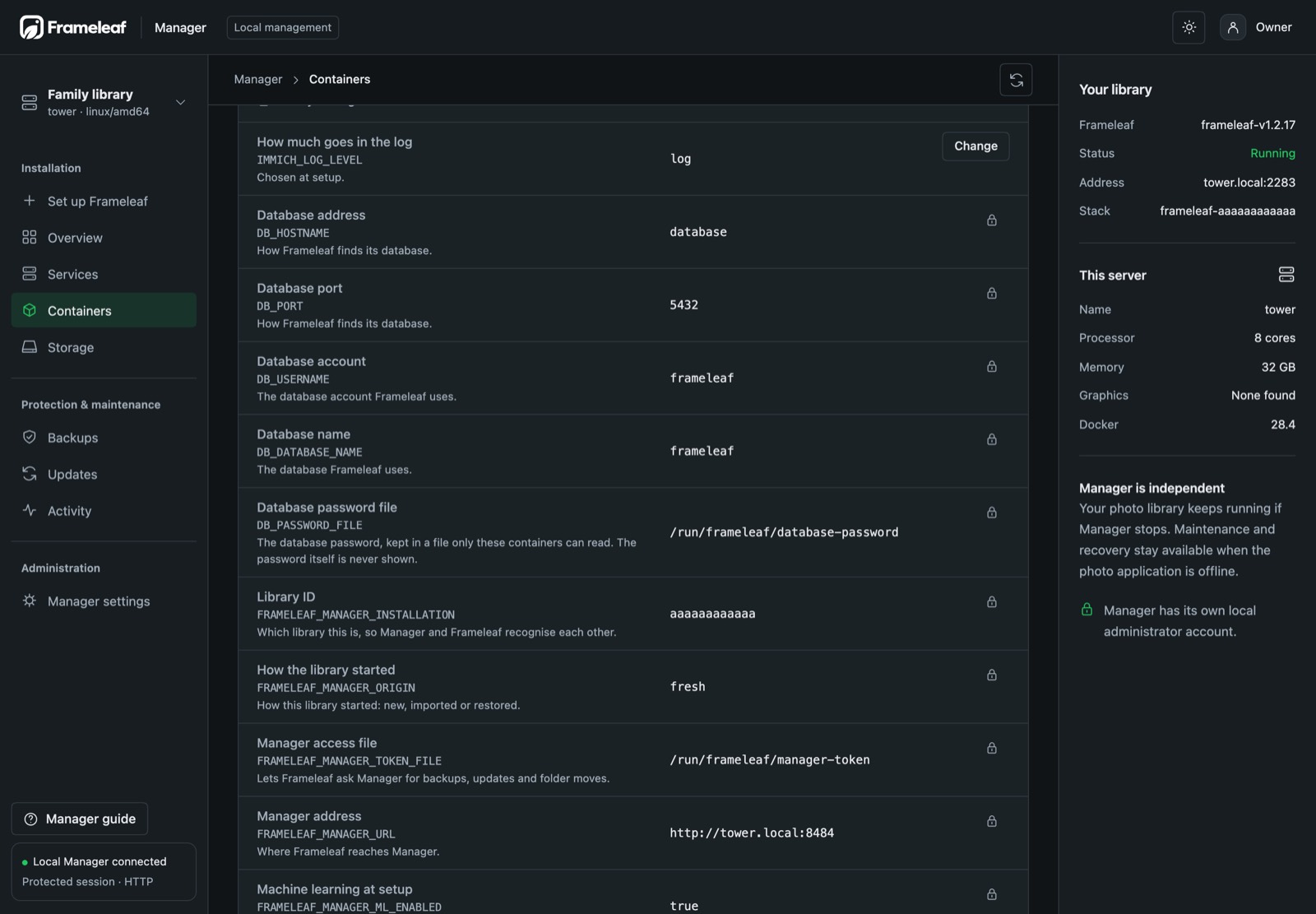
Manager’s own settings, shown so you know the whole container. Select the image to enlarge it.
- Change appears on values you can override here, such as the log level chosen at setup. It adds the setting to your list with its current value.
- A page name, such as Storage, appears where another page changes it: the photos folder and the database folder are moved on Storage.
- A lock means Manager needs that value to keep the stack working, such as how Frameleaf finds its database.
Changed in Docker or Unraid
Section titled “Changed in Docker or Unraid”When someone has added a variable or folder to a running container outside Manager, Containers shows Changed outside Manager with each one, and the Overview lists it too. The next update would remove them.
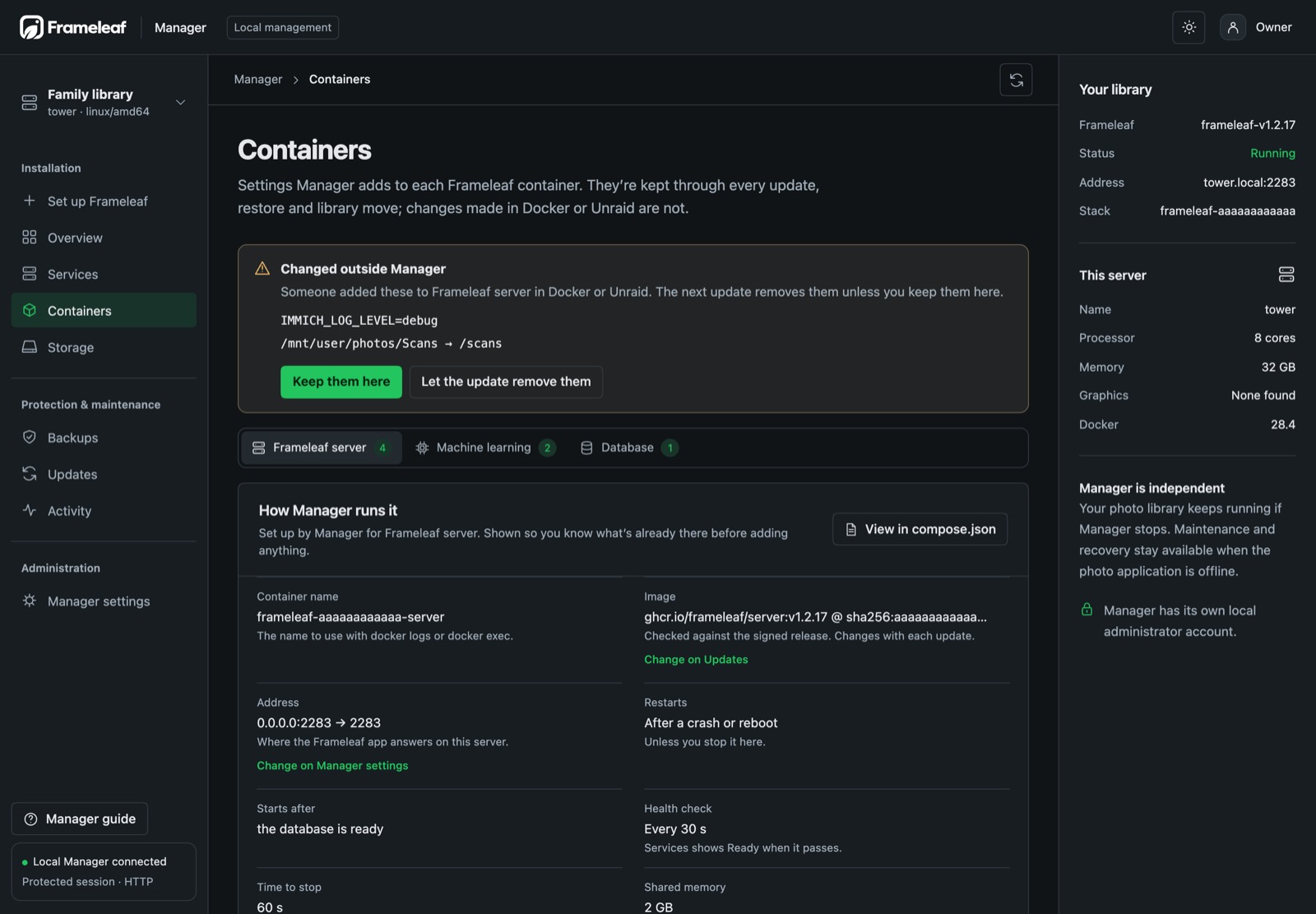
Settings added in Docker or Unraid, offered back so updates keep them. Select the image to enlarge it.
Choose Keep them here to add them to your settings, then save. Variables the image sets itself, such as PATH, aren’t counted as changes.
Save your changes
Section titled “Save your changes”Changes wait until you save them. The bar at the bottom shows how many there are and which containers restart. Choose Discard to undo them all, or Review and save…:
- The review lists every change for each container, such as Time zone: America/Edmonton → Europe/London, and what pauses while it restarts. Photos pause for about a minute when the server restarts.
- Choose Save and restart. Manager records your current settings, writes the new ones and restarts only the containers whose settings changed.
- If a container doesn’t start, the progress page offers to put the previous settings back.
Storage
Section titled “Storage”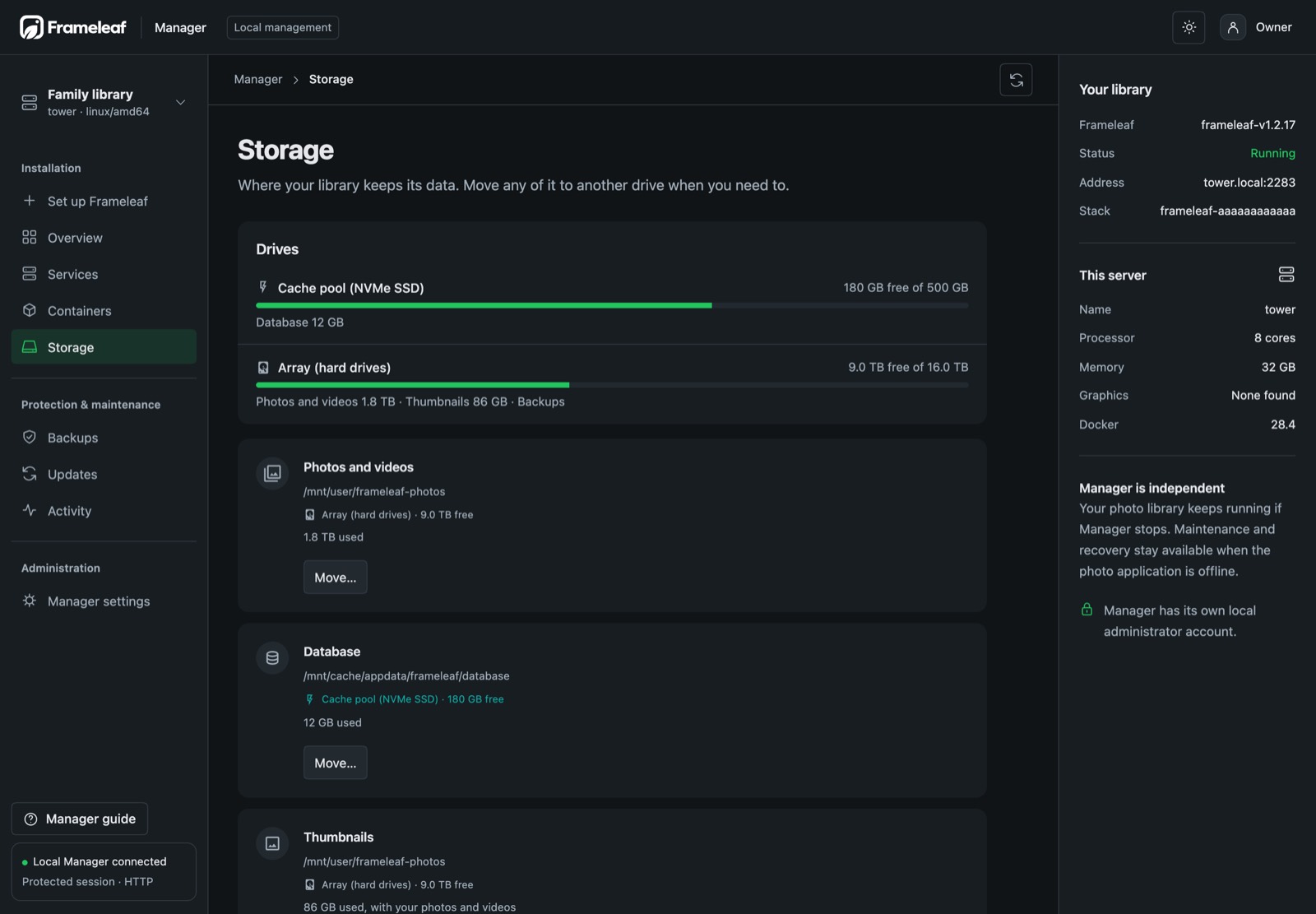
Drives at the top shows each drive, how full it is and what of your library is on it, such as Photos and videos 1.8 TB · Thumbnails 86 GB · Backups. Below are your photos and videos, the database and thumbnails, each with Move…, and Also on this server: the backups folder, the machine learning models and the extra folders added on Containers. To move something, see Move data to another drive.
Backups
Section titled “Backups”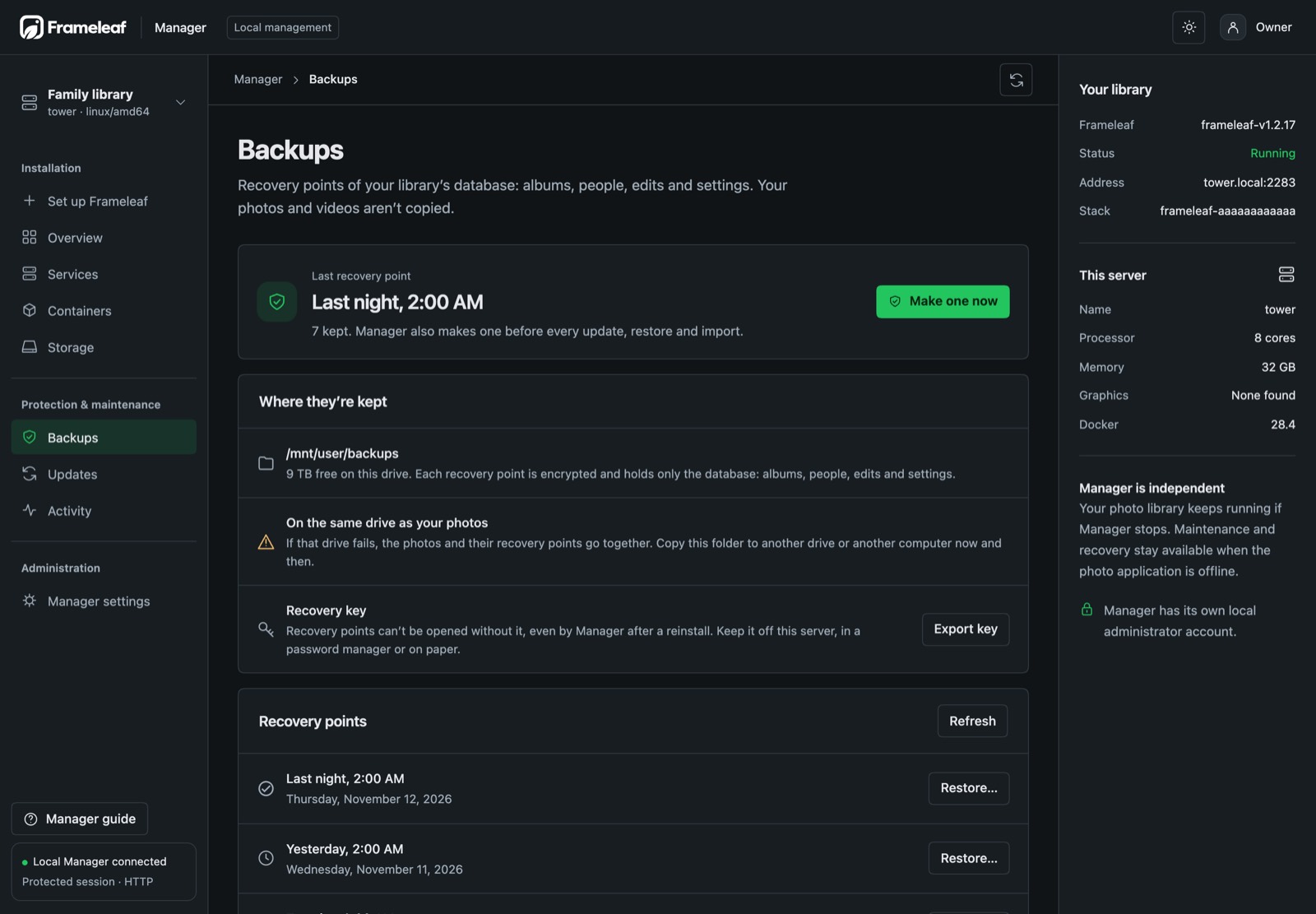
Backups keeps recovery points of the database: albums, people, edits and settings. Photos and videos aren’t copied. The page starts with the last recovery point and Make one now. Manager also makes one before every update, restore, import and database move. It warns when backups are on the same drive as your photos, since a failing drive would take both. See Backup and restore.
Updates
Section titled “Updates”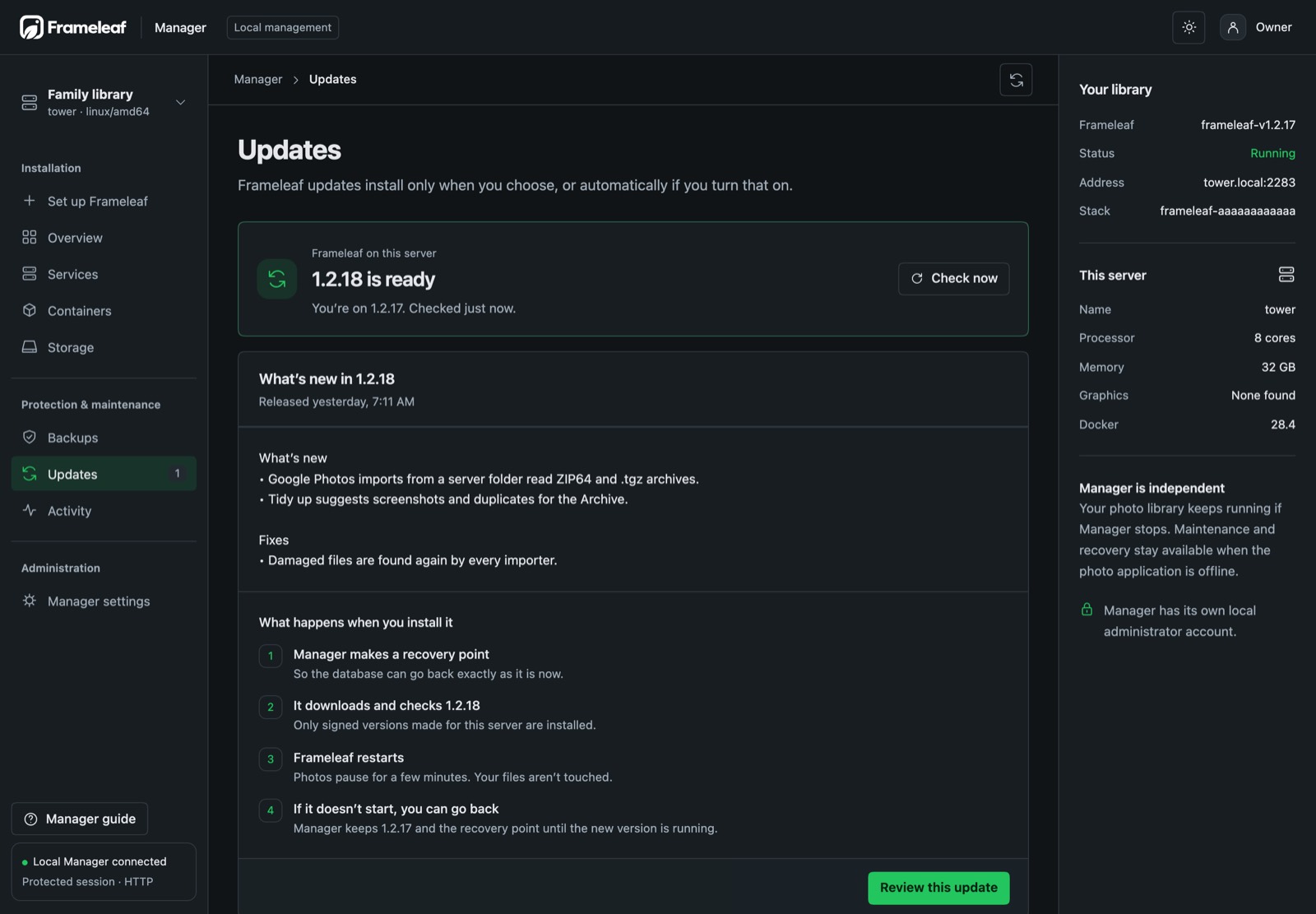
Updates shows the version you’re on and when Manager last checked. When a new one is ready, it shows what’s new and what installing it does, then Review this update. Install updates automatically is on from the start: Manager checks every few hours and installs one version at a time, each after a recovery point. Turn it off and updates wait for you here. See Upgrading.
Activity
Section titled “Activity”Activity lists every setup, update, backup, restore and move Manager has run, newest first, with the step it reached. Choose Details to open one. If an operation was interrupted, its page offers Resume safely, and where it’s still safe, a way to cancel.
Manager settings
Section titled “Manager settings”Manager settings holds Manager’s own administrator: change the name or password here, which signs out every other Manager session. Export beside Configuration export downloads Manager’s recovery configuration; keep it with your recovery key, away from the server. See Accounts, passwords and where they’re kept.
When more than one Frameleaf installation runs on the server, each Manager lists the others in its sidebar, and Add installation walks you through adding another. See Several Frameleaf installations on one server.
© 2026 Frameleaf Inc. All rights reserved.
Frameleaf and the Frameleaf logo are Trademarks of Frameleaf Inc.