
Contracts
Contracts in Clients turns your agreement into a template, fills in each client’s details and sends them a link to sign. The client reads the agreement, signs with their typed name or a drawn signature, and both of you get a signed PDF.
Signing happens on your own Frameleaf server. No signing service sees the agreement, your client’s name or their email address, and there’s no fee per contract.
Before you start
Section titled “Before you start”- Ask your administrator to set up email delivery and a Public server URL your clients can reach. The signing link is sent by email and opens at that address.
- In Clients, choose Branding to check your studio’s name, colour and email address. They appear on the signing page and in the signed record.
You can write templates before email is ready. Until it is, Contracts shows To send contracts, set up email and your web address in Settings.
Write a template
Section titled “Write a template”Open Clients, then Contracts in the left rail.
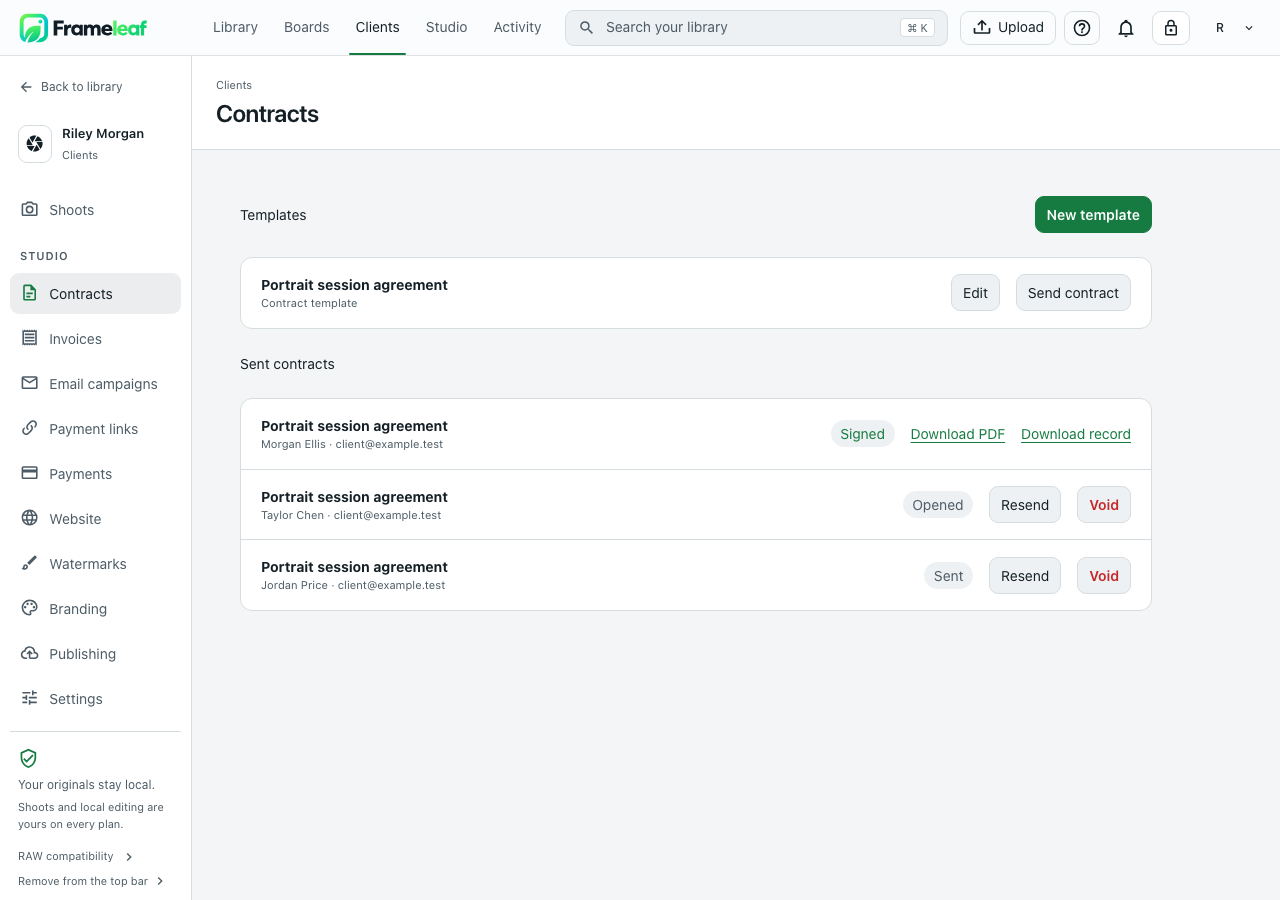
- Select New template.
- Enter a Template name, such as Portrait session agreement.
- Write the Agreement text. Where the client’s details belong, select a merge field below the text: client name, session date or total. Each one adds a placeholder such as
{client_name}where your cursor is. - Check Sample agreement, which shows the text with example details filled in.
- Select Save template.
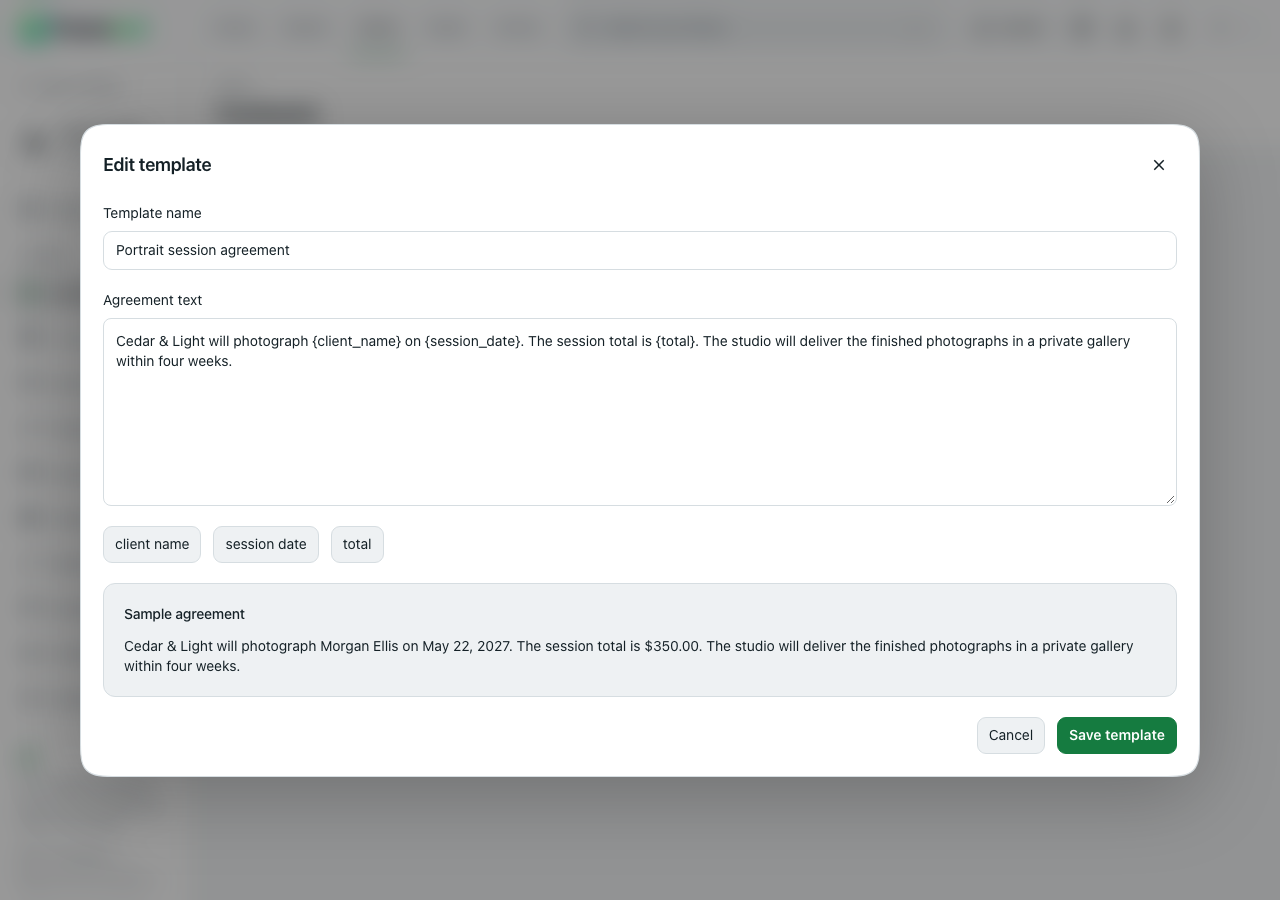
Only those three merge fields can be used. Any other text in braces stops the template from saving. Choose Edit beside a template to change it later; contracts you’ve already sent keep the text they were sent with.
If you work with clients in Quebec, keep a French version of your agreement as its own template.
Send a contract
Section titled “Send a contract”- Select Send contract beside the template.
- Enter the Client’s name and their Email address.
- If the template uses them, enter the Session date and the Total as you want them to read, such as $350.00.
- Read the filled-in agreement below the fields, then select Send contract.
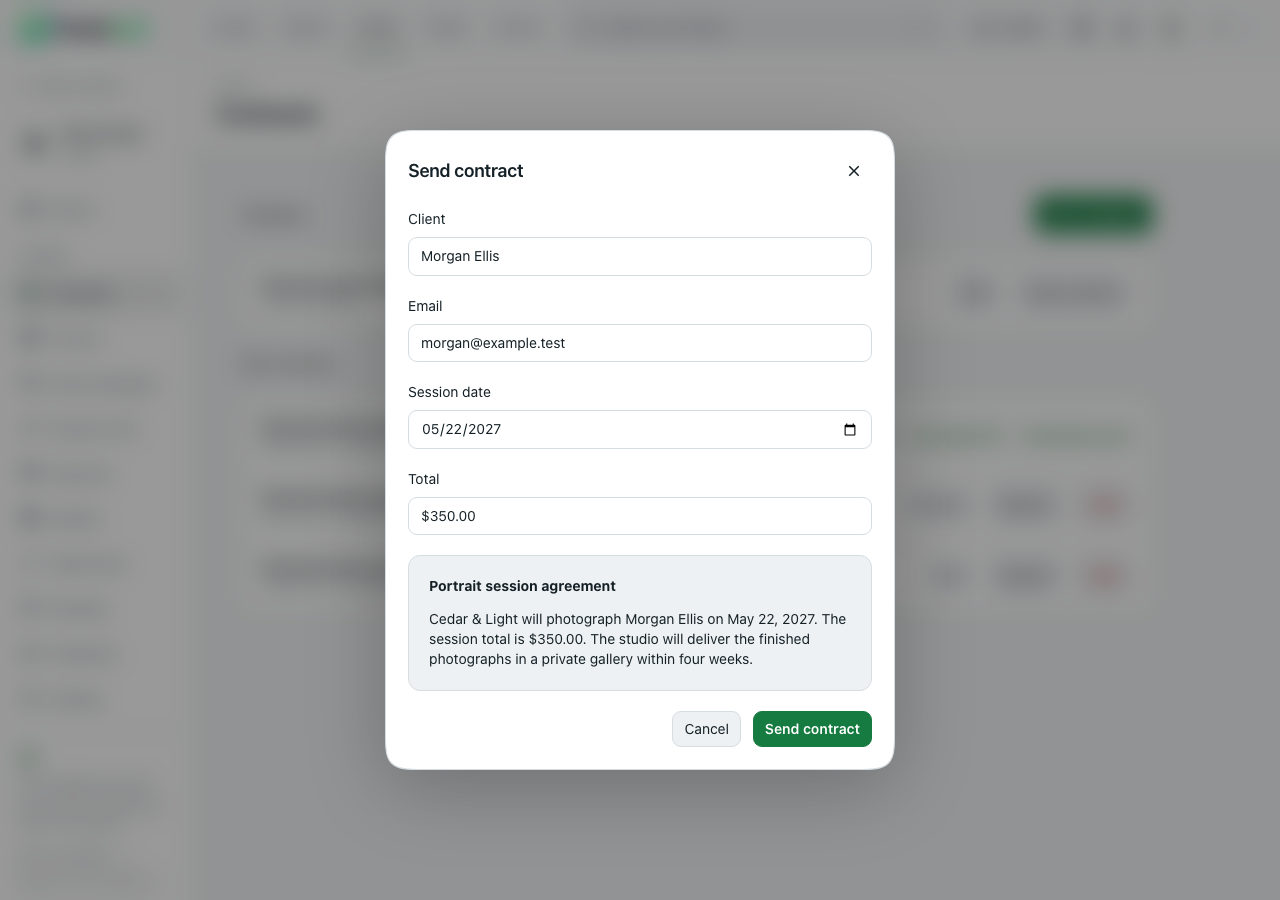
The client gets an email with a link to the signing page. The link works for 30 days.
The agreement’s wording is fixed when you send it. To change anything, choose Void and send a new contract from the template.
If you see The agreement couldn’t be sent. Check the email address and try again., check the address and that email delivery is working, then try again.
Follow sent contracts
Section titled “Follow sent contracts”Sent contracts lists every contract with its client and status:
| Status | What it means |
|---|---|
| Draft | Created but not sent. Choose Send contract to send it |
| Sent | Emailed, and the client hasn’t opened the link yet |
| Opened | The client opened the signing page |
| Signed | The client signed. Download PDF and Download record appear |
| Voided | You voided it; its link no longer opens the agreement |
- Resend emails a new link that works for another 30 days. The earlier link stops working.
- Void cancels the contract and stops its link. A signed contract can’t be voided.
What your client sees
Section titled “What your client sees”The link opens a page with your studio’s name and colour, the agreement, and the signing form.
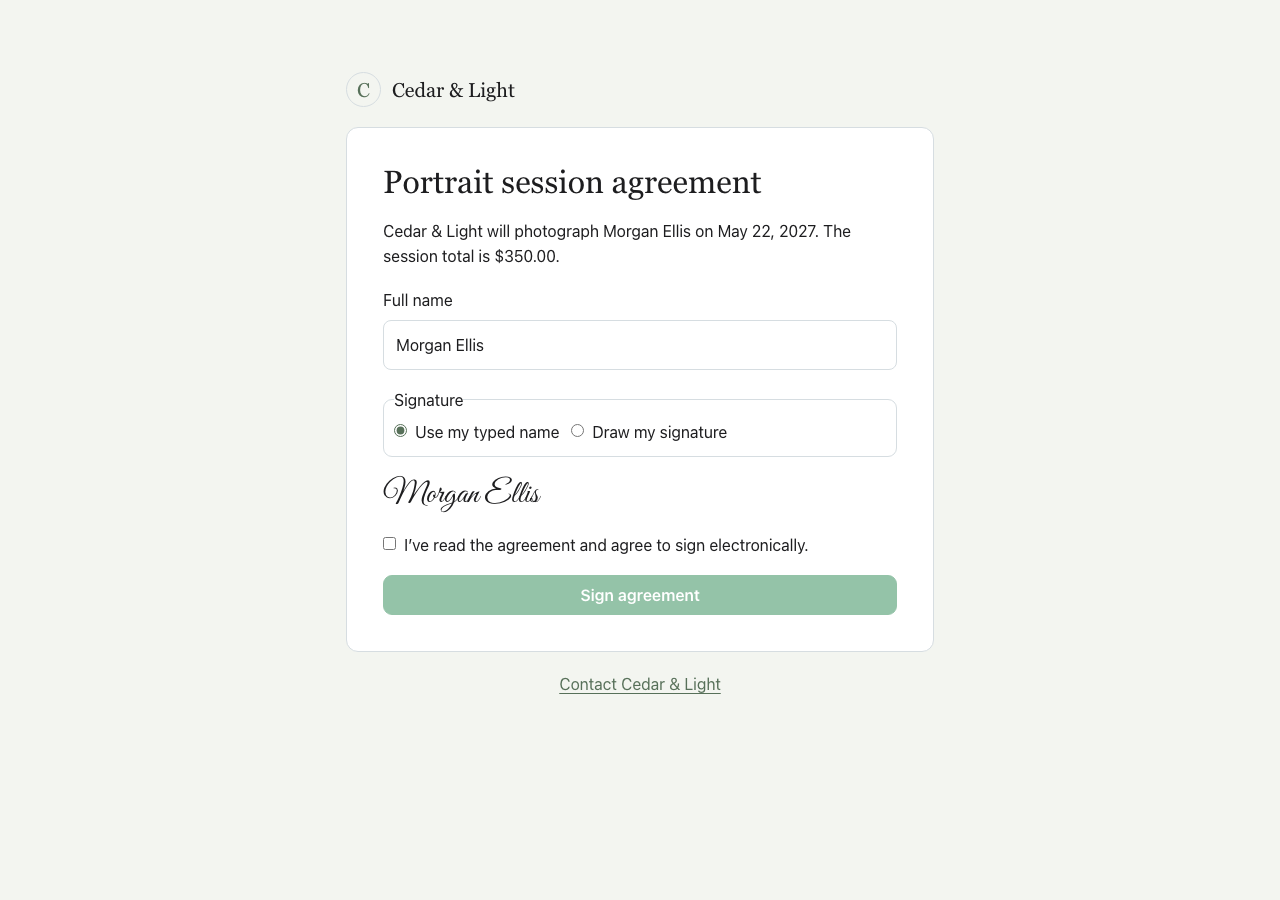
- The client enters their Full name.
- Under Signature, they choose Use my typed name, or Draw my signature and sign with a mouse, finger or pen. Clear drawing starts the drawing again.
- They tick I’ve read the agreement and agree to sign electronically.
- They select Sign agreement.
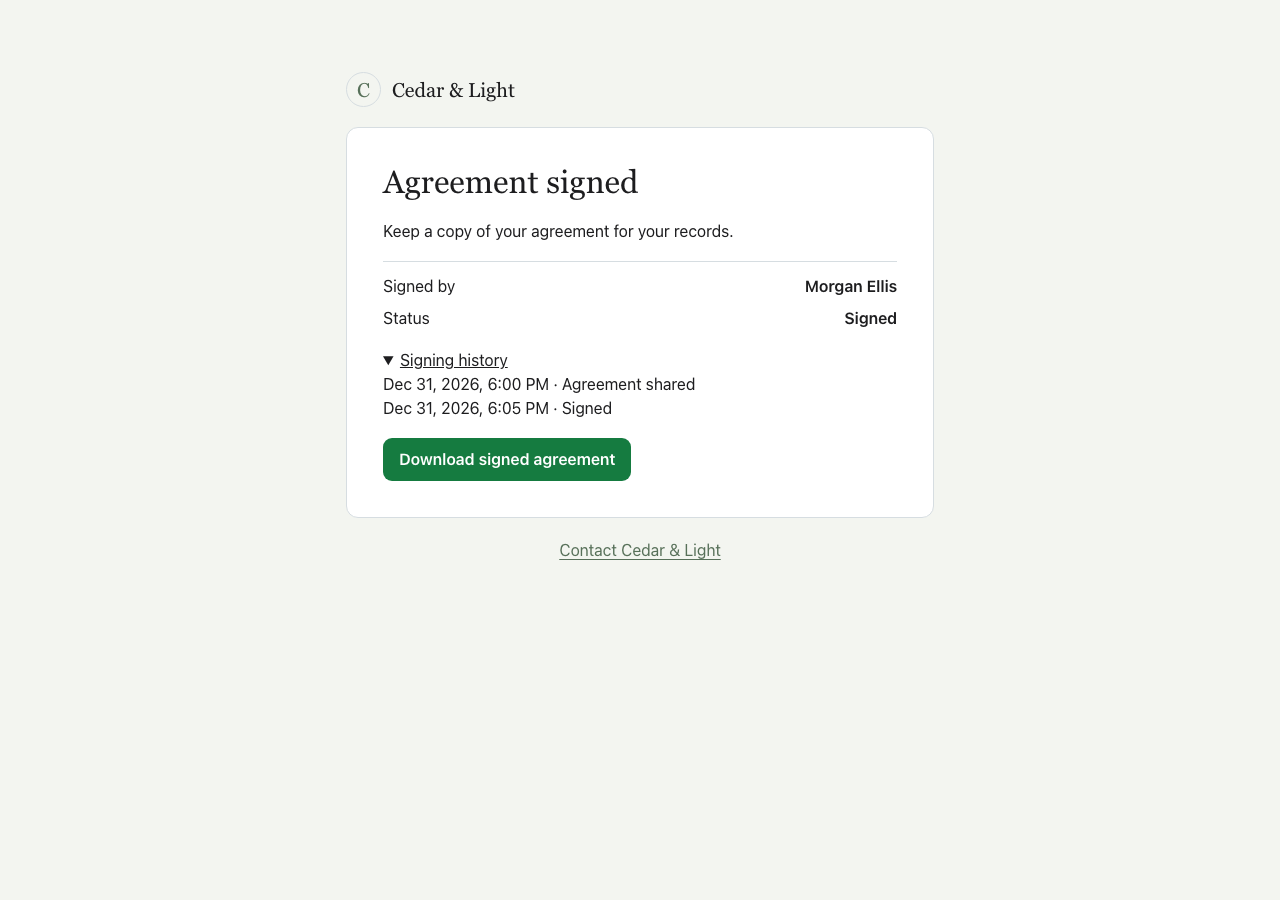
The page then shows Agreement signed, who signed, the Signing history and Download signed agreement. The client can come back to the same link to download the signed copy until it expires.
A link that has expired or was voided shows This agreement link is unavailable and asks the client to request a new one. Links also stop working if the studio’s account is deactivated.
The signed record
Section titled “The signed record”When the client signs, Frameleaf seals the contract as a PDF and emails a copy to the client and to the studio account’s email address. The PDF is saved in PDF/A format for long-term archiving and contains:
- the agreement exactly as it was sent
- the signature (the drawing, or the typed name in a handwriting style) with the date and time
- a Signing certificate page with the record number, the studio and signer, the agreement’s SHA-256 fingerprint, the consent wording, and the signing history: when the contract was prepared, sent, opened and signed, with the IP address and browser for each step
- the full signing record attached inside the PDF as
audit.json
Each step in the history is chained to the one before it with a SHA-256 hash, so an edited or missing step is detectable. Frameleaf also checks, before accepting a signature, that the text the client read is exactly the text you sent.
In Sent contracts, a signed contract has:
- Download PDF: the signed PDF
- Download record: a ZIP with
contract-signed.pdf,audit.jsonand aSHA256SUMSfile. Anyone can check the files haven’t changed by runningsha256sum -c SHA256SUMSin the unzipped folder, without Frameleaf.
Signed contracts stay on your server until you delete them; Frameleaf never removes them on its own. Keep them for as long as you keep the related invoices, typically at least 7 years.
About electronic signatures
Section titled “About electronic signatures”Frameleaf collects a simple electronic signature: the signer’s name or drawing, their explicit agreement to sign electronically, confirmation that they opened the link sent to their email address, and a record that the text didn’t change. In the United States and Canada, laws such as ESIGN, UETA and the provincial electronic transactions acts generally accept this kind of signature for service agreements like photography contracts. This isn’t legal advice; check what applies to your business and your clients.
Related
Section titled “Related”- Invoices to bill the client after they sign
- Email campaigns to send offers to your studio contacts
- Clients
© 2026 Frameleaf Inc. All rights reserved.
Frameleaf and the Frameleaf logo are Trademarks of Frameleaf Inc.