
Invoices
Invoices in Clients lists what a client is paying for, splits it into a deposit and a balance, and emails the client a link to their invoice. If your studio has a payment account connected, the client pays online; otherwise you record the payment when it arrives. Frameleaf can remind the client before each payment is due.
Invoices are kept on your Frameleaf server. Frameleaf takes no fee on invoice payments.
Before you start
Section titled “Before you start”- Ask your administrator to set up email delivery and a Public server URL your clients can reach. Invoices and reminders are sent by email, and the link opens at that address.
- To take payments online, connect a payment account: open Clients, then Payments, and choose Connect account. Payments go through Stripe into your studio’s own account, through Frameleaf Cloud, so this server needs to be linked to Frameleaf Cloud. Stripe’s processing fees come out of each payment, and refunds and disputes are handled in your Stripe dashboard.
- In Clients, choose Branding to check your studio’s name, colour and email address. They appear on the invoice page and the PDF.
Without a payment account, everything else on this page still works: clients see the invoice and its PDF, and you record each payment with Mark as paid.
Create an invoice
Section titled “Create an invoice”Open Clients, then Invoices in the left rail.
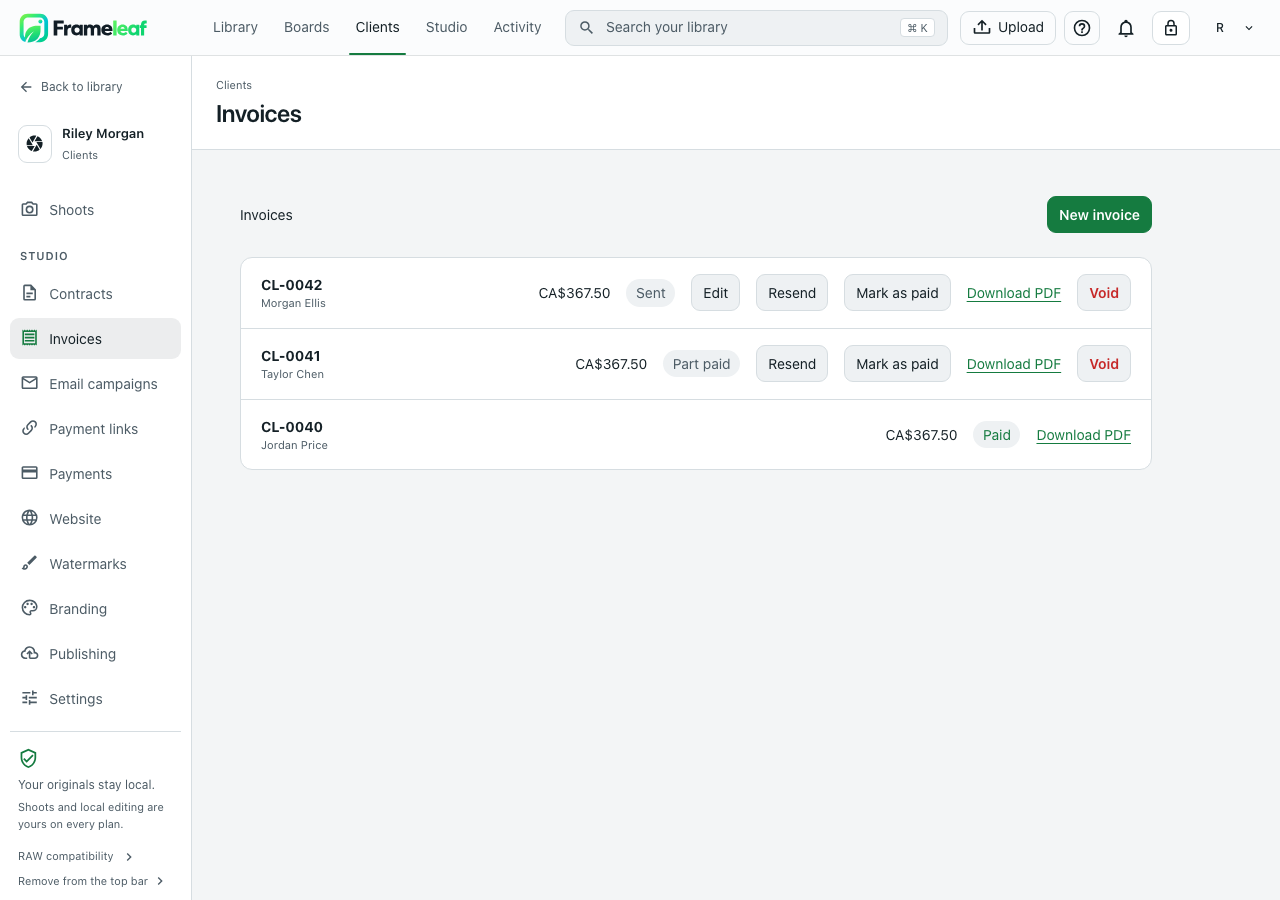
- Select New invoice.
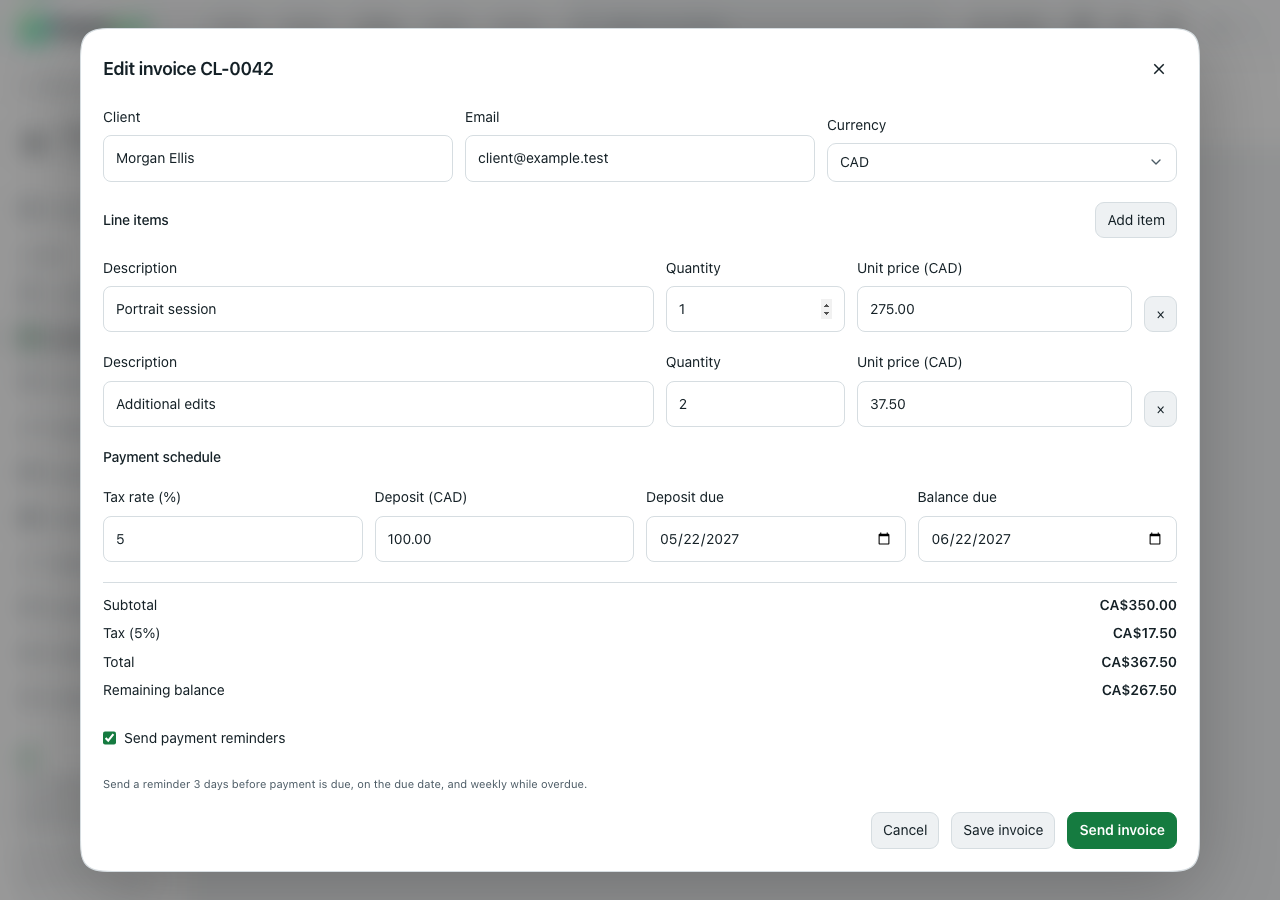
- Enter the Client’s name and Email, and choose the Currency: CAD, USD, EUR or GBP.
- Under Line items, add each thing the client is paying for with its Description, Quantity and Unit price. Select Add item for another line, or × to remove one.
- Under Payment schedule, enter the Tax rate (%).
- For a deposit, enter the Deposit amount and when it’s due under Deposit due. Leave Deposit at 0 to ask for the whole amount at once.
- Choose Balance due, the date the rest is due.
- Check the Subtotal, tax, Total and Remaining balance below the fields.
- Leave Send payment reminders ticked to remind the client automatically. See Reminders.
- Select Save invoice to keep it as a draft, or Send invoice to email it now.
Each invoice gets the next number for your studio, such as CL-0042. Numbers go up by one with no gaps or repeats.
Your server works out the totals in whole cents: each line is its quantity times its unit price, and tax is the subtotal times the tax rate, rounded to the nearest cent. The deposit must be less than the total and due no later than the balance.
You can change an invoice with Edit until a payment is recorded against it. After that, void it and create a new one if something needs to change.
Send and follow invoices
Section titled “Send and follow invoices”Send invoice emails the client a link to their invoice. Resend sends another link; links you sent earlier keep working.
Each invoice in the list shows its total and status:
| Status | What it means |
|---|---|
| Draft | Saved but not sent |
| Sent | Sent, with nothing paid yet |
| Part paid | Some has been paid, such as the deposit |
| Paid | Paid in full |
| Overdue | A payment’s due date has passed and it isn’t paid |
| Voided | You voided it; its links no longer open the invoice |
- Mark as paid records money you received another way, such as cash or a bank transfer. Enter the amount; it can’t be more than what’s still owed. A partial amount makes the invoice Part paid.
- Download PDF saves the invoice as a PDF with its lines, totals, what’s been paid and the payment schedule.
- Void cancels the invoice, stops its links and stops its reminders. A paid invoice can’t be voided.
If you see The invoice couldn’t be saved. Your changes are still here., check the dates and amounts and try again.
What your client sees
Section titled “What your client sees”The link opens a page with your studio’s name and colour, the invoice number, each line, the totals and what’s due now.
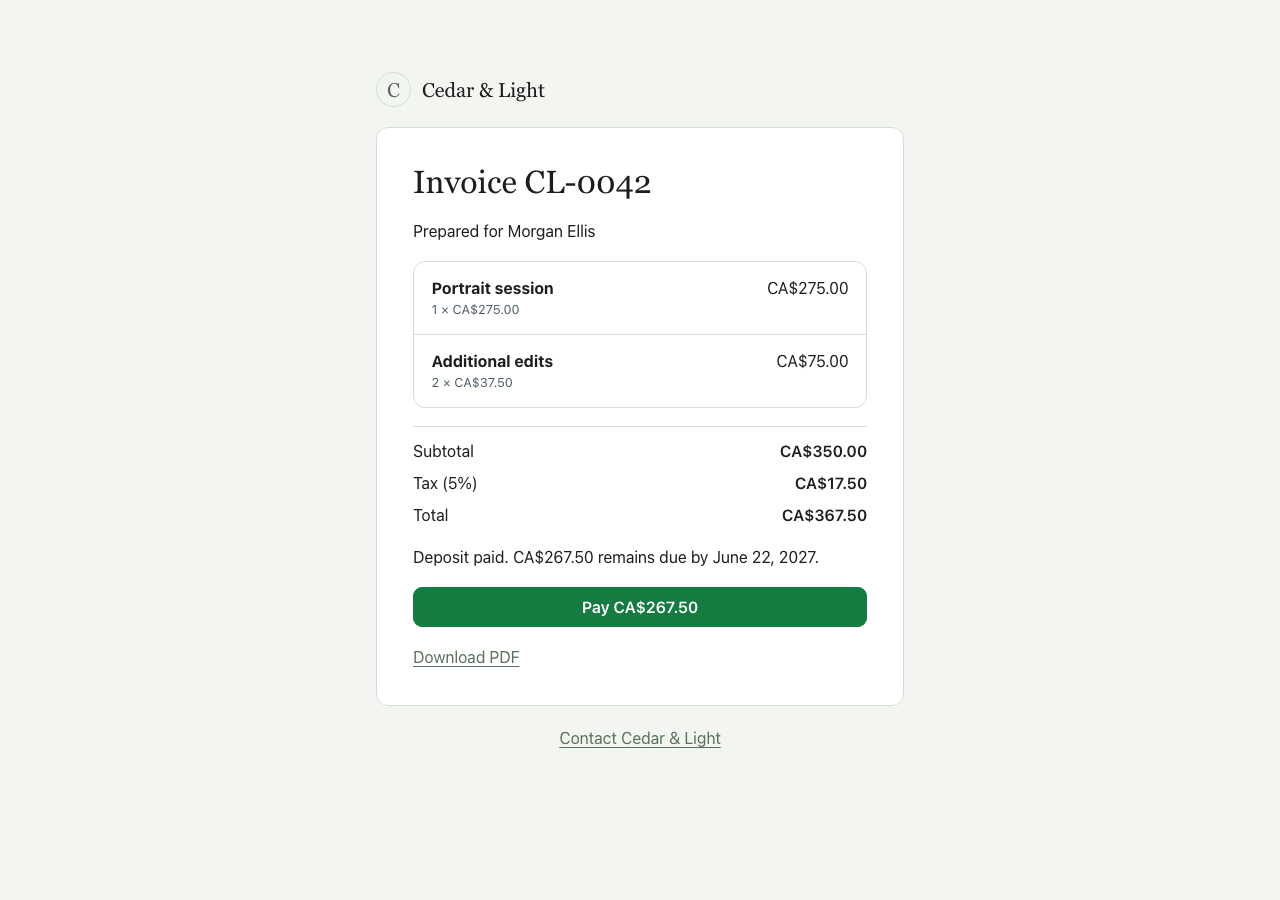
- Before the deposit is paid, the page shows the deposit and its due date. Once it’s paid, it shows Deposit paid. and the balance with its due date.
- With a payment account connected, Pay takes the client to Stripe’s secure checkout for exactly the amount due now. They can’t change the amount. After paying, they come back to the invoice, which updates once Stripe confirms the payment.
- When nothing more is owed, the page shows Invoice paid.
- Download PDF saves a copy of the invoice.
Payments update the invoice on their own: a deposit makes it Part paid, and the last payment makes it Paid. If you refund a payment in Stripe, the invoice shows the balance as owed again. If two payments for the same amount ever arrive at once, the second is recorded and you can refund it in Stripe.
A voided invoice’s link shows This invoice link is unavailable and asks the client to request it again. Links also stop working if the studio’s account is deactivated.
Reminders
Section titled “Reminders”With Send payment reminders ticked, Frameleaf emails the client:
- 3 days before each payment is due
- on the due date
- every 7 days after that while the payment is overdue
Each reminder says how much is due and by when, with a link to the invoice. A client gets at most one reminder a day. Reminders stop as soon as the invoice is paid or voided, and need email delivery to be working. To stop reminders for one invoice, Edit it and untick Send payment reminders (before any payment is recorded), or void it.
Related
Section titled “Related”- Contracts to have the client sign before you invoice
- Email campaigns
- Clients
© 2026 Frameleaf Inc. All rights reserved.
Frameleaf and the Frameleaf logo are Trademarks of Frameleaf Inc.