
Boards
Boards is your space for what inspires your work: images and videos you collect, links, design files, fonts, documents and anything else you keep for a project. It lives on the same server as your photos, but apart from them, and it’s free with Frameleaf. Open it with Boards in the top bar.
Everyone on the server has their own Boards. Nobody else sees what you add unless you share a collection.
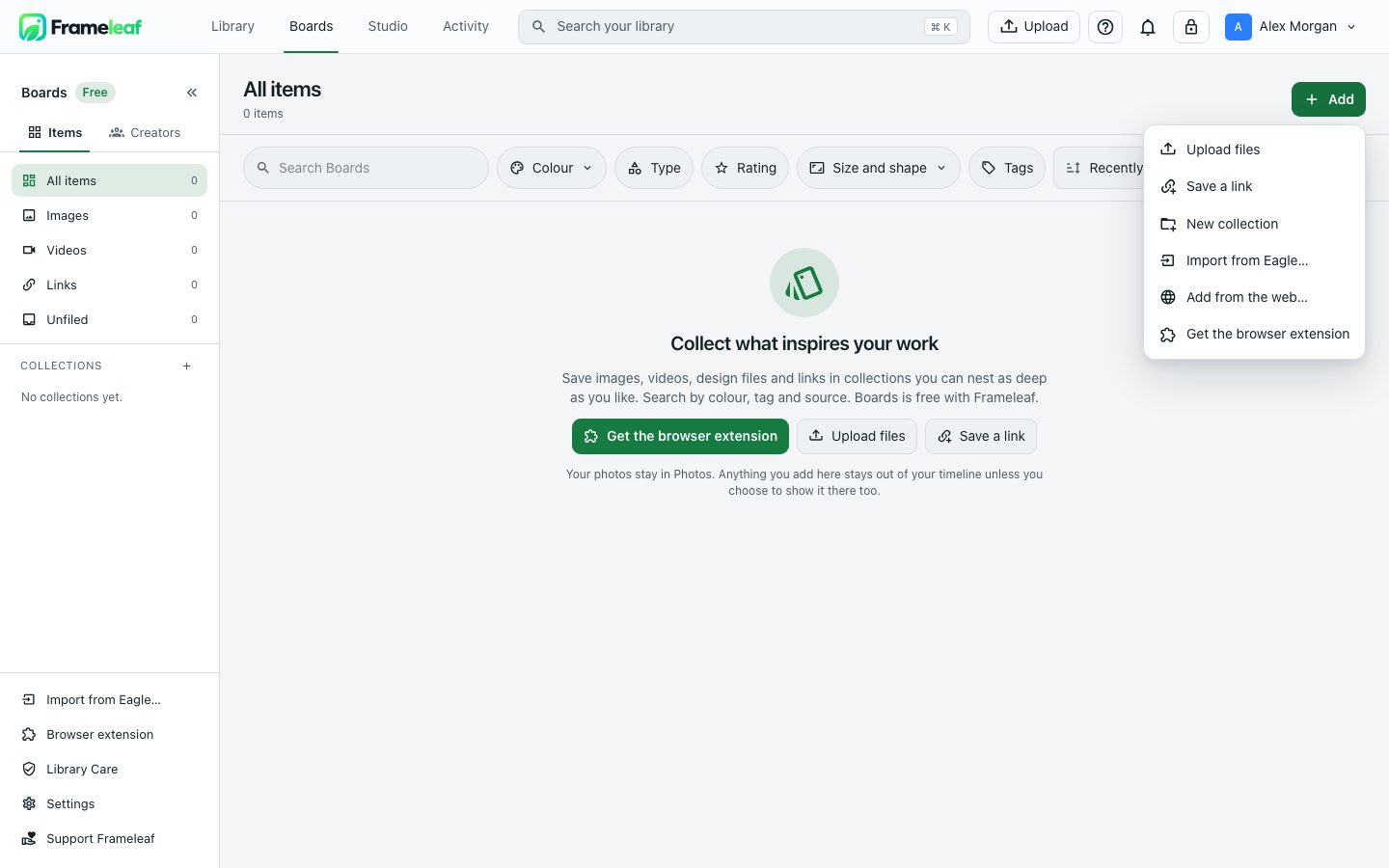
Boards, with the Add menu open. Select the image to enlarge it.
Boards and your photos
Section titled “Boards and your photos”What you add to Boards stays out of your photo timeline, your memories and face recognition. To show an item in your photos as well, open it and turn on Show in Photos too; it then appears in your timeline, memories and search too. To change several at once, select them and choose Where it shows, then Show in Photos too or Boards only.
Your photos stay where they are: nothing from your library moves into Boards.
Find your way around
Section titled “Find your way around”The side panel has All items, Images, Videos, Links and Unfiled (items in no collection), each with a count. Your Collections follow, then any Smart collections. On a narrow screen, they’re under Collections and filters.
Above your items:
- Search Boards looks through names, notes, tags and the sites things came from.
- Colour, Type, Rating, Size and shape and Tags narrow what you see. See Find things.
- Sort by Recently added, Name or Rating.
- View options: Layout is Board, which keeps each item’s shape, or Grid, which crops them to even squares. You can also change the Thumbnail size and Show file names.
- Select to act on several items at once.
Add to Boards
Section titled “Add to Boards”Add, at the top right, has every way in: Upload files, Save a link, New collection, Import from Eagle…, Add from the web… and Get the browser extension.
Upload, drag and paste
Section titled “Upload, drag and paste”- Upload files, or drag files onto Boards. Inside a collection, what you add goes into that collection.
- Paste an image to upload it, or paste a web address to save it as a link.
Boards keeps any kind of file. Images, videos, GIFs, design files, fonts, documents and audio get a preview; anything else gets a plain tile, and its original is kept, backed up and ready to download. See Supported formats. A file that’s already in your library isn’t stored twice: the item you have gains the new collections and tags instead.
Save a link
Section titled “Save a link”Save a link keeps a web page as a bookmark: its Web address, a title, your note, and a Picture from the page. Choose a Collection, or leave it Unfiled. Only the address, title, note and picture are saved, never a copy of the page. To keep a copy of a video or the pictures in a post, use Add from the web… instead.
Save to Frameleaf, the browser extension
Section titled “Save to Frameleaf, the browser extension”Save to Frameleaf saves what you find on the web straight into Boards, in Chrome and Edge. Get it from the Chrome Web Store, or choose Get the browser extension in Boards; the setup has three steps: Add the extension, Sign in with your Frameleaf account (choose your server, sign in, then Allow), and Start saving. If your browser can’t sign in, choose Browser can’t sign in? Use a key instead.
Once it’s set up:
- Right-click an image and choose Save image to Frameleaf, or anywhere on a page and choose Save page bookmark to Frameleaf.
- Or open the extension: Images lists the pictures on the page, which you can narrow by Format and by size with At least; Page saves the page as a link; and Screenshot captures the Visible page, an Area or the Whole page.
- Pick where it goes with Save to, and add Tags and a Note as you save.
The extension asks for a secure address, one that starts with https. For a server on this computer or your home network, turn on Allow a local server without HTTPS when you choose your server; it then accepts a plain http address such as http://192.168.1.20:2283 or http://tower.local:2283. Anywhere else needs https. Over plain http, what the extension sends isn’t encrypted on your home network.
The extension can only save to Boards and list your collections and tags. It can’t see your photos. If your server can’t be reached, what you save waits under Waiting items and is saved when it’s back.
Import an Eagle library
Section titled “Import an Eagle library”Import from Eagle… brings an Eagle library into Boards in four steps: Choose, Check, Where and Import. Your Eagle library itself is never changed.
- Choose the folder whose name ends in
.library. It can be:- On this computer: your browser sends the files. Closing the tab pauses the import; choose the same library again and Carry on.
- In a folder your server can open: for administrators, when the server has been given that folder. The import carries on on the server after you close the browser.
- Check shows what will come over and what won’t, before anything is imported.
- Where: put the new collections Inside a collection, which is recommended, or At the top level.
- Import. Stop import… keeps whatever already came over.
| Comes over | Doesn’t come over |
|---|---|
| Folders, as nested collections with their colours and descriptions | Smart folders |
| Tags, ratings and notes | Tag groups (the tags themselves do come over) |
| The web address an item came from, under Source | Folder icons |
| The date it was last changed in Eagle, as its added date | Comments that mark an area of a picture, and comments on videos |
| Sound and 3D files, kept as originals | Items in Eagle’s trash, and Eagle’s colour palettes: Frameleaf reads each picture’s colours itself |
An item that’s already in your library keeps its own rating and note. A collection whose name you already use gets “(Eagle)” added. When it’s done, Import finished lists anything that was left out, by name.
Organise
Section titled “Organise”Collections
Section titled “Collections”Collections hold your items, and you can nest them up to 32 levels deep. Choose New collection, or New collection inside on a collection’s menu, and give it an icon and a colour. Move collection… moves it with everything inside, and the people it’s shared with keep their access. Delete collection… keeps its items in Boards and moves its sub-collections up a level; public links to it stop working.
A collection is an album, so you can share it the same way as any album. See Sharing.
Smart collections
Section titled “Smart collections”Once a filter is on, Save as smart collection keeps it, so the collection fills itself with whatever matches.
Ratings, tags and notes
Section titled “Ratings, tags and notes”Give an item 1 to 5 stars, or Rejected to keep it but leave it out of your picks. Add Tags, and a Note to say why you saved it or what to change. Notes and tags are searched along with names.
Find things
Section titled “Find things”Search
Section titled “Search”Search Boards looks for your words in names, notes, tags and sites. Search by meaning finds things by what they show, such as red sneakers on concrete, and ranks the closest first.
Find by colour
Section titled “Find by colour”Every picture’s colours are read when it arrives; videos and GIFs are matched on a frame from the middle of the clip. Colour lets you pick a swatch or Choose any colour, then How close: Exact, Close or Loose. Only the main colour matches items where that colour leads. While a colour is chosen, you can sort by Closest colour first. If nothing is close, Show loose matches widens the search.
An item’s Colours in its details show up to five swatches; select one to find more like it.
Type, size and shape
Section titled “Type, size and shape”- Type: Images, Videos, Links or Fonts.
- Rating: a number of stars or more, or Rejected.
- Size and shape: Landscape, Portrait, Square or Wide; At least this wide, such as full HD or 4K; Transparent background only; and a video’s length in seconds.
Look closer
Section titled “Look closer”Select an item to open its details beside your items: Download original, its Colours, Rating, Tags, Note, Collections, Source (how and where you saved it; only you can see this), File details, and Show in Photos too. View large opens it full size. A document opens as a read-only PDF in a new tab, and audio plays right there.
Annotations
Section titled “Annotations”Choose Annotate to draw a Rectangle, an Arrow or Text on a picture, each with a note. Annotations are drawn over the picture, not into it: the original file never changes. On a keyboard, H shows or hides them, Tab moves between them, the arrow keys move one (with Shift for bigger steps), and Delete removes it.
Download and delete
Section titled “Download and delete”Select items and choose Download to get them as a .zip. Include a library file, on by default, adds a file with their collections, tags, ratings, notes, annotations, sources and links, so they make sense in another app. It’s offered for up to 10,000 items of your own. For a full copy you can restore, use backups.
Move to trash removes items you own; they wait in the trash like any other. Remove from a collection takes items out of it and keeps them in Boards.
On your phone
Section titled “On your phone”Boards has its own tab in the iPhone and iPad and Android apps.
© 2026 Frameleaf Inc. All rights reserved.
Frameleaf and the Frameleaf logo are Trademarks of Frameleaf Inc.