
Client galleries
Use Clients on the web to prepare a shoot for each client and share a private gallery. Bulk creation saves repeating the same setup, and optional selfie search helps guests find themselves within a gallery they can already open. Your originals stay in your library.
Create galleries in bulk
Section titled “Create galleries in bulk”Start in Clients → Shoots, with no individual shoot open. You need an existing shoot to use as the template.
-
Choose Create galleries in bulk.
-
Select a Template shoot and paste a Client list. Put one client name and email address on each line, separated by a comma. For example:
Morgan Ellis, [email protected]Riley Chen, [email protected] -
Choose Review galleries. You can create up to 200 galleries in one batch; correct invalid rows before continuing.
-
Choose a photo Folder for each client, or leave Create a draft selected. Choose Preview email to review the invitation text for that client.
-
Choose Create galleries (2), with the number matching your reviewed list.
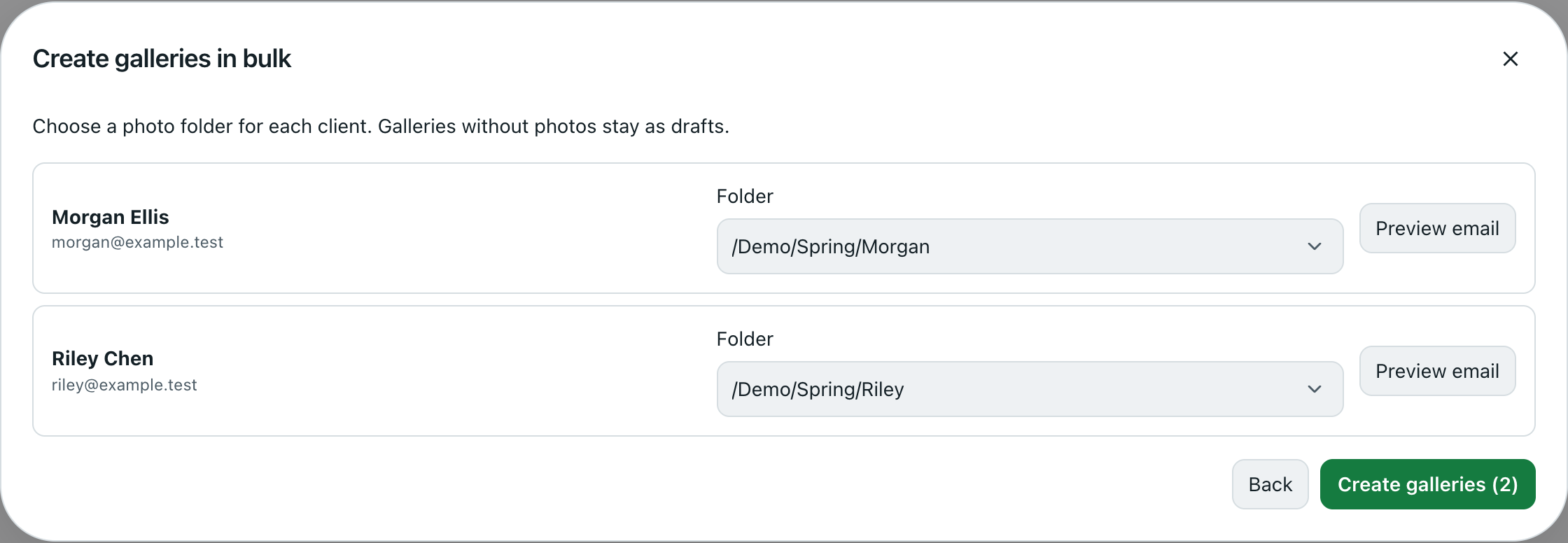
Review each client and folder before creating the galleries. This example uses demo data.
Frameleaf prepares each gallery separately. A row without photographs stays Draft · add photos before sharing. A published row shows Ready to share or Invitation queued. Email delivery needs your server’s email setup; Invitation queued does not promise that an email has reached its recipient.
For a prepared gallery, use Copy link and Copy password to send its private access details yourself. Resend invitation queues another invitation. If a row could not be prepared, correct the problem and choose Retry; a retry reuses that row rather than creating a second gallery. Create another batch starts a new list.
Choosing existing photo folders does not upload another copy or change the originals. Check each folder and recipient before creating the batch: the resulting link grants access to that client’s gallery.
Let guests find their photos
Section titled “Let guests find their photos”In a shoot’s gallery settings, enable Let guests find their photos with a selfie, then choose Prepare proof gallery to save the settings and prepare the gallery. Leave it off when the gallery does not need face matching.
Selfie search depends on face matching being available for the gallery’s photographs. If it is unavailable, guests can still browse the gallery normally.
Where a selfie is matched
Section titled “Where a selfie is matched”A guest’s selfie is matched wherever your server finds faces, following the choices in Computers:
- This server or a computer at home: your server, a machine learning address on your network, or one of your own computers running Frameleaf Desktop. Computers set to work on everyone’s photos never take a guest’s selfie.
- Frameleaf Cloud: when faces are set to run on Frameleaf Cloud, the selfie is matched there too. It runs on Frameleaf Cloud’s own servers in your account’s region, while the guest waits. Selfie searches on Frameleaf Cloud are free for now and use no AI credit.
If you chose Only at home under Where your photos are processed, your guests’ selfies never go to Frameleaf Cloud. Each one is matched at home, or the search is unavailable when nowhere at home can do it.
For the guest
Section titled “For the guest”- Open the private gallery and enter its password if asked.
- Choose Find my photos.
- Choose Take a selfie and then Use this photo, or Upload a selfie. Use a clear, well-lit image of one face, smaller than 10 MB. If camera permission is unavailable, upload an image instead.
- Select I agree to use my selfie for this search only. It is discarded after the search.
- Choose Find my photos to start the search. Results filter this gallery to matching photographs; Show all photos returns to the whole gallery.
No matches found means the search found no suitable match, not that there are no photographs of you. Try a clearer image facing the camera. A photo with no detectable face or several faces is rejected. If a waiting message appears, wait before searching again.
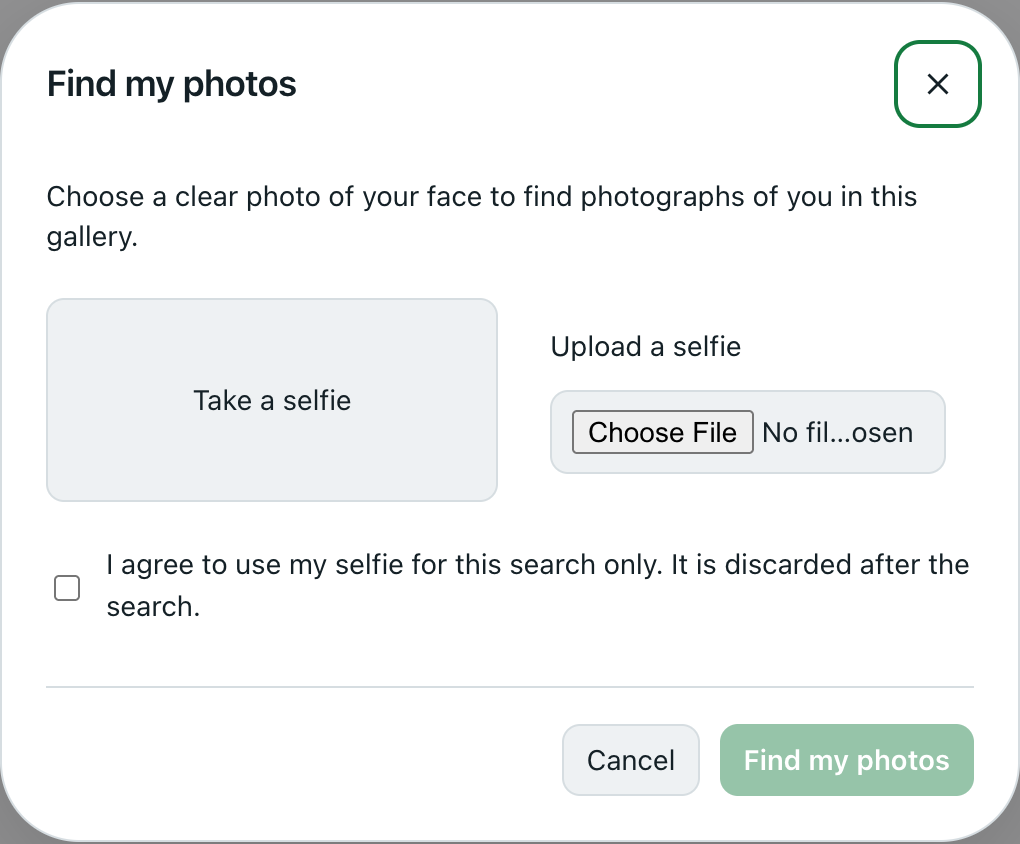
The guest chooses an image and gives consent before the search can start.
What stays private
Section titled “What stays private”The selfie is used for this search and discarded, not added to the photographer’s library. Only the selfie itself is sent to the place that finds its face. It goes there once, and nothing about it is kept: no copy of the photo, no face data and no record of the search, whether it is matched at home or on Frameleaf Cloud. A search is limited to the gallery the guest is already allowed to view; it does not search the photographer’s whole library or reveal hidden photographs. Matching can make mistakes, so browse the gallery too.
These gallery tools do not require buying Cloud processing or AI credit. The photographer’s server supplies the gallery, and face matching runs where the photographer’s faces already run, including Frameleaf Cloud at no charge for now. Your usual hosting, storage and email arrangements still apply.
For sharing an ordinary album or a selection without a client workflow, see Sharing.
© 2026 Frameleaf Inc. All rights reserved.
Frameleaf and the Frameleaf logo are Trademarks of Frameleaf Inc.