
Choose a smart search model

Find any photo by describing it Watch on YouTube


The smart search model decides how well Frameleaf understands your words and your photos. The one Frameleaf starts with works well for most libraries. Change it when you want quicker search on a small server, better results on stronger hardware, or search in more languages.
This page is for administrators. Changing the model means every photo and video is read again, and searching by description finds nothing until that finishes. Searching by date, place, person and file name keeps working, and your albums, tags and captions are not touched.
Where to find it
Section titled “Where to find it”Open Settings, then Search & intelligence, then Visual search. The Search quality slider shows the models Frameleaf publishes.
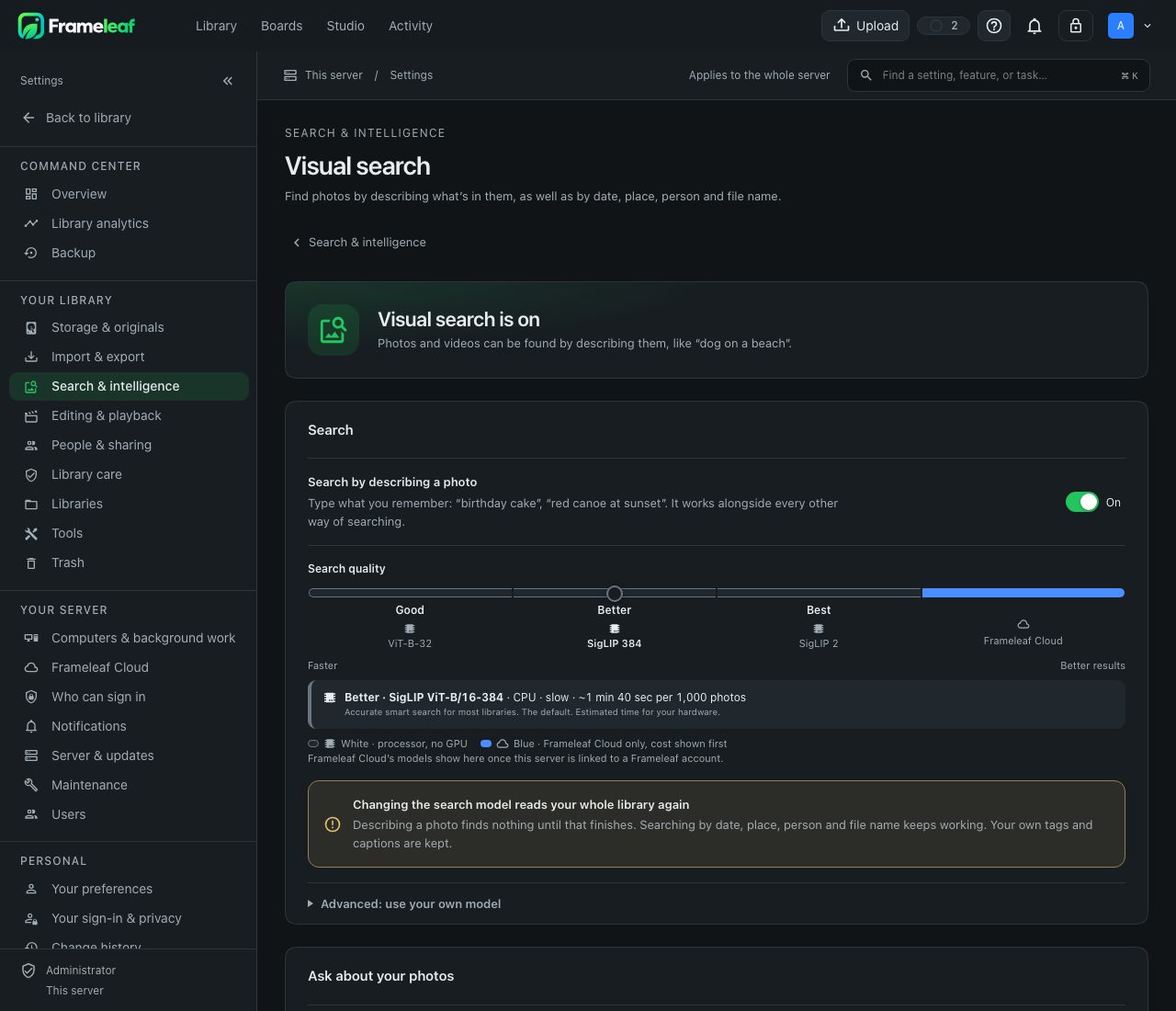
| Model on the slider | Good for |
|---|---|
ViT-B-32__openai |
The quickest smart search, for small or slow servers |
ViT-B-16-SigLIP-384__webli |
Accurate smart search for most libraries. The default. |
ViT-SO400M-16-SigLIP2-384__webli |
The best results. It needs more memory. |
The colours on the slider show where each model can run: green on your graphics card, white on the processor, and blue on Frameleaf Cloud. A blue stop runs the same model on Frameleaf Cloud instead of your own hardware, and you see the cost before anything is sent. If this server isn’t linked to a Frameleaf account yet, choosing a blue stop opens the Frameleaf Cloud setup first.
Switch to another model
Section titled “Switch to another model”- Open Settings, then Search & intelligence, then Visual search.
- Move the Search quality slider to the model you want.
- Read the notice that appears. It says how many photos and videos will be read again and about how long that takes at your server’s recent pace.
- Choose Save and start now, or Save and start tonight to leave the work for the overnight schedule. Undo puts the slider back.
The old search results are cleared when you save. Photos can be found by describing them again one by one as each is read, so search fills in as the work goes. Follow the progress in Settings, then Computers & background work, then Background work.
Each model keeps its own search data. If you switch back to an earlier model, the library is read again for that model too.
Use a model of your own
Section titled “Use a model of your own”To search in another language, or to try a model that isn’t on the slider:
- On Visual search, open Advanced: use your own model.
- In Hugging Face model, type the model’s full name, like
organisation/model-name. - Save, and start the reading as above.
Frameleaf checks the model’s files and settings before anything is read again. While your own model is in use, the slider shows no stop and a note names the model. Empty the box to go back to one of the published models.
For multilingual search, try a few typical searches in each language once reading finishes, and compare the results on your own photos.
What else changes
Section titled “What else changes”Suggested tags, the built-in smart albums and moments in videos also use what smart search has read, so they catch up as the library is read again. Your originals, your own tags and the descriptions you wrote stay exactly as they are.
Hardware and where it runs
Section titled “Hardware and where it runs”Smart search runs on your server unless an administrator sends it to another computer at home or to Frameleaf Cloud. Frameleaf Cloud only runs the same model your server uses, so results always match. See Search and faces on Frameleaf Cloud. Speed it up with hardware acceleration on a supported graphics card, or run it on another computer with remote machine learning.
Models come from your configured model source, and Frameleaf reports a missing model as a failure so you always know where your models come from. See Where models come from.
© 2026 Frameleaf Inc. All rights reserved.
Frameleaf and the Frameleaf logo are Trademarks of Frameleaf Inc.