
Date & Time Doctor
A camera left on last summer’s time zone, a clock that was never set, a photo saved from a chat with no date inside: each one puts photos in the wrong place on your timeline. The Date & Time Doctor finds them, shows what each photo’s time is now and what it would be, and fixes a whole group when you say so. Nothing changes until you choose, and any fix can be undone for 30 days.
It looks after your own photos and videos, in your library and your archive. Every account has it. Photos in the trash and Locked photos are left alone, and so is a date or time zone you set yourself.
Open it
Section titled “Open it”Open Library Care at the bottom of the sidebar, then Things to fix. When the Doctor has found something, there’s a row called Dates that look wrong, with how many photos. Select it.
You can also type Date & Time Doctor in the search box at the top of Settings.
The top of the page says how things stand:
- How many photos may have the wrong date or time, such as 38 photos may have the wrong date or time: “Grouped by what went wrong. Look at the before and after, then fix a group at once. Nothing changes until you choose.”
- Every date looks right: “Frameleaf compared cameras, phones, places and file names, and found nothing out of step.”
- Checking the dates in your photos… while it’s looking. This can take a few minutes, and you can leave the page.
What it finds
Section titled “What it finds”What was found has one card for each thing that went wrong. A camera on the wrong clock for a whole trip is one card, not one for each day.
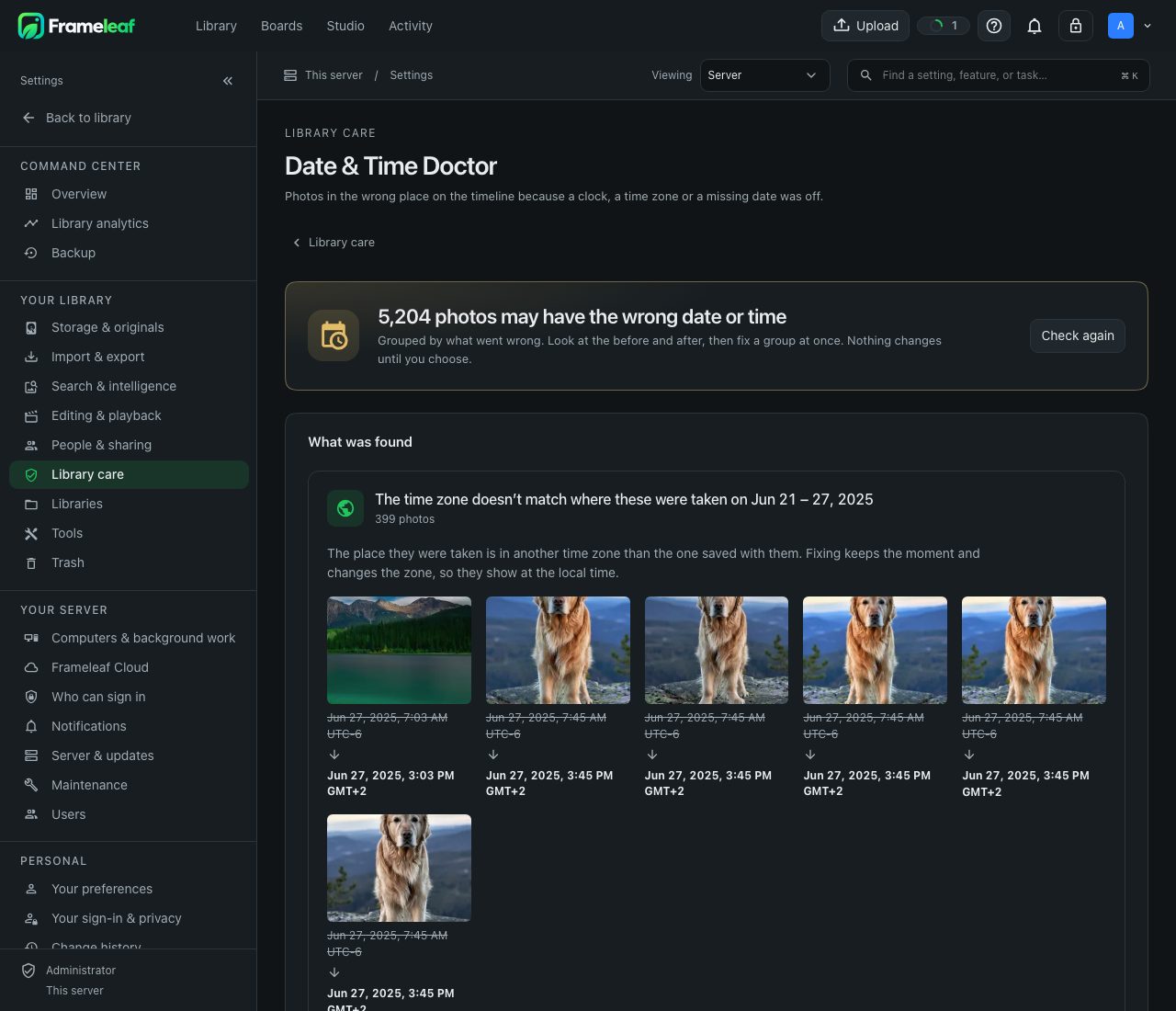
| A card says | What happened |
|---|---|
| The clock on Sony A7 IV was 7 hours ahead on Aug 12 – 14, 2026, or behind | The camera’s clock was off, so its photos sit away from the ones taken at the same moment. Fixing moves each one by the same amount |
| No time zone on 38 photos from Aug 12 | They have a time but no time zone, so they may show at the wrong hour. The photos taken around them say where they were |
| The time zone doesn’t match where these were taken | The place they were taken is in another time zone than the one saved with them. Fixing keeps the moment and changes the zone, so they show at the local time |
| The time zone saved with these photos is off | The zone doesn’t match the photos taken around them. Fixing keeps their clock time and gives them the zone of those photos |
| The date of 12 photos is only in their file names | They have no date inside, but their names do, like IMG-20190704-WA0012. Fixing dates them from the name |
| 3 photos are dated in the future, or have a date a camera clock resets to | The same photos as Dates to check. When nothing else says when they were taken, the card says so; Show them in Library takes you to them, to set a date with Change date |
Each card shows a strip of its photos. Under each photo, Now: is the time it has, struck through, and After: is the time it will have.
Where the time zone is what’s wrong, They were taken in shows the zone suggested from the photos taken around them. Pick another if you know better.
Fix a group
Section titled “Fix a group”- Look at the before and after on the card.
- Select Fix 38 photos, with the number on that card. The whole card is fixed at once.
- Or select Not now to set the card aside.
The page then says how many photos were fixed. If some were left as they were, it says so: they already had that time, or their date changed in the meantime.
What a fix changes
Section titled “What a fix changes”- The photo moves to the right place on the timeline, in albums and in memories, because a fix changes when Frameleaf says it was taken.
- Your original files are not rewritten. Frameleaf writes the new date and time zone to the photo’s
.xmpsidecar instead. See XMP sidecars. - The new date counts as set by you, so the Doctor doesn’t question it again.
- Partners get it too. A copy in a partner’s library that still follows your photo’s date takes the fix. See Sharing.
- It’s noted in your account activity, as Dates fixed on 38 photos. See Account activity.
Undo a fix
Section titled “Undo a fix”Recent fixes, at the end of the page, lists the fixes of the last 30 days, each with when it was made and Undo.
Undo puts every photo in that fix back at its old time, sidecars included. A date that was read from the file before the fix goes back to being read from the file. A photo you changed again after the fix keeps your later change.
After 30 days a fix leaves the list and stays as it is. You can still change those dates by hand with Change date.
Fix the dates of photos you choose
Section titled “Fix the dates of photos you choose”You don’t have to wait for the Doctor. To fix photos you pick yourself:
- Select the photos in the Library and choose Fix dates.
- Under What happened, choose one:
- They were taken in another time zone keeps the clock time and changes the zone. Pick the zone under They were taken in.
- The camera’s clock was off moves each photo Earlier or Later by the same number of minutes, hours or days.
- Check the first few photos, which show before and after.
- Select Fix 12 photos, with your own number.
It’s applied as one fix, which you can undo under Recent fixes for 30 days. To give the photos one date instead, choose Set one date and time instead…, which opens Change date.
When it looks
Section titled “When it looks”- Once a week, during the night’s file checks.
- When an administrator runs the file checks by hand.
- When you select Check again on the Doctor page.
A check only finds and suggests. It never changes a date by itself.
If something goes wrong
Section titled “If something goes wrong”| What you see | What to do |
|---|---|
| The dates couldn’t be checked | The server didn’t answer just now. Nothing has changed with your photos. Select Try again |
| Couldn’t start checking the dates | Select Check again in a moment |
| Couldn’t fix these dates | Nothing was changed. Select the Fix button again |
| The preview couldn’t be shown. You can still fix them. | The before and after couldn’t be drawn. The fix itself works as usual |
| Couldn’t undo this fix | Try Undo again. If a photo in the fix has become Locked since, unlock your session first |
| Recent fixes couldn’t be loaded just now | The fixes themselves are kept. Reload the page |
Good to know
Section titled “Good to know”- The Doctor only suggests. Nothing changes until you select Fix.
- Undo any fix for 30 days under Recent fixes.
- Your original files are never rewritten.
- Each person fixes their own photos. The Doctor never reads or changes anybody else’s.
- A copy a partner shared with you isn’t checked while it still follows your partner’s date. When your partner fixes theirs, your copy follows.
- Photos in the trash and Locked photos are never checked.
Dates from file names
Section titled “Dates from file names”When a new photo or video has no date inside the file, Frameleaf takes the date from its name, such as IMG_20230512_134501.jpg, instead of the day the file was copied. A WhatsApp file’s name gives noon on that day. Files with a date inside them are read as before.
Related
Section titled “Related”- Library Care: the rest of the tools that look after your library.
- Dates to check: photos whose date can’t be right, in the Library.
- XMP sidecars: the small files where the new date is written.
© 2026 Frameleaf Inc. All rights reserved.
Frameleaf and the Frameleaf logo are Trademarks of Frameleaf Inc.