
Locked encryption

Keep private photos private: Locked, Mark sensitive and Locked rules Watch on YouTube
Locked hides sensitive photos and videos inside Frameleaf. Locked encryption goes one step further: it encrypts the files themselves, on the server’s disk. Someone who opens the server’s shared folder, pulls out a drive, or browses the library’s folders sees scrambled data instead of your photos.
It’s optional and off by default. Only you can turn it on, for your own Locked items. Administrators can’t turn it on or off for you, and can’t open your encrypted files.
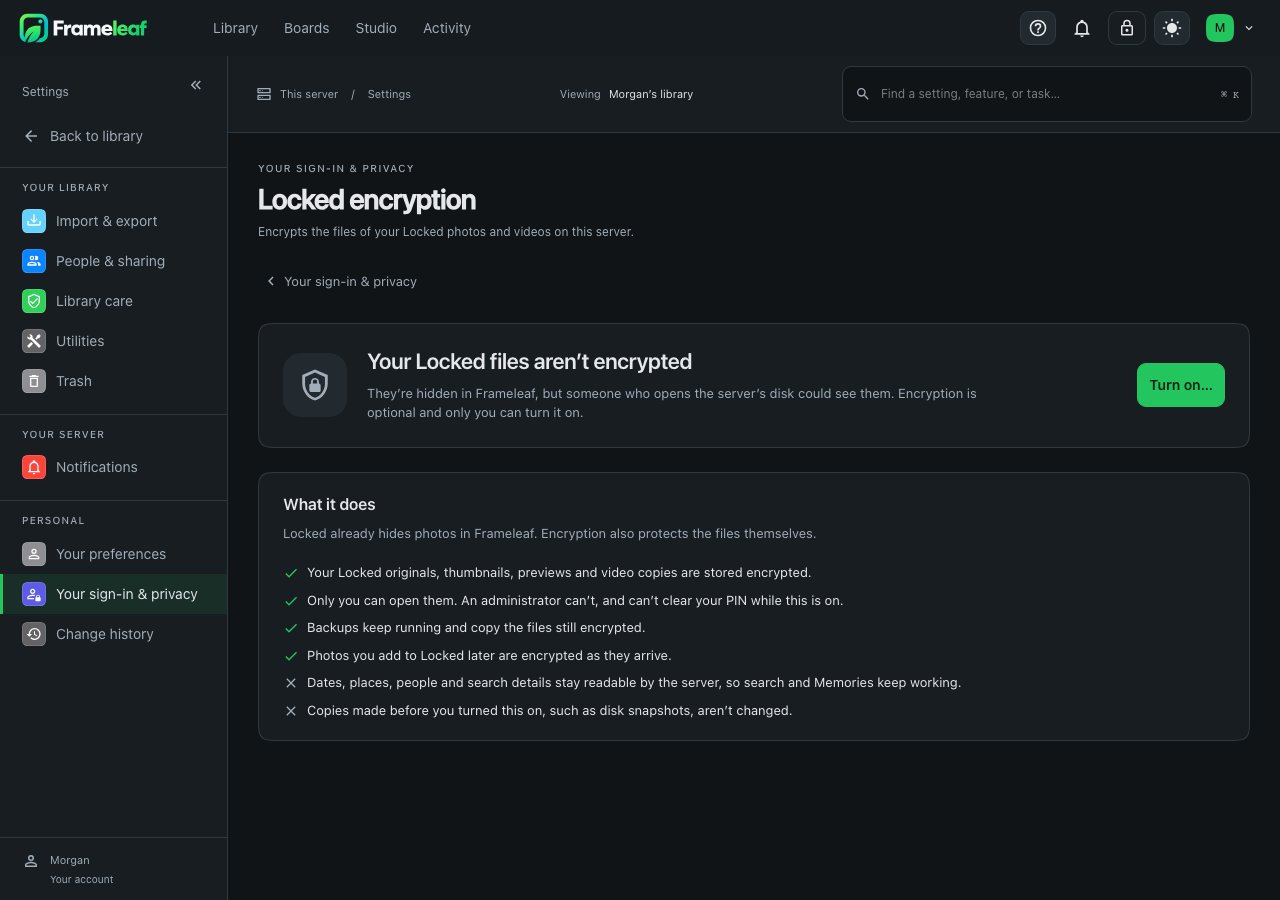
What gets encrypted
Section titled “What gets encrypted”| Encrypted? | |
|---|---|
| The original file of each of your Locked photos and videos | Yes |
| Every file made from it: thumbnails, previews, full-size versions, converted videos, edits, sidecar files, Studio and restoration outputs | Yes |
| Files Library care keeps for it: the damaged file kept after a repair, and a file moved aside when a restore is undone | Yes. Photos already in Locked are covered by themselves |
| Your photos and videos that aren’t Locked | No, they stay exactly as they are |
| Other people’s Locked items | Only if they turn encryption on for themselves |
| What the database knows about each photo: dates, places, camera details, faces, people’s names, tags, descriptions, text found in photos, file names and search data | No. Search, Memories and people need it. See What encryption doesn’t protect. |
| Locked items in a folder Frameleaf can’t change, such as an external library or a read-only source | No. The settings page counts them separately: “3 Locked items are in a folder Frameleaf can’t change, so they stay unencrypted.” |
| Items a partner shares with you that are in your Locked folder | Only if the partner encrypts them. They’re the partner’s files, so your setting doesn’t encrypt them. The settings page counts them: “2 items shared with you by a partner aren’t encrypted by your setting.” |
Once encryption is on, everything you add to Locked later is encrypted too: items you lock, uploads straight into Locked, photos detection locks, items your Locked rules hide, and Studio exports that take a lock from their sources.
Inside Frameleaf, nothing looks different. Encrypted items are still in their albums, stacks, tags and memories, and they open, play and download as usual once your key is open.
PIN or Advanced Security
Section titled “PIN or Advanced Security”You choose how your files are protected when you turn encryption on, and you can switch at any time without anything being encrypted again.
| Use my Locked PIN | Advanced Security | |
|---|---|---|
| What opens your files | Your six-digit Locked PIN | A passphrase of at least 12 characters |
| Something new to remember | No | Yes, a passphrase |
| After the server restarts | Type your PIN, as usual, when you open Locked | Type your passphrase once in Settings, then your PIN opens Locked as usual |
| Asked again while the server keeps running | When your Locked session ends | After a set time: 8, 24 or 72 hours (the default), or only after a restart |
| Someone browsing the server’s files or a shared folder | Protected | Protected |
| An administrator using Frameleaf | Protected | Protected |
| Someone with a copy of the disk or a backup | Weak. Every possible PIN can be tried in hours to days | Strong. Protected by your passphrase |
| Someone in control of the running server while your key is open | Not protected | Not protected. The ask-again time limits how long that window lasts |
| Partners | Open shared items with their own PIN | Must also type your passphrase |
Why a PIN can be guessed and a passphrase can’t
Section titled “Why a PIN can be guessed and a passphrase can’t”Inside Frameleaf, wrong guesses are limited. After 5 wrong attempts you wait a minute, after 10 an hour, and after 15 a whole day. So nobody can guess your PIN by typing into Frameleaf.
Someone who copies the server’s whole disk doesn’t go through Frameleaf. A PIN-protected key needs two things from the disk: your key file, and a small secret file the server keeps with its identity key (see The server’s PIN secret). A full copy of the disk usually holds both. With them, guesses can be tried against the key file directly, as fast as their computers allow, with no limits. Frameleaf makes each guess deliberately slow and memory-hungry: about half a second and 128 MB of memory for every try. That’s harmless when you type your PIN once, but a six-digit PIN has only a million possibilities. A few ordinary computers working together get through all of them in hours to days.
A passphrase has vastly more possibilities. Four or five random, unrelated words, such as orbit kettle lantern fossil cove, give trillions upon trillions of combinations. At the same half-second per guess, trying them all would take far longer than anyone could wait, even with a room full of hardware.
A passphrase is only as strong as it is unpredictable. Song lyrics, quotes, names, dates, your Wi-Fi password, or anything you use elsewhere can be guessed much faster. Pick words at random, don’t make them a sentence, and don’t use the passphrase anywhere else.
Restarts and the iPhone comparison
Section titled “Restarts and the iPhone comparison”An iPhone asks for your passcode after it restarts, because its key is lost from memory when it turns off. Frameleaf works the same way in Advanced Security: your key lives only in the server’s memory, so a restart, the ask-again time or Lock now throws it away. Until you type your passphrase again, your files can’t be opened by anyone, including the server itself.
The difference is that an iPhone has a security chip that limits guesses even against someone holding the phone. A server’s disk has nothing like that once it’s out of the server. That’s why the PIN on its own can’t stop someone with the disk, and the passphrase can.
Turn on encryption
Section titled “Turn on encryption”-
Go to Settings, then Your sign-in & privacy, then Locked encryption. You need a Locked PIN first.
-
Select Turn on….
-
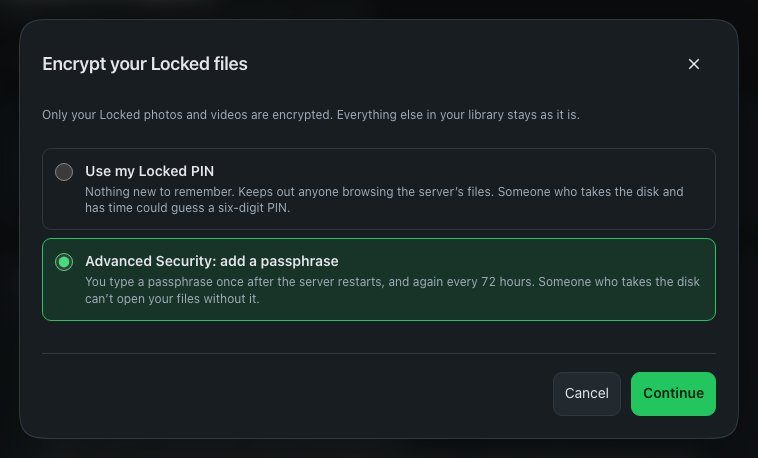
Under Encrypt your Locked files, choose how your files are protected: Use my Locked PIN or Advanced Security: add a passphrase, then select Continue.
-
For Advanced Security, choose your passphrase and type it twice. It must be at least 12 characters.
-
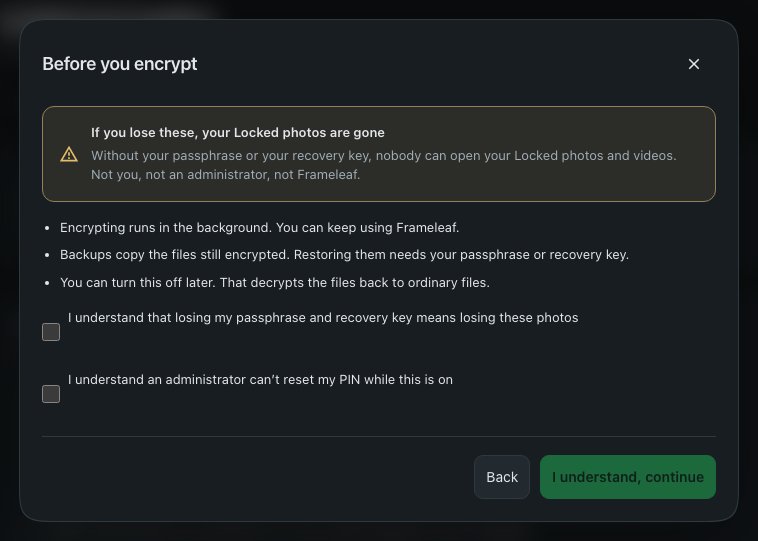
Read Before you encrypt. Tick that you understand:
- that losing your PIN or passphrase and your recovery key means losing these photos;
- that an administrator can’t reset your PIN while encryption is on.
Then select I understand, continue.
-
Confirm a second time by typing your PIN, then select Encrypt now.
-
Save your recovery key before you go on. Continue stays unavailable until you tick I’ve saved my recovery key somewhere other than this server. See Your recovery key.
Encrypting runs in the background, oldest items first, and the page shows how many are done. You can keep using Frameleaf, close the page, or restart the server; it carries on where it left off. Each file is encrypted to a new file next to it, checked against the original, and only then put in its place, so an interruption never leaves a half-encrypted photo.
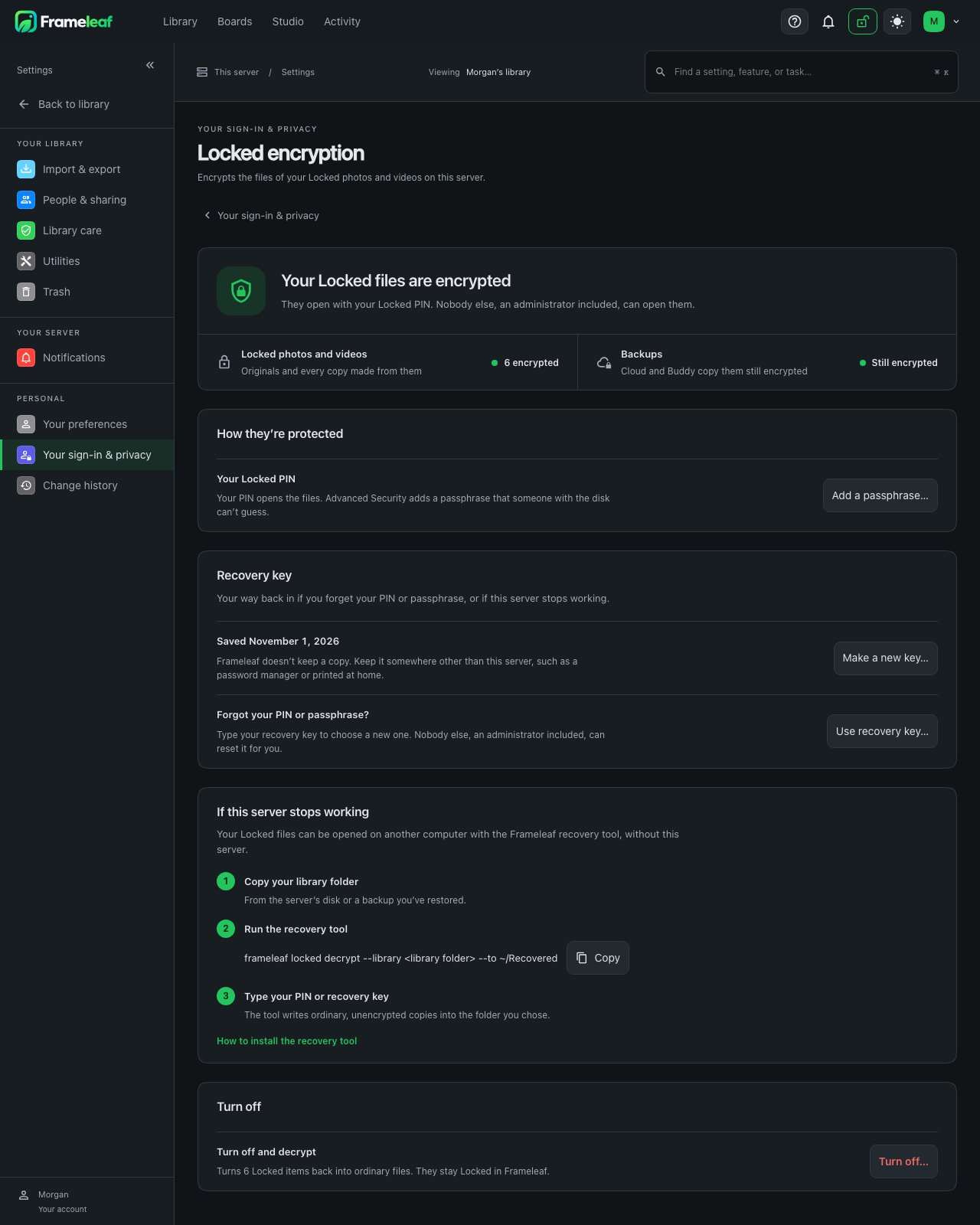
When it finishes, the page says Your Locked files are encrypted, with how many items are encrypted and the controls described below.
Your recovery key
Section titled “Your recovery key”When you turn encryption on, Frameleaf shows a recovery key once. It looks like FLRK-ABCD-EFGH-…. Frameleaf never shows it again, and doesn’t keep a readable copy.
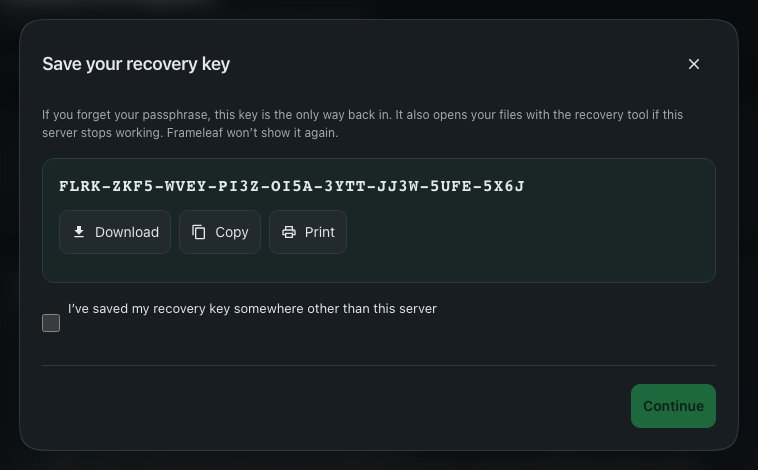
The recovery key:
- resets a forgotten PIN or passphrase;
- opens your files with the recovery tool if the server stops working;
- is the only way back in if you forget your PIN or passphrase. Nobody else can reset it for you: not an administrator, not Frameleaf.
Keep it safe:
- Download saves it as a small text file named after you. Move that file off the server.
- Copy puts it on your clipboard, for a password manager.
- Print opens a page to print and store somewhere safe.
Keep it somewhere other than the server. A recovery key saved in your Frameleaf library is lost along with the library. A password manager, a printed copy in a drawer, or both, work well.
Anyone with your recovery key and a copy of your library can open your encrypted files, so treat it like the key to a safe.
Make a new recovery key
Section titled “Make a new recovery key”Lost track of it, or worried someone saw it? On the Locked encryption page select Make a new key…, and type your PIN or passphrase. You get a new key to save, and the old one stops working straight away. Your files aren’t encrypted again.
Everyday use
Section titled “Everyday use”With the PIN option
Section titled “With the PIN option”Nothing changes. Unlock Locked with your PIN, as usual, and your encrypted items open. When your Locked session ends, your key is put away until you type your PIN again.
With Advanced Security
Section titled “With Advanced Security”After the server restarts, the Locked encryption page says Type your passphrase to open Locked, and opening Locked asks Type your passphrase. Type it once. From then on your PIN opens Locked as usual, until:
- the ask-again time passes (72 hours by default);
- you select Lock now;
- or the server restarts.
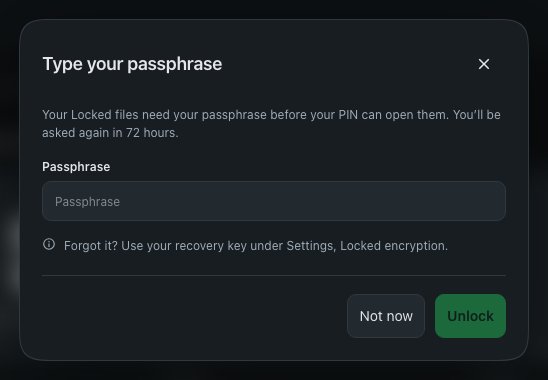
Set the ask-again time under Ask for my passphrase again after: 8 hours, 24 hours, 72 hours, or Only after a restart. Shorter is safer if the server might be in someone else’s hands while it’s running; longer is more convenient.
- A shorter time applies straight away, including to Locked if it’s open now. For example, if your passphrase was typed an hour ago and you switch from 72 to 8 hours, you’re asked again 8 hours from now, not in 71.
- A longer time, or Only after a restart, keeps Locked open longer, so Frameleaf first asks Type your passphrase to keep Locked open longer. Type it and select Keep open longer. If you cancel, or the passphrase doesn’t work, the setting goes back to what it was.
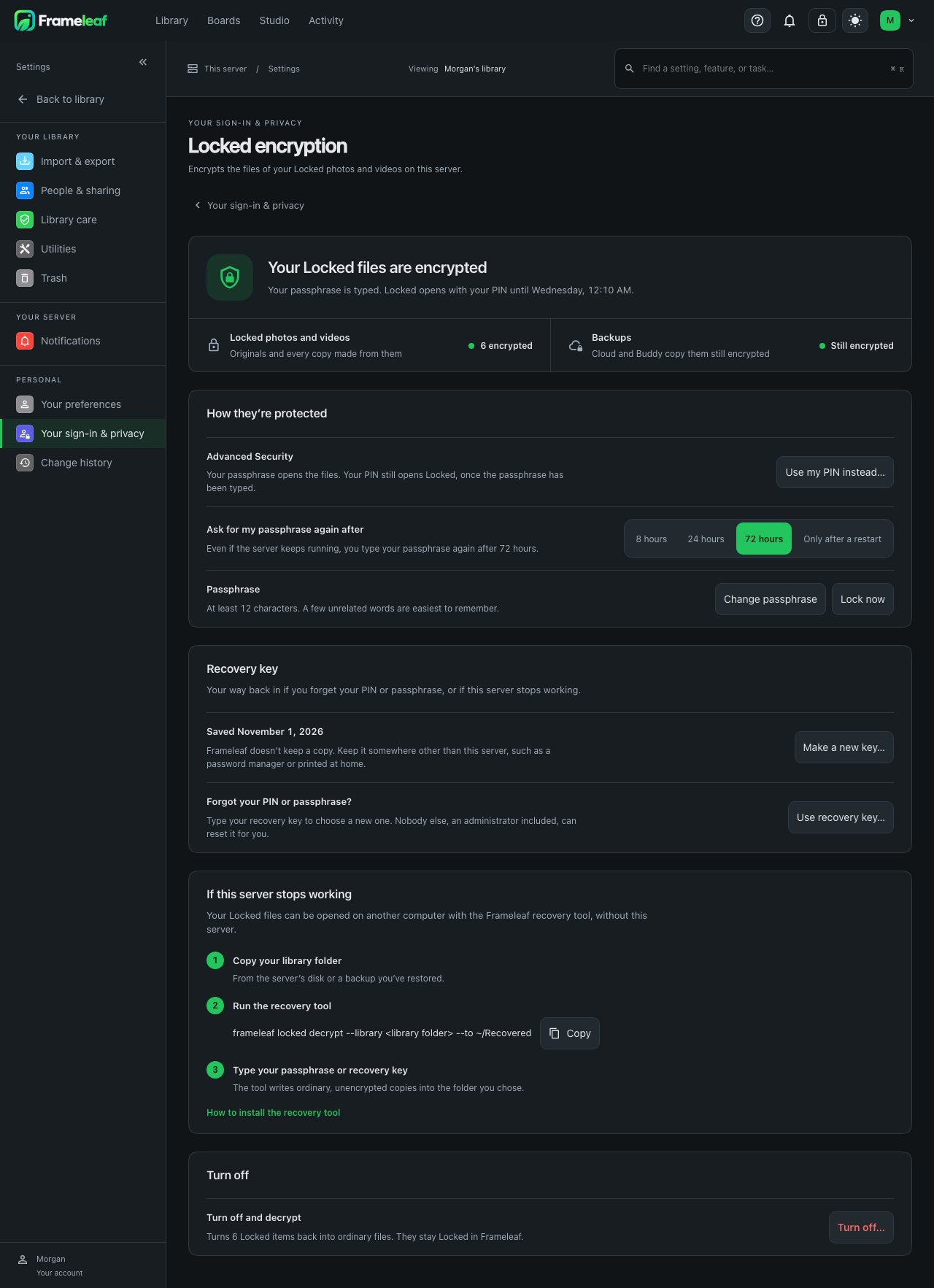
Until you type your passphrase:
- Your Locked items can’t be viewed, played, downloaded or taken out of Locked. Trying to opens the passphrase prompt.
- You can still add to Locked. Locking an item or uploading into Locked works as usual, and the new files are encrypted as they arrive, without your passphrase.
- Work that needs to read the files, such as making new thumbnails after a model change, waits until you type it, then carries on by itself.
Taking an item out of Locked
Section titled “Taking an item out of Locked”When you unlock an item, Frameleaf decrypts its files first and only then takes it out of Locked. It stays hidden for the few seconds that takes, so it’s never visible while still encrypted, or encrypted while visible. Your key must be open: with Advanced Security, type your passphrase first.
Files Library care keeps for the item are opened again too. If one is on a drive that’s away at the time, it stays encrypted until Frameleaf opens it later, the next time your key is open. Until then it can’t be downloaded, and a fix that needs it can’t be undone. See Photos in Locked.
Change how your files are protected
Section titled “Change how your files are protected”Everything here is on the Locked encryption page. None of it encrypts your files again; only the key that opens them changes.
-
Add a passphrase… switches from the PIN option to Advanced Security. Choose a passphrase, then type your PIN.
-
Use my PIN instead… switches back. Type your passphrase, then your PIN. Your PIN then opens the files directly, with the weaknesses above.
-
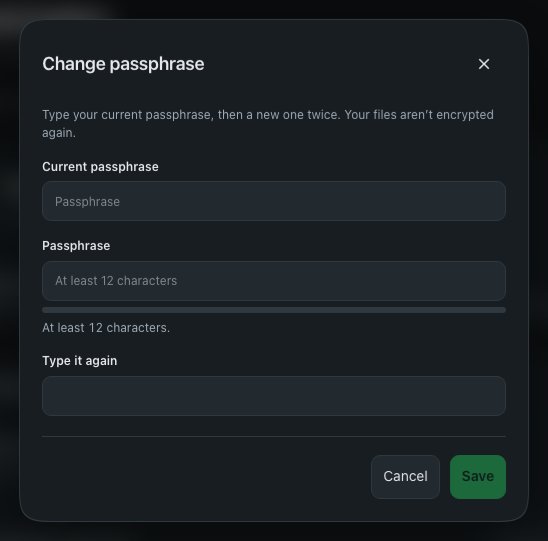
Change passphrase asks for your current passphrase and a new one, twice.
-
Change your PIN as usual in Locked PIN. With the PIN option, the key that opens your files moves to the new PIN at the same moment.
If you forget your PIN or passphrase
Section titled “If you forget your PIN or passphrase”Under Forgot your PIN or passphrase? on the Locked encryption page, select Use recovery key…. Type your recovery key, then choose a new PIN (with the PIN option) or a new passphrase (with Advanced Security), and select Set new PIN or Set new passphrase.
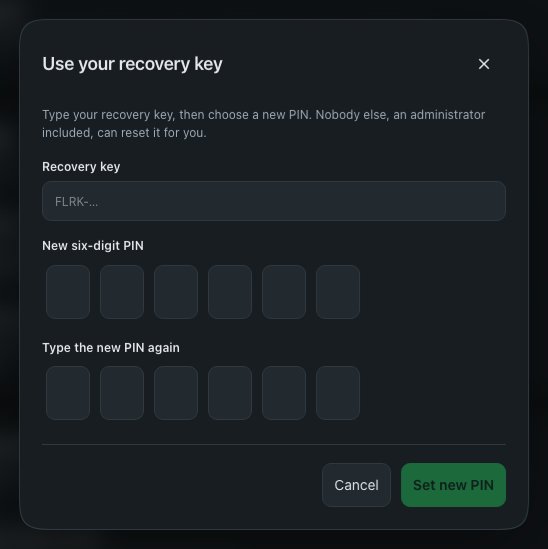
While encryption is on:
- Forgot your PIN? with your account password no longer clears your PIN, because that would leave your files unopenable. Use your recovery key instead.
- An administrator can’t clear your PIN. Their option is turned off, with a note saying why.
If you’ve lost both your PIN or passphrase and your recovery key, your encrypted files can’t be opened by anyone. There’s no back door.
Partners
Section titled “Partners”If you share your library with a partner, their copies of your Locked items point at your files, which are now encrypted. How they open them depends on your choice:
- You use the PIN option: your partner opens them with their own PIN, like their own Locked items. Your PIN is never shared. A new partner, or a partner who has only just set a PIN, sees Not ready yet and Opens after your name next opens Locked, until you next unlock Locked.
- You use Advanced Security: your partner must type your passphrase as well as their own PIN. They see Type your name’s passphrase when they open one of your items. Typing your own passphrase doesn’t open your items for your partner; each partner types it themselves, and it lasts for your ask-again time.
So with Advanced Security, sharing your Locked items with a partner means telling them your passphrase. If you’d rather not, keep those items out of what you share.
While you’re turning encryption off, a partner can’t open your items with your passphrase. Once decrypting finishes, your items are ordinary files again and open for them as they did before encryption.
When a partnership ends, the former partner can no longer open the content of your encrypted items, including the copies they kept.
Items a partner shares with you
Section titled “Items a partner shares with you”Your encryption covers your own files. Items a partner shares with you are their files, so they’re encrypted only when the partner has Locked encryption on and the item is Locked for them too. If you’ve put some of them in your Locked folder and they aren’t encrypted, the Locked encryption page counts them, for example “2 items shared with you by a partner aren’t encrypted by your setting.”
Backups
Section titled “Backups”Cloud Backup and Buddy Backup keep running while encryption is on. They copy your encrypted files as they are, still encrypted, and never decrypt them. Nobody holding the backup can see them without your PIN, passphrase or recovery key. The same strength applies: a backup of PIN-protected files can be guessed open by whoever has it; a backup of Advanced Security files can’t.
Each person’s key file is backed up with the files. It’s stored locked by your PIN, passphrase and recovery key, so backing it up reveals nothing. It’s also essential: without the key file, nothing can decrypt your files, not even your recovery key. If you back up your server yourself, include the UPLOAD_LOCATION/locked-keys folder along with the rest of UPLOAD_LOCATION. Include the server’s identity folder too (UPLOAD_LOCATION/frameleaf/identity unless your administrator moved it): with the PIN option, a PIN only opens your files on a server that has the server’s PIN secret from that folder. Your passphrase and your recovery key work without it. See Which files to back up.
Because the key file matters so much, a Cloud or Buddy backup that finds encrypted files without their current key file stops instead of saving an incomplete copy. This can happen if someone turns encryption on or off while the backup runs; the next backup includes the key file.
After restoring:
- Your encrypted items open again with your PIN, passphrase or recovery key.
- If you turned encryption off and on again since the backup, some restored items may be encrypted with your older key. Activity says how many: “2 restored Locked items are encrypted with an older key and can’t be opened here.” Your old recovery key and the recovery tool can still open them from the backup that has your older key file.
- Items encrypted with an older key don’t stop later backups. Cloud and Buddy Backup copy them as they are and carry on.
Turn off encryption
Section titled “Turn off encryption”Turning off decrypts your Locked files back to ordinary files. They stay Locked and hidden in Frameleaf.
- On the Locked encryption page, select Turn off…. With Advanced Security, type your passphrase first if Locked is asking for it.
- Read Your Locked files will be readable on the disk again, tick I understand my Locked files won’t be encrypted any more, and select Continue.
- Confirm a second time with your PIN or passphrase, then select Decrypt and turn off.
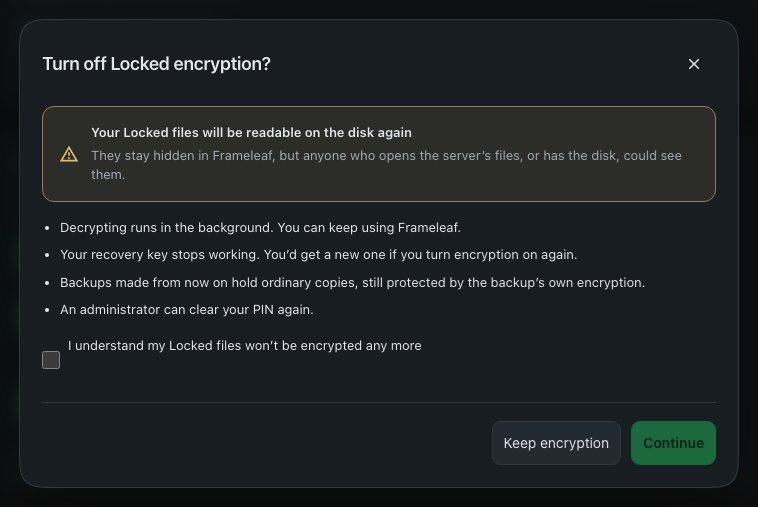
Decrypting runs in the background, with the same safe file-by-file steps as encrypting. Your key stays open until it’s done, so Lock now is unavailable meanwhile, and partners can’t open your items with your passphrase. If the server restarts part-way, the page says Type your PIN to finish turning off encryption (or Type your passphrase to finish turning off encryption), and decrypting carries on once you do.
When it finishes:
- Your recovery key stops working. You’ll get a new one if you turn encryption on again. With Advanced Security your key file is deleted. With the PIN option, Frameleaf keeps a key opened only by your PIN, which encrypts nothing of yours; it lets you go on opening encrypted items partners share with you.
- An administrator can clear your PIN again.
- Backups made from now on hold ordinary copies, protected only by the backup’s own encryption.
If some files are missing, for example deleted outside Frameleaf, the page says how many, and turning off finishes once they’re back. Restore them from a backup.
Recover your files without the server
Section titled “Recover your files without the server”If the server stops working, the Frameleaf command-line tool can decrypt your files from a copy of the library, with no server, no database and no internet connection. It works on a copy of the library folder, such as a backup or a disk taken out of the server, and never changes the library.
You need:
- a copy of the library folder (
UPLOAD_LOCATION), including itslocked-keysfolder; - your PIN, passphrase or recovery key;
- the Frameleaf CLI. This command needs no API key or sign-in.
frameleaf locked decrypt --library /path/to/library --to /path/to/recovered- If several people on the server use encryption, the tool asks whose files to recover. Pick one with
--user <name or ID>. - The
--tofolder must be outside the library folder. The tool never writes anything into the library. - It asks for your PIN, passphrase or recovery key. What you type isn’t shown.
- A PIN also needs the server’s PIN secret, the file
locked-pin-pepper.keyin the server’s identity folder. A copy of the library that holdsframeleaf/identity/locked-pin-pepper.keyis read by itself. If the identity folder was kept somewhere else, pass the file with--pepper-file /path/to/locked-pin-pepper.key. A passphrase or a recovery key needs no such file. - Originals are written to the
--tofolder under their real file names. When two have the same name, the second becomesname (2).jpg, and so on. - Add
--allto also write thumbnails and other derived files, underderived/<item ID>/. - With your own key, the tool also decrypts items a partner using the PIN option shared with you.
Every file is checked as it’s decrypted. A damaged or incomplete file is listed and skipped, and the tool carries on with the rest. It finishes with exit code 0 when everything decrypted, 1 if any file failed, and 2 for a wrong PIN, passphrase or recovery key, or a missing key file.
Recovered files are ordinary, unencrypted files. Keep them somewhere private.
What encryption doesn’t protect
Section titled “What encryption doesn’t protect”Locked encryption protects the files. Be clear about what it doesn’t cover:
- Information about your photos in the database. Dates, places and GPS, camera details, faces and people’s names, tags, descriptions, text read from photos, file names and search data stay readable to someone with the database, because search, Memories and people depend on them. Someone with the database could learn that you have a Locked photo taken at a certain place and time, with certain people, without seeing the photo itself.
- Copies made before you turned encryption on. Older backups, disk snapshots and copies elsewhere still hold the plain files, and an SSD can keep traces of deleted data. Encryption can’t reach them. Replace or delete old backups you don’t want to keep.
- A short window after uploading into Locked. A new upload is stored as an ordinary file while Frameleaf makes its thumbnails and reads its details, then it’s encrypted, usually within moments.
- Short-lived working copies in memory. To make thumbnails, convert a video, read a photo’s details or apply an edit, Frameleaf decrypts a temporary copy of the file into the server’s memory, never onto its disk, and deletes it as soon as the work is done. Encrypted items are never sent to Cloud GPU jobs, whose inputs and results are kept on disk.
- Someone in control of the running server while your key is open. While Locked is unlocked (PIN option) or your passphrase is typed (Advanced Security), the key is in the server’s memory, and someone who controls the server at that moment could use it. Advanced Security’s ask-again time and Lock now keep that window short.
- Matching copies. If someone else on the server has the very same file, they keep their own readable copy, and the database can still tell the two are identical.
- Your devices. Photos you download, or that a phone or computer keeps after viewing, are outside the server’s encryption.
For the strongest protection, combine Advanced Security with full-disk encryption on the server, strong account passwords, HTTPS, and careful control of who can reach the server.
How it works
Section titled “How it works”For the curious, here’s what happens underneath.
Your key
Section titled “Your key”- When you turn encryption on, Frameleaf creates a key pair just for you (X25519). The public key can only lock files. The private key opens them.
- The private key is never stored as is. It’s sealed (AES-256-GCM) with a key made from your PIN or passphrase using scrypt, a deliberately slow, memory-hard method (2¹⁷ rounds, about 128 MB per try). A second copy is sealed with your recovery key, which is 160 random bits. With the PIN option the file holds the PIN and recovery copies; with Advanced Security, the passphrase and recovery copies, and never a PIN copy.
- These sealed copies live in your key file,
UPLOAD_LOCATION/locked-keys/<your user ID>.json, readable only by the server. The database holds only your settings and progress, never any key. - The PIN copy is also tied to a random secret the server keeps outside the key file, so the key file alone isn’t enough to try PINs. See The server’s PIN secret.
- When you type your PIN or passphrase, the private key is opened into the server’s memory and nowhere else: not the disk, not the database, not logs, not backups. When it’s put away, the memory is wiped.
Because the public key is enough to lock files, Frameleaf can encrypt new Locked items while your key is put away. That’s how uploads into Locked work before you’ve typed your passphrase.
Each file
Section titled “Each file”- Every encrypted file gets its own random key, so no two files share one.
- The file’s key is sealed for each person allowed to open it: you, and with the PIN option, each partner who receives your Locked items.
- The file is encrypted in 64 KB pieces, each sealed with AES-256-GCM. Each piece is checked as it’s read, so tampering, truncation or reordering is detected. This lets videos play and skip around without decrypting the whole file, and adds about 0.02% to the file’s size.
- An encrypted file starts with
FLLK, and keeps its name and location. A small encrypted note inside it records the original file name, so the recovery tool can restore it.
Keeping your files safe while they change
Section titled “Keeping your files safe while they change”- Encrypting and decrypting write to a temporary file beside the original, check the result, and only then swap it in. If the server stops part-way, nothing is lost, and the work picks up where it stopped.
- Library health checks and repair tools never mark, move or delete an encrypted file because they can’t read it.
- If an encrypted item shared a file with someone else’s identical photo, Frameleaf gives your item its own copy before encrypting it, so their copy stays readable. Encrypted files are never shared this way again. That costs one extra copy of the file.
- Viewing, playing and downloading decrypt the file as it’s sent, piece by piece, without making a copy. Work that needs a whole file, such as thumbnails, video conversion, reading details, edits and exports, gets a temporary decrypted copy in a memory-backed folder, readable only by the server, and deleted as soon as the work finishes. A copy left behind by a crash is cleared when the server next starts.
For server administrators
Section titled “For server administrators”Locked encryption needs no setup, but a few things on the server affect it.
Memory for working copies
Section titled “Memory for working copies”The temporary decrypted copies described above go in /dev/shm/frameleaf-locked, which is in memory. Docker gives a container only 64 MB there by default, too little for most videos and RAW files, so the Compose files that come with Frameleaf give the server container 2 GB:
services: frameleaf-server: shm_size: 2gb- If you use your own Compose file, add
shm_sizeto the server container, as above. Lower it on a NAS with little memory; raise it if you keep very large videos in Locked. - Memory exports need room for the whole ZIP. An exported memory that holds encrypted items is put together here before it’s saved encrypted, so it must fit in full. Raise
shm_sizeif people export large memories of Locked items. - If a file doesn’t fit, Frameleaf doesn’t fall back to the ordinary disk. That piece of work fails with a message naming the folder, how much space was free and how much the file needed, and suggesting a larger
shm_size. - If the folder isn’t in memory (for example, you point it at an ordinary disk), no decrypted copies are made at all, and work on encrypted files waits until that’s fixed.
- On Synology, the Frameleaf package doesn’t set a larger shared-memory size yet, so work on large encrypted videos or RAW files may fail there with that message.
Two environment variables change this:
| Variable | What it does | Default |
|---|---|---|
FRAMELEAF_LOCKED_TMP |
The folder for temporary decrypted copies. It must be in memory (tmpfs) | /dev/shm/frameleaf-locked |
FRAMELEAF_LOCKED_TMP_ALLOW_DISK |
Set to true to allow that folder on an ordinary disk. Decrypted copies are then written to that disk, so use it only for development and testing, never on a server with real Locked files |
Off |
The server’s PIN secret
Section titled “The server’s PIN secret”A six-digit PIN has only a million possibilities, so Frameleaf mixes a random secret into every PIN-protected key. The secret is one small file, locked-pin-pepper.key, made the first time it’s needed and kept in the server’s identity folder (FRAMELEAF_IDENTITY_DIR, by default UPLOAD_LOCATION/frameleaf/identity). Passphrases and recovery keys don’t use it.
- Someone with the key files but not this file can’t try PINs at all. The only way left is typing into Frameleaf, where wrong guesses are limited. By default the identity folder sits inside the library folder, so a copy of the whole library carries both. To make the PIN option stronger against a stolen media drive or a copied share, set
FRAMELEAF_IDENTITY_DIRto persistent storage on another volume. - Back the file up, and never replace it. If it’s lost or damaged, nobody’s PIN opens their encrypted files. Frameleaf doesn’t make a new one in its place; people see a message that the server’s Locked pepper is missing and that an administrator must restore it from a backup. Each person’s recovery key still opens Locked, and a passphrase still works.
- Moving to a new server, bring the identity folder along with
locked-keys.
Don’t go back to an older Frameleaf version
Section titled “Don’t go back to an older Frameleaf version”Frameleaf versions from before Locked encryption can’t read encrypted files. While anyone on the server has encryption turned on, don’t switch the server back to an older version: their Locked items, thumbnails and videos won’t open. If you must go back, ask each person to turn encryption off and wait for decrypting to finish first.
Deleting a person
Section titled “Deleting a person”When an account is permanently removed, at the end of its recovery period or straight away, its key file is deleted along with its files. Keep a backup that holds the key file if you might need that person’s encrypted files later.
Common questions
Section titled “Common questions”Can my administrator see my encrypted photos? Not through Frameleaf, and not by opening the files. They can see that you have encryption turned on, and the information in the database described above. Someone who controls the running server while your key is open is a different matter; Advanced Security keeps that window short.
Does encryption slow Frameleaf down? Hardly. Thumbnails and details are prepared before encrypting, and decrypting while you view is fast. Encrypted videos play as one file rather than in streamed pieces, so very large videos can take a moment longer to start.
What happens if I forget everything? If you’ve lost your PIN or passphrase and your recovery key, your encrypted files can’t be recovered by anyone. That’s what makes them safe from everyone else, too.
Is the PIN option worth using at all? Yes, against casual access: someone browsing the server’s shared folder, another person on a shared NAS, or an administrator poking around the library. It isn’t enough against someone with a copy of the disk and time. For that, use Advanced Security.
Can I use a short passphrase? It must be at least 12 characters, but length alone isn’t strength. Four or five random words are far stronger than a short phrase you’d naturally say.
© 2026 Frameleaf Inc. All rights reserved.
Frameleaf and the Frameleaf logo are Trademarks of Frameleaf Inc.