
Connect AI assistants
Connect an AI assistant to Frameleaf and ask about your photos in your own words, in the assistant you already use. Try “Find my photos from Banff last summer” or “Make an album of the kids’ birthdays”.
The assistant signs in as you, asks before it gets access, and only does what you allow. It never sees your Locked photos, and you can remove it at any time.
This guide is for assistants outside Frameleaf, such as Claude and ChatGPT. For questions typed into Frameleaf’s own search page, see Frameleaf Assistant. For smart-home dashboards and automations, see Home Assistant.
Before you start
Section titled “Before you start”| You want to connect | You need |
|---|---|
| Claude or ChatGPT on the web or on your phone | Remote access, which comes with a Frameleaf plan, and your library account linked to your Frameleaf account |
| An assistant on a computer at home, such as Claude Desktop or another app that supports MCP | Nothing extra. The computer has to be on the same network as your server |
Claude and ChatGPT run on the internet, so they can only reach a server that has a remote address. Without a plan, your server is on your home network only, and the Connected apps page says Claude and ChatGPT need remote access.
Two more things have to be true, and both are on unless your administrator changed them:
- AI agents (MCP) is on for the server.
- Let new apps register themselves is on, so the assistant can add itself the first time you connect it.
Administrators can check both in Registered apps.
Copy your assistant address
Section titled “Copy your assistant address”- Open Settings → Your sign-in & privacy → Connected apps.
- Choose Connect an assistant.
- Under Which assistant?, choose Claude, ChatGPT or On a computer. The page shows the steps for that assistant.
- Choose Copy the assistant address. The address ends in
/api/mcp.
The page shows which address you copied:
- Works from anywhere, through remote access. Use this one for Claude and ChatGPT.
- Works on your home network only. Use this one for an assistant on a computer at home. Assistants that run on the web can’t reach it.
The address is not a password. Nobody can use it without signing in to Frameleaf as you and choosing Allow.
Claude
Section titled “Claude”Custom connectors work on every Claude plan. The Free plan allows one custom connector.
- In Claude, open Customize → Connectors.
- Choose + Add, then Add custom connector.
- Type
Frameleafas the name. - Paste your assistant address as the server address, then choose Continue.
- Claude shows the sign-in settings it found. Choose Continue.
- Under Authentication, choose Sign in now. Under OAuth client, leave Register automatically selected.
- Choose Add.
- A Frameleaf page opens. Sign in if you’re asked to, read what Claude will be able to do, then choose Allow.
- In a chat, choose + at the bottom left, then Connectors, and turn Frameleaf on.
- Ask about your photos.
On a Team or Enterprise plan, an owner adds the connector once under Organization settings → Connectors → Add → Custom → Web. Each member then opens Customize → Connectors, finds Frameleaf and chooses Connect, so everyone signs in to their own library.
Claude’s menus change from time to time. If these steps don’t match what you see, follow Claude’s custom connector guide and use the same name and address.
ChatGPT
Section titled “ChatGPT”Your ChatGPT plan and workspace have to allow custom MCP servers. ChatGPT has called these connectors, apps and plugins at different times; they are the same thing here.
- In ChatGPT, open chatgpt.com/plugins.
- Choose +, then Add custom MCP server.
- Type
Frameleafas the name, and a short description such asMy photo library. - Under Connection, paste your assistant address.
- For sign-in, choose OAuth.
- Read ChatGPT’s warning about custom servers, then choose I understand and want to continue.
- Choose Create as a plugin. ChatGPT lists the tools it found in Frameleaf.
- A Frameleaf page opens. Sign in if you’re asked to, read what ChatGPT will be able to do, then choose Allow.
- Start a new chat, type
@and choose Frameleaf. - Ask about your photos.
If you can’t find these options, your plan or workspace may not allow custom servers yet. See OpenAI’s guide to connecting an MCP server.
An assistant on your computer
Section titled “An assistant on your computer”Use this for Claude Desktop and any other app that can add an MCP server by address.
- In the app’s settings, find where it adds connections. Apps call them connectors or MCP servers.
- Add a new one, name it
Frameleafand paste your assistant address. If the app asks for a type, choose Streamable HTTP. If it asks how to sign in, choose OAuth. - A Frameleaf page opens in your browser. Sign in if you’re asked to, read what the app will be able to do, then choose Allow.
- Ask about your photos.
The computer has to be on your home network to use the home address. Away from home, use the remote address if you have one.
Frameleaf hasn’t checked apps other than Claude and ChatGPT, so the Allow page says Frameleaf hasn’t checked this app. That’s expected for an app you installed yourself. Only choose Allow when you started the connection.
The Allow page
Section titled “The Allow page”Every assistant sends you to Frameleaf’s Allow an app page before it can see anything. The page shows:
- Which app is asking. A Verified app is one Frameleaf checked, such as Claude or ChatGPT.
- Which account it will use. Choose Switch account if it isn’t the one you want.
- What it will be able to do, and what it won’t.
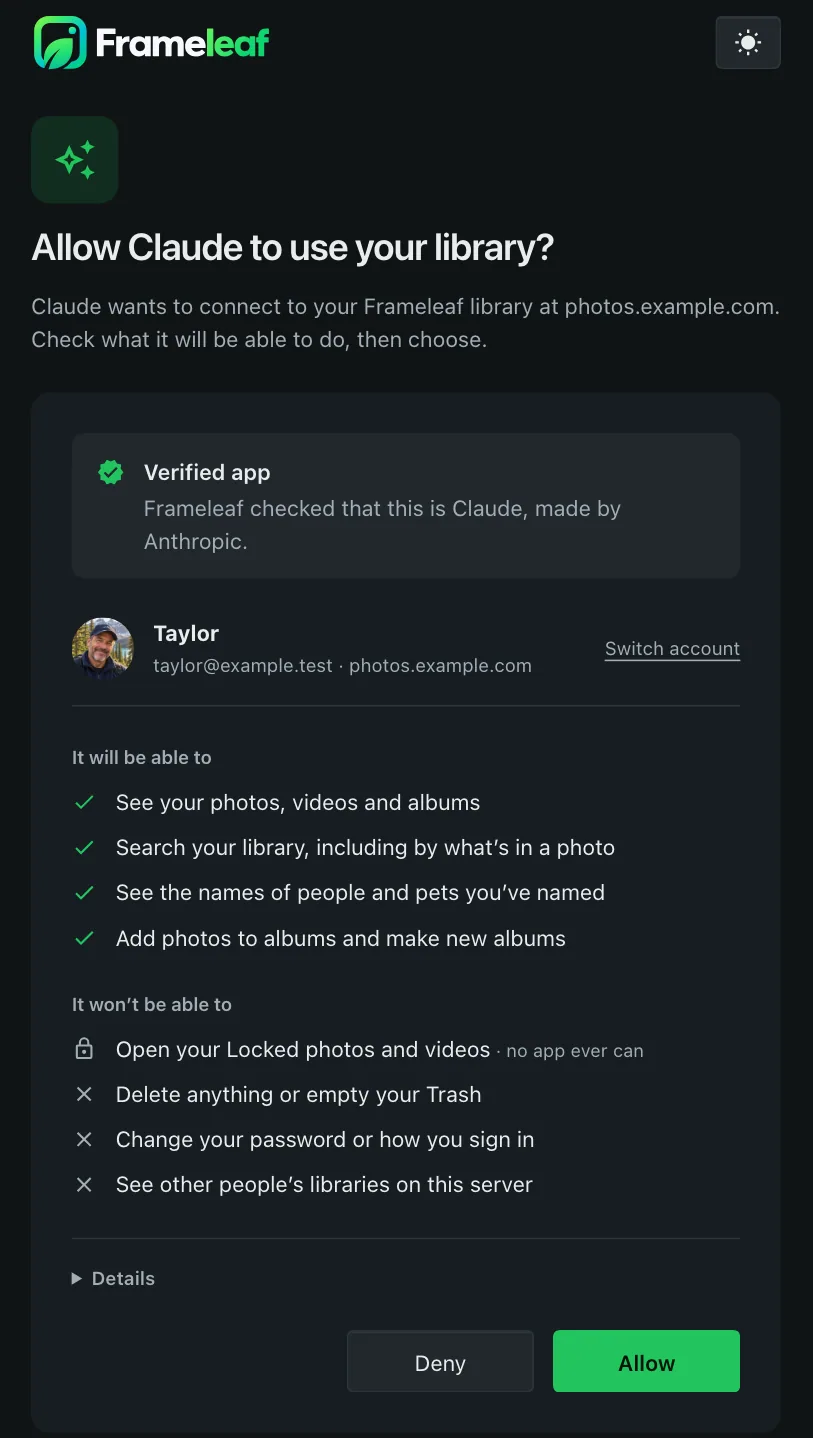
Choose Allow to connect, or Deny to stop. Nothing is shared until you choose Allow. If the page says the request expired, start again from the assistant.
What you can ask
Section titled “What you can ask”Ask the way you’d ask a person. The assistant turns your question into a search of your library, reads the results and answers.
Find photos and videos
- “Find my photos from Banff last summer.”
- “Show me videos of the dog at the beach.”
- “Which photos did I take in Lisbon in 2023?”
- “Find receipts from last year.”
People (needs the permission to see the names of people you’ve named)
- “Show me photos of Emma and Grandpa together.”
- “Who appears most often in my photos from the cabin?”
Albums, places and memories
- “What albums do I have about hiking?”
- “List what’s in my Summer 2024 album.”
- “Which cities have I taken the most photos in?”
- “What memories do I have from this week in other years?”
Details about a photo
- “When and where was this one taken?”
- “Which camera took these?”
Organise (needs the permission to add to albums or to tag)
- “Make an album called Rockies 2025 and add the best photos from that trip.”
- “Add these to my Family album.”
- “Tag these photos as Receipts.”
An assistant can apply a tag you already have. It can’t make a new tag, so create the tag in Frameleaf first.
Each request returns up to 100 photos or videos. For a bigger set, ask in parts, such as one year at a time.
What the assistant can and can’t do
Section titled “What the assistant can and can’t do”An assistant starts with permission to see and search your library. It needs separate permission for people’s names, albums and tags, and the Allow page lists exactly what it asked for.
| With this permission | The assistant can |
|---|---|
| See and search your photos, videos and albums | Search your library, read a photo’s or video’s details and show a small preview, list your albums and what’s in them, list the cities in your library and list your memories |
| See the names of people and pets you’ve named | List the people you’ve named and say who is in a photo |
| Add photos to albums and make new albums | Make an empty album and add your photos and videos to an album |
| Add tags to your photos, or take them off | Apply a tag you already have to your photos and videos |
No assistant can:
- open your Locked photos and videos, or items hidden by your Locked rules, even while you’re unlocked in your browser;
- see your Locked albums, add photos to one, or turn on a Locked album’s automatic adding. Adding to a Locked album locks the photos, so only you can do that, signed in yourself;
- see what’s in your Trash;
- download your original files;
- delete, edit or share anything;
- see other people’s libraries on your server;
- change your password, how you sign in or any server setting.
What leaves your server
Section titled “What leaves your server”The assistant’s maker receives what the assistant reads: the details of the photos it finds, such as dates, places, captions and file names, and the small previews it shows you. Your original files stay on your server. Read the permissions on the Allow page before you choose Allow, and connect only assistants you trust with that information.
Frameleaf tells every assistant to treat captions, file names and other text from your library as information, never as instructions.
Limits
Section titled “Limits”Each connected app can make 600 requests a minute, and 3,000 a minute for previews. These limits are per app, at home and away, so one busy assistant doesn’t slow another, and they don’t count your own use of Frameleaf or your API keys. An assistant that goes over is asked to wait and try again; most do this by themselves.
An assistant stays signed in while you use it. If you don’t use it for a long time, it may ask you to sign in to Frameleaf again.
See what an assistant did
Section titled “See what an assistant did”Open Settings, then Your sign-in & privacy, then Account activity, and choose Apps under Show. It lists when you connected an app or said no to one, each time an app used your library and whether it only looked or also added something, and when its access ended. Activity is kept for 400 days. See Account activity.
Connected apps also shows when each app was last used, and whether that was On your home network or Through remote access.
Remove access
Section titled “Remove access”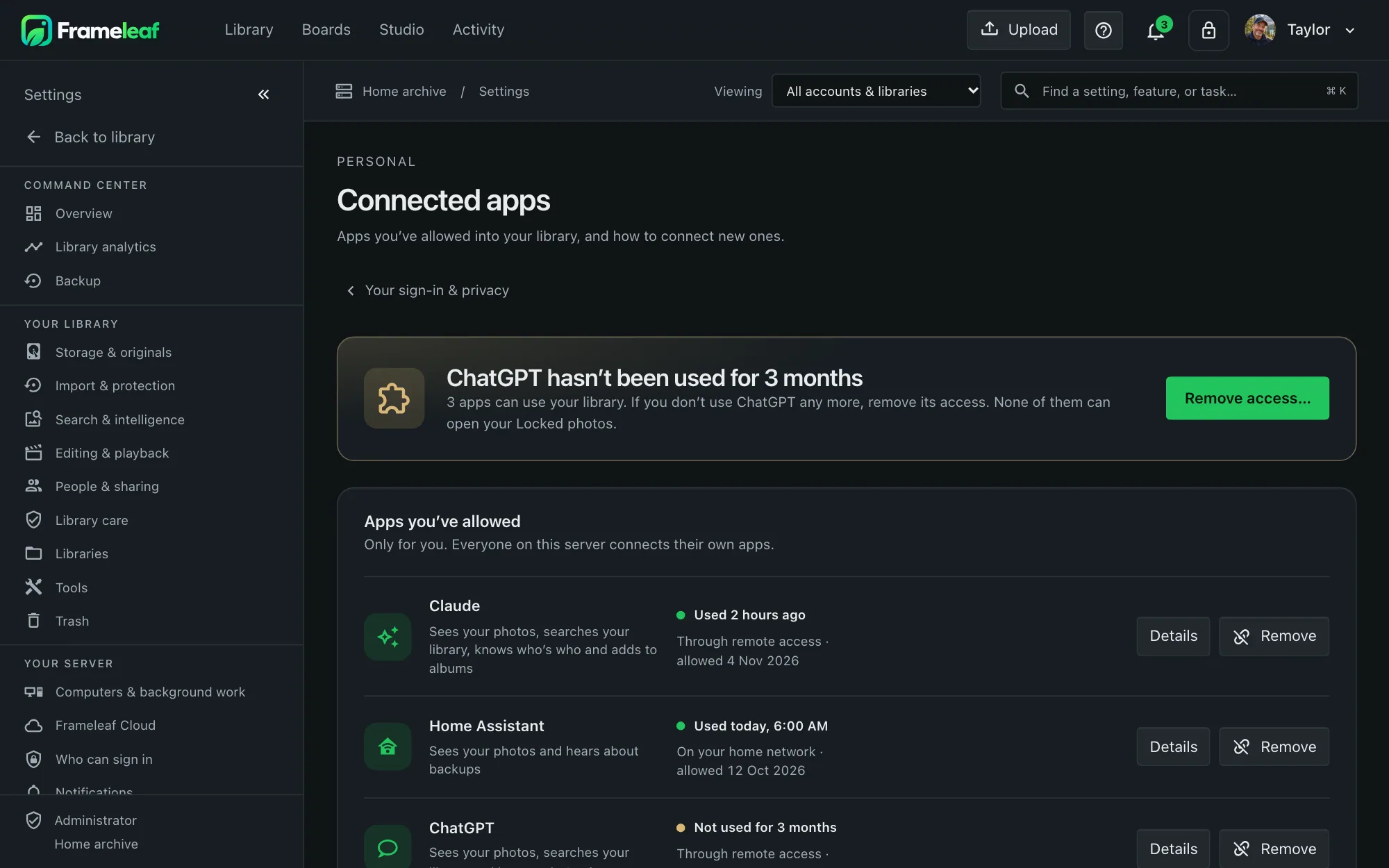
Open Settings → Your sign-in & privacy → Connected apps, choose Remove next to the assistant, then confirm Remove access. The assistant loses access immediately. Photos and details it already showed in a conversation stay in that conversation.
To use it again, connect it again. It asks you first.
If something isn’t working
Section titled “If something isn’t working”| What you see | What to do |
|---|---|
| Claude and ChatGPT need remote access | Your server is on your home network only. Get remote access with a Frameleaf plan, or choose On a computer and use an assistant at home. |
| The assistant can’t reach the address | Check that you copied the remote address, that it ends in /api/mcp, and that your server is on. Open the address’s first part in a browser to check Frameleaf answers. |
| It connects at home but not away from home | Through remote access, an app only works for an account linked to its own Frameleaf account. Link yours in Frameleaf account. |
| The app says the server doesn’t let new apps connect themselves | An administrator turned off Let new apps register themselves. Ask them to turn it on in Registered apps. |
| The assistant stopped working for everyone | An administrator may have turned off AI agents (MCP), which also stops assistants that were already connected. |
| The Allow page says the request expired or isn’t valid | Go back to the assistant and connect again. Don’t reuse an old link. |
| The assistant says a tool needs a permission | It wasn’t allowed to do that. Remove it under Connected apps, connect it again and allow the extra permission when the Allow page lists it. |
| The assistant can’t find a photo you know is there | Locked, hidden and trashed items are never shown to assistants. Otherwise try a place, a year or who is in the photo. |
| The assistant can’t find an album, or can’t add to it | Locked albums are never shown to assistants, and an assistant can’t add to one. Add those photos yourself in Frameleaf. |
| Account activity says an app was Cut off | Its access was copied and used somewhere else, so Frameleaf disconnected it to keep your library safe. Connect it again if you still use it. |
| The assistant says to wait or try again later | It reached the request limit. It can carry on after a minute. |
| It asks you to sign in again | You removed it, or it wasn’t used for a long time. Sign in and choose Allow again. |
| Frameleaf isn’t offered in a chat | Turn it on for that chat: in Claude under + → Connectors, in ChatGPT by typing @. |
For people who build things
Section titled “For people who build things”Frameleaf is an MCP server over streamable HTTP at /api/mcp, on the server’s own address or its remote-access address. Apps sign in with OAuth 2.1, using the authorization code flow with PKCE and dynamic client registration. Access tokens last an hour and refresh while the app is used. Removing an app revokes its grant and every token at once.
For scripts and tools that can’t sign in this way, use an API key with the Server API.
See Connected apps for every permission, account activity and the administrator controls.
© 2026 Frameleaf Inc. All rights reserved.
Frameleaf and the Frameleaf logo are Trademarks of Frameleaf Inc.