
Collect what inspires your work.
Boards is a free workspace for references, mood boards and design files, on the same server as your photos. Save images, videos, design files, fonts and links, file them in collections as deep as you like, and find them again by colour, tag or where they came from.
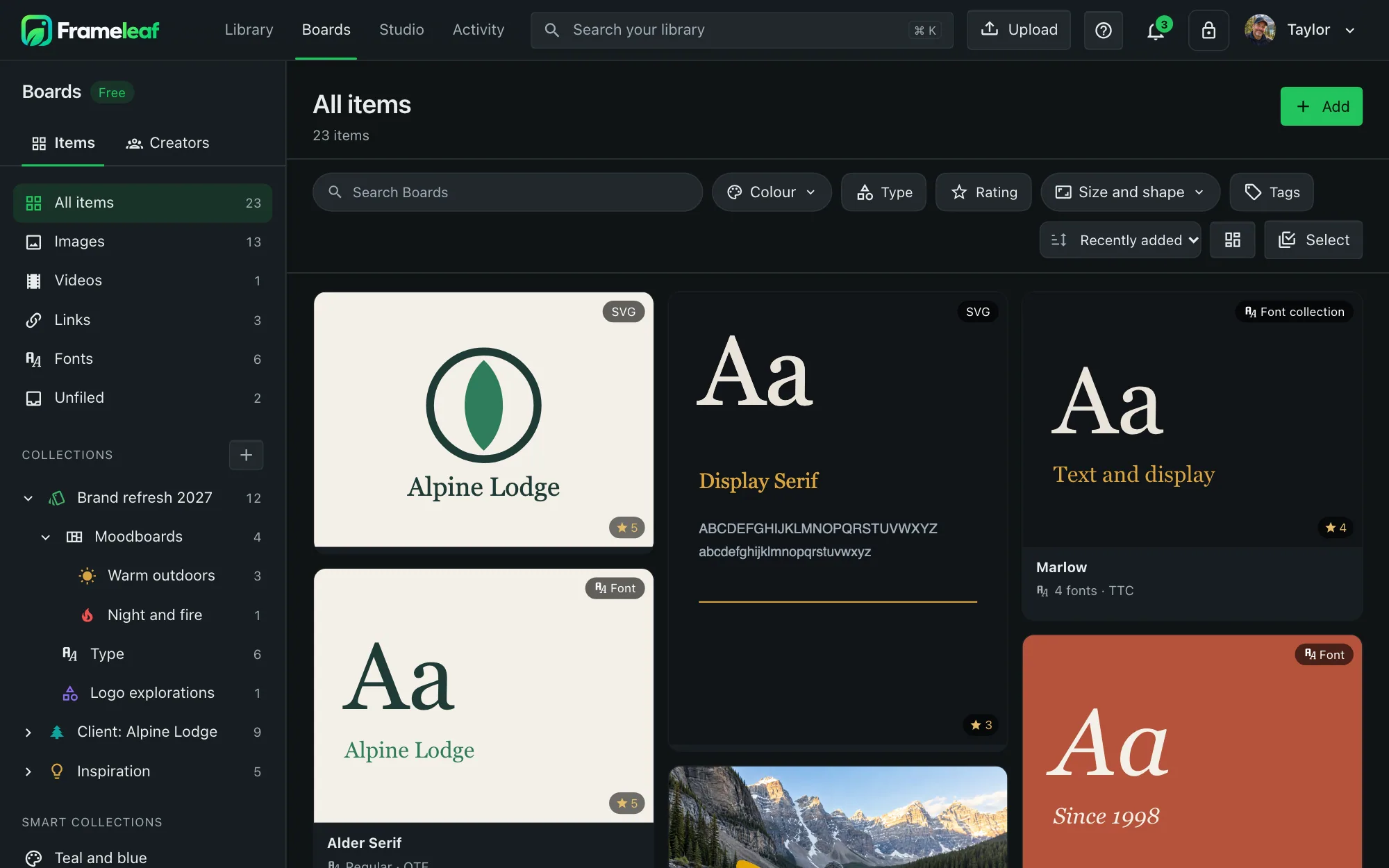
Collections as deep as the project.
Boards keeps its own space. What you add there stays out of your photo timeline, unless you switch on Show in Photos too for an item.
- Nest collections inside each other, with an icon and one of eight colours, then drag items or whole collections to move them.
- Smart collections keep a filter, such as "Teal and blue" or "Saved this week", and fill themselves.
- Rate and reject with one to five stars, or Reject to keep something but leave it out of picks.
- Notes, tags and sources on every item, so you remember why you saved it and where it came from.
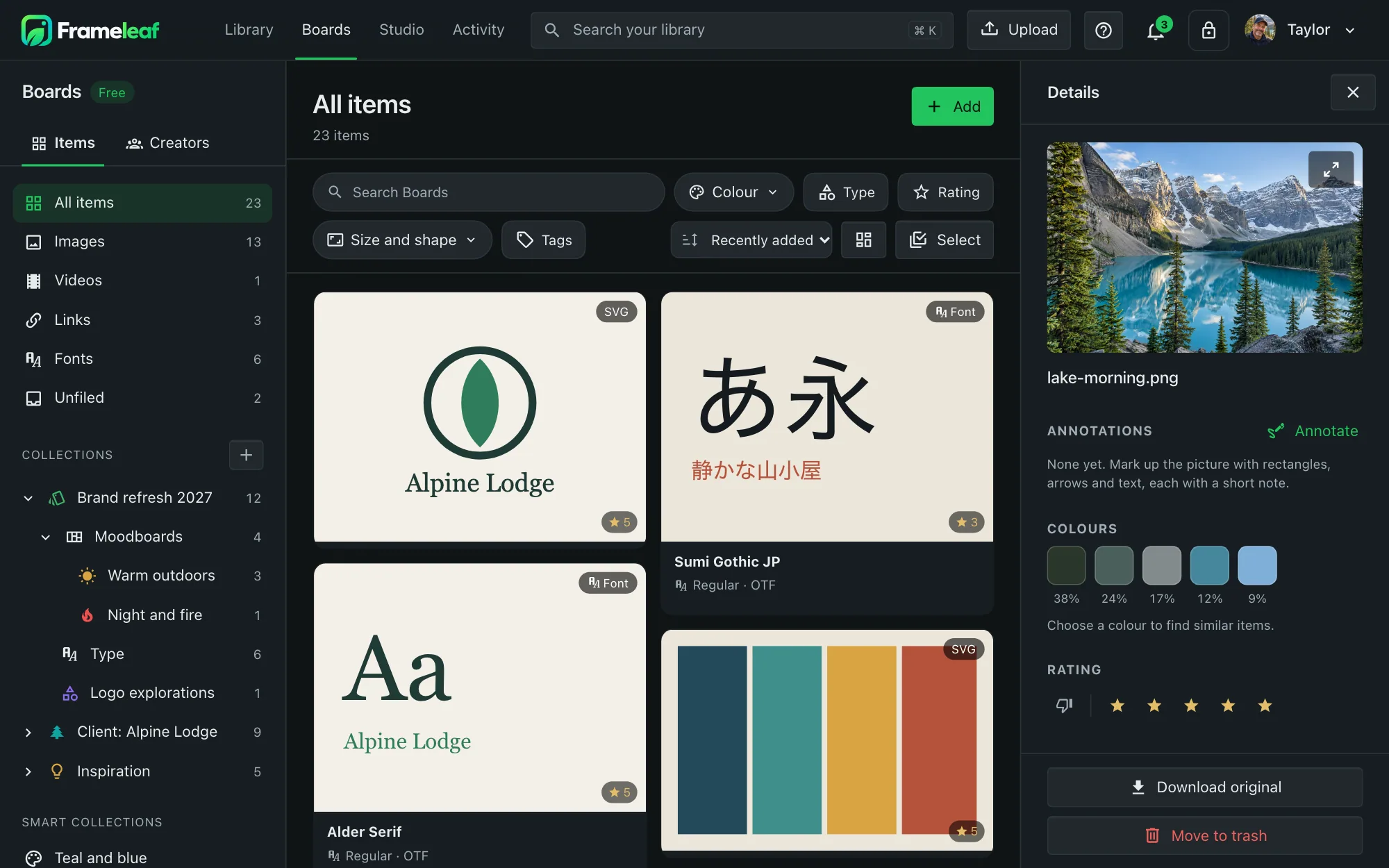
Find it by colour.
Every image gets its palette read when it arrives. Videos and GIFs are matched on a frame from the middle of the clip.
- Pick a colour from the palette or any colour you like, then choose Exact, Close or Loose.
- Only the main colour narrows the results to items where that colour leads.
- Type, size and shape filters find the wide hero image, the square logo or the portrait poster.
- Save the filter as a smart collection in one click.
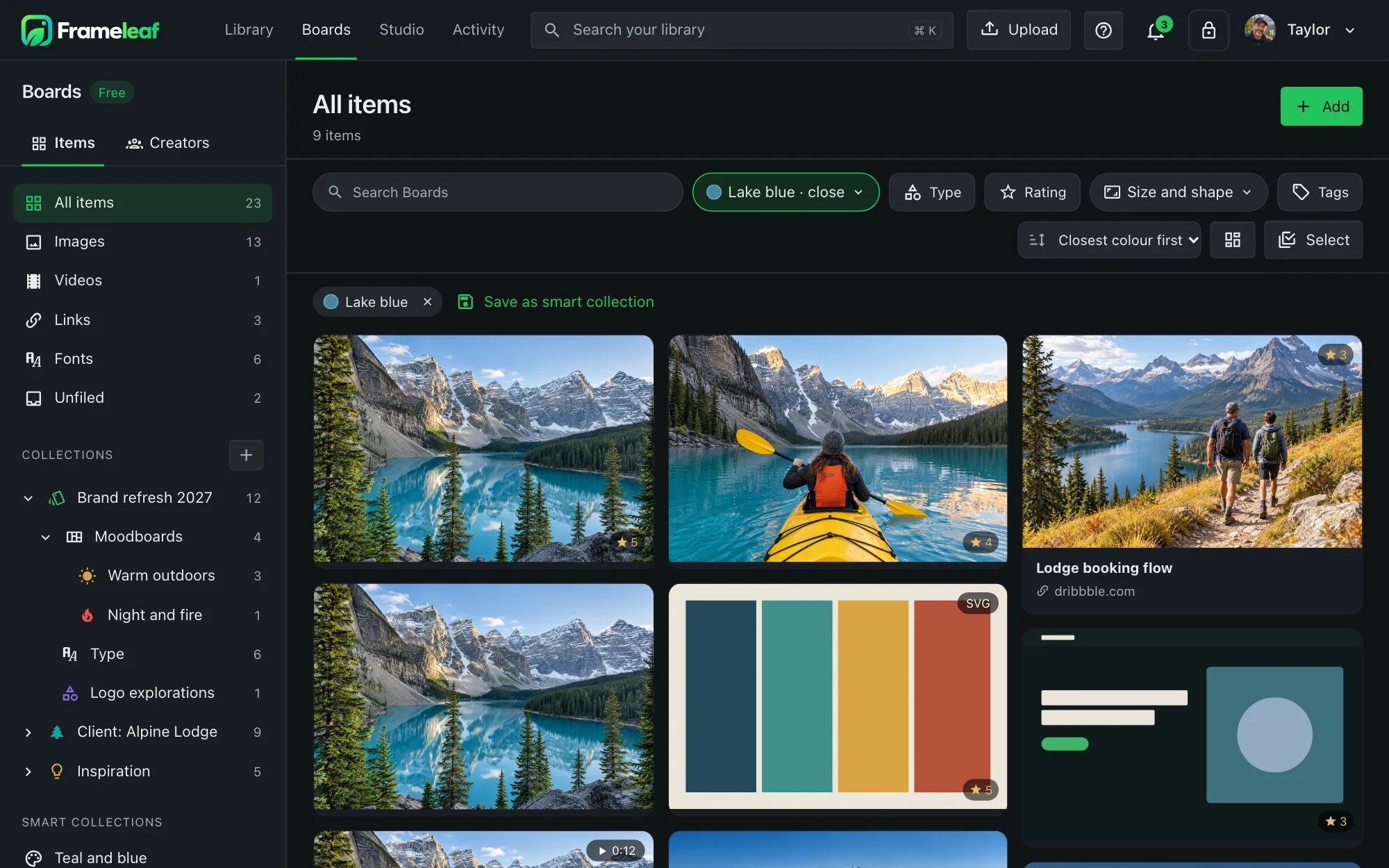
Mark it up, without touching it.
Annotations stay with the item and travel with it when you download with the library file.
- Rectangles, arrows and text each with a short note, numbered in the order you add them.
- Drawn over the picture, not into it so the original file never changes. Press H to hide them.
- Keyboard shortcuts too: Tab goes from one annotation to the next, the arrow keys move it and Alt with the arrows resizes it.
Your working files, not just the exports.
Drop in the Photoshop document, the PDF and the font you set it in. Boards shows each one, and keeps the original exactly as you saved it.
Photoshop, as you saved it
PSD and large-document PSB files show the whole design, including 16-bit, 32-bit and CMYK work, and files saved without Maximize Compatibility.
PDF and Illustrator
A PDF or Illustrator file shows its first page, and its details say how many pages it has.
Figma, Sketch and more
Sketch, Adobe XD, Figma, Procreate, Krita, GIMP and CorelDRAW files show the preview saved inside them.
Fireworks PNG
Editable Fireworks PNGs show their picture and stay editable. The layers and pages inside the file are never touched.
Filed like everything else
Design files sit in the same collections as your references, with their own tags, ratings and notes.
Nothing is turned away
A design file Boards can't draw yet is still kept, backed up and downloadable, with a plain tile.
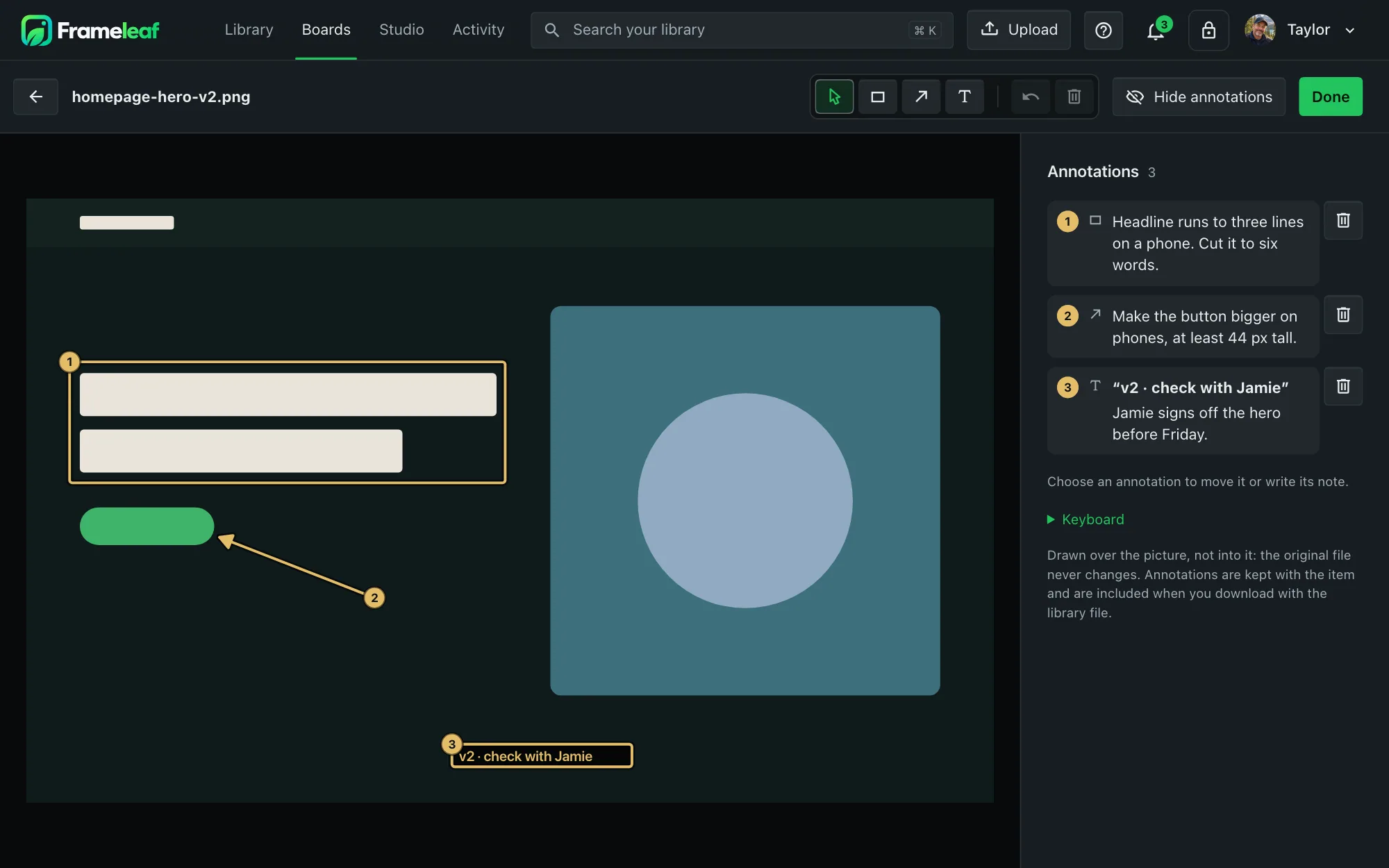
Fonts, beside the work that uses them.
Keep a project's typefaces in the same collection as its references. Every font is shown in its own letters, so you can pick one by eye.
A specimen for every font
Each font gets a tile drawn in its own letters, in the script it was made for. A Japanese font is shown in Japanese.
Try it
Open a font and type your own words. Change the size and line spacing, and switch its features on and off.
Variable and colour fonts
A variable font has its ready-made styles and a slider for every axis. Colour fonts show in colour.
Set board text in it
Use any font in Boards for a text note, with its own size, colour and weight.
The details designers check
Family, style, weight, glyph count, scripts and the licence text stored in the font.
Shared with care
A shared link sends the font file only when you allow downloads. Otherwise people see the specimen.
Save to Frameleaf, from any page.
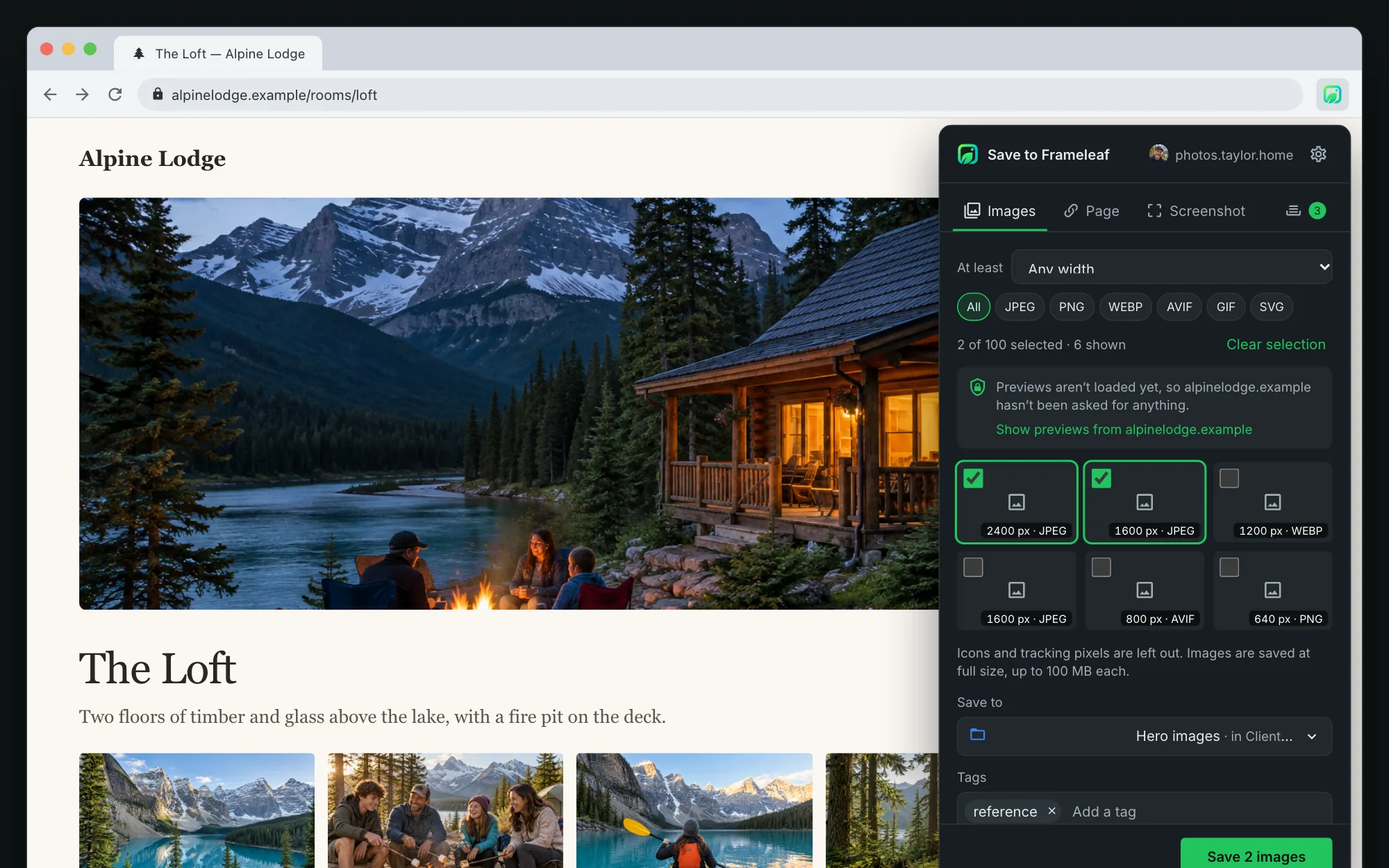
The Save to Frameleaf extension for Chrome puts everything you find on the web into Boards on your own server. Items wait in the browser if your server is away, and save when it is back.
- Images from the page you are on, at their full size, with icons and tracking pixels left out.
- The whole page or an area as a screenshot, or the page itself as a link with its title and picture.
- Straight into a collection with tags, remembering the last collection you used on each server.
- Sign in with your Frameleaf account then allow the extension once. It can save into Boards, but it can never see your photos.
Bring your Eagle library.
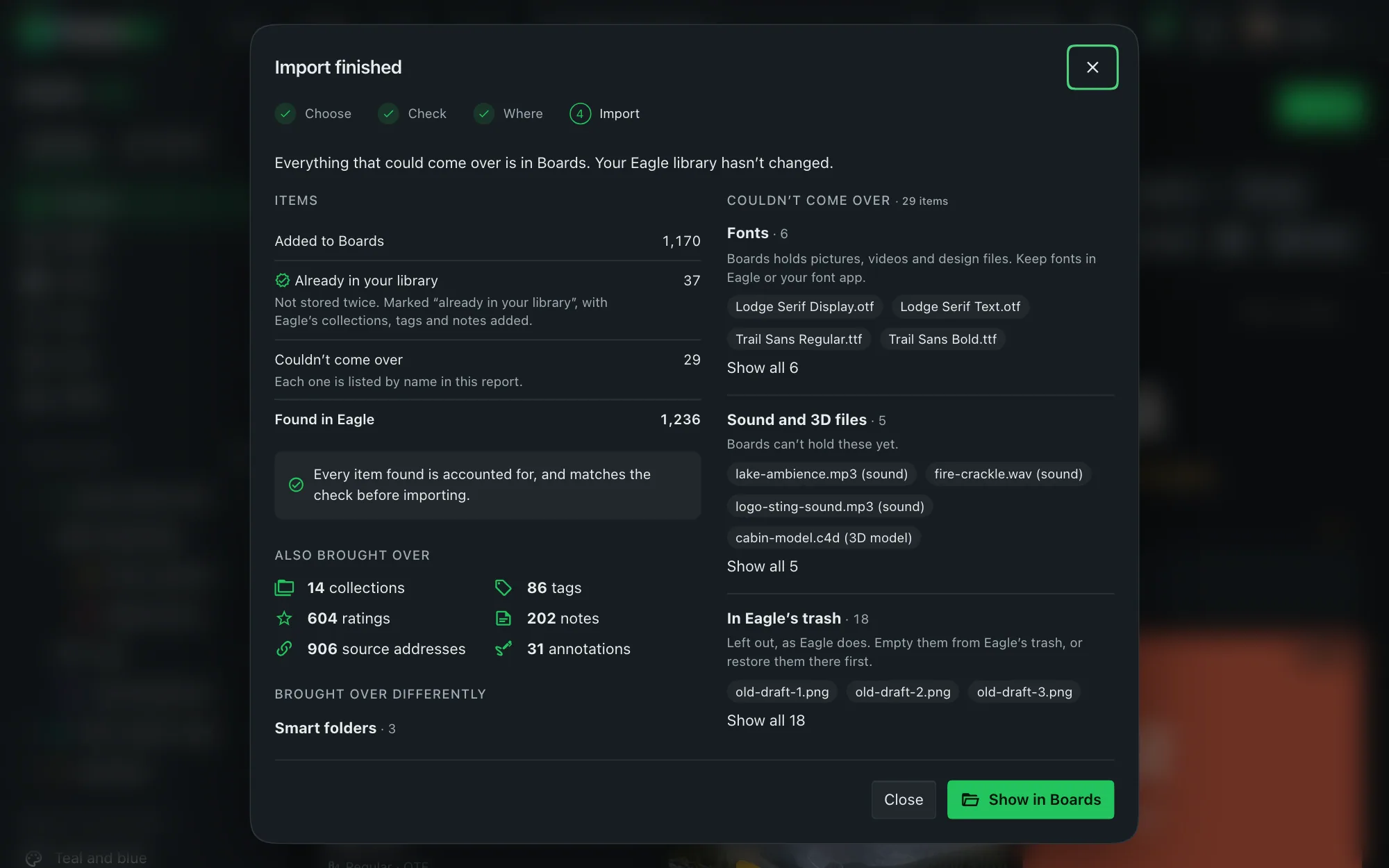
Import from this computer, or from a folder your server can open. Name clashes come in as "Name (Eagle)", so nothing is overwritten.
- Collections, tags, ratings and notes come across, with source addresses and added dates.
- Fonts too come over as Boards items, each with its specimen.
- Already in your library? Files you already have are not stored twice.
- A clear report lists anything that could not come over by name, and your Eagle library is left unchanged. Sound and 3D files come over as files you can download.
Your work, never locked in.
Free with Frameleaf
Boards comes with every Frameleaf server. No seats, no extra plan.
Download with a library file
Download originals as a .zip, with an optional frameleaf-library.json that keeps collections, tags, ratings, notes, annotations, sources and links, so the work can move to another app.
Share like an album
Collections are albums underneath, so you can share one with a colleague or client the same way.
Stored at home
References, client work and drafts sit on your own disks, and are included in your server's backups.